
Introduction
This guide will show you how to rotate a PDF and save it for free. In this way, you can correct incorrect page orientation, improve presentation, and optimize the overall user experience when reading or sharing PDF files. These methods apply to Windows and Mac computers.
Quick Start: How to Permanently Rotate a PDF
You tried to rotate a PDF and save the changes in your browser or Google Drive. However, the rotation effect was not retained. Let’s clear up your confusion with three questions and answers.
Why won’t my PDF rotate when I save it?
When you rotate a PDF file in the browser, it usually only changes how it is displayed, not the actual orientation. Therefore, when you save the file, the PDF file remains unchanged.
Can I rotate a PDF file and save it?
Yes. You can use a reliable PDF editor, such as JOPDF, to rotate a PDF and save the changes for free.
How to rotate a PDF and save changes?
Open the document in JOPDF and go to Pages > Select the pages you want to rotate and click the Rotate icon > Finally, click the Save button to save the rotation.
1. Rotate a PDF and Save It for Free with JOPDF
Best for: Windows and Mac users who want a professional, free editor to rotate a PDF permanently.
When you want to permanently rotate a PDF file, we recommend using JOPDF, a professional PDF editor. It is a lightweight and full-featured PDF editor that supports Windows, macOS, iOS, and Android. All the powerful features, including PDF creation, annotation, page management, and protection, are presented through an intuitive interface.
JOPDF lets you rotate a page, selected pages, or all pages easily and quickly. You can rotate the page by 90, 180, or 360 degrees as needed. With just a few clicks, you can make adjustments and obtain a correct document.
Here is how to rotate a PDF and save it with JOPDF:
1. Download JOPDF. This software is 100% free to use.
2. Click Organize PDFs and select the document.
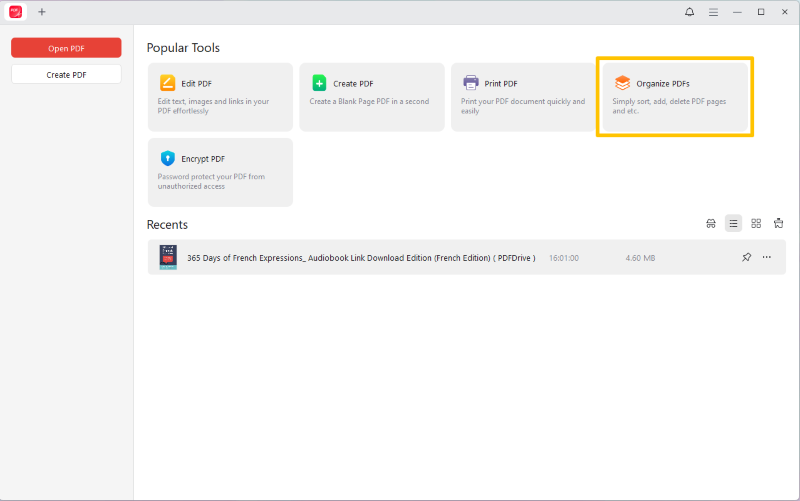
3. Find and select the pages you want to rotate.
4. Click the Rotate button to adjust the page to the correct orientation.
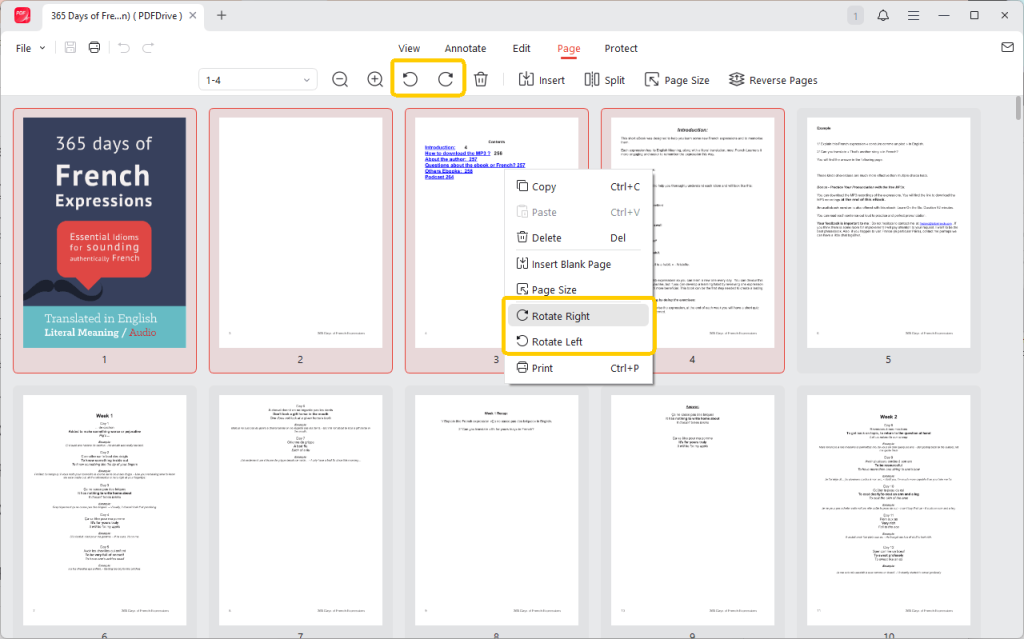
5. Finally, click the Save button.
2. Rotate PDF in Mac Preview
Best for: macOS users who want to rotate and save PDF files quickly and hassle-free.
The macOS system has a built-in PDF viewer and editor called Preview. This app is free, and its main features include page rotation, annotation, split and merge, and fill-in. If you are using a Mac, it is very convenient to use the Preview app to rotate PDFs, as you do not need to download additional software.
Check to learn how to rotate PDF for free in Preview:
1. Right-click the document. Choose Open With and select Preview.
2. Find the page you want to rotate. If you want to rotate multiple pages, please click View > Thumbnails or View > Contact Sheet, and then press Command (⌘) and select them.
3. Click the Rotate button at the top.
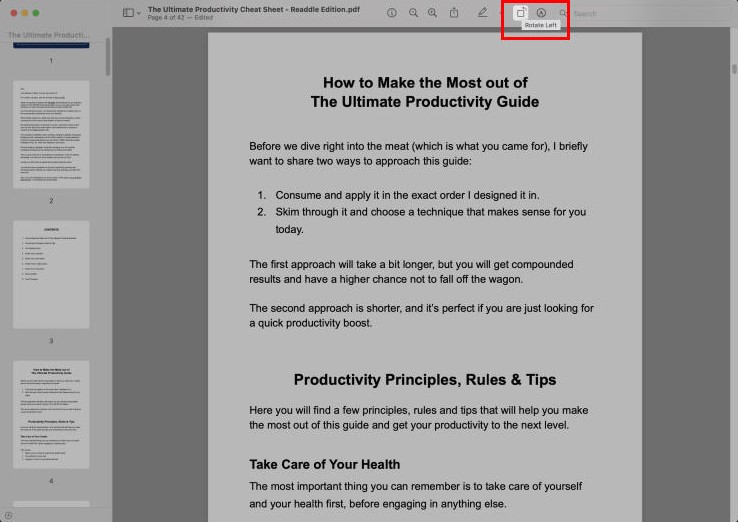
4. Go to File > Save or Export as PDF to save the document as a new copy.
3. Use an Online Tool to Rotate PDF
Best for: Users with an Internet connection who want to rotate PDFs without installing software.
In addition to desktop programs, many online tools, such as iLovePDF, Smallpdf, and PDF2GO, can help you rotate a PDF for free. They offer a range of practical tools, including rotate, merge, split, convert, compress, add watermarks, and more.
However, online tools are free to use but have limitations and cannot handle large documents. In addition, uploading files to third parties may pose risks. If you don’t think this is a problem, follow the steps below.
Steps to rotate a PDF online:
1. Open a browser and go to an online PDF editor. Here, we choose Smallpdf.
2. Upload the document. You can click CHOOSE FILES to select the file or drag and drop it into the box.
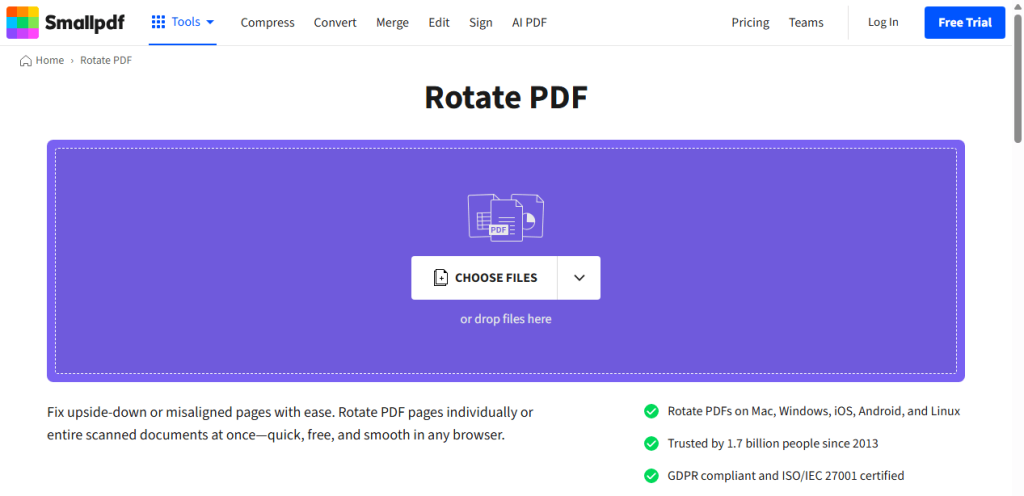
3. Click the Left or Right icon to rotate all the pages. Or, you can click the Rotate icon on the page to roate it.
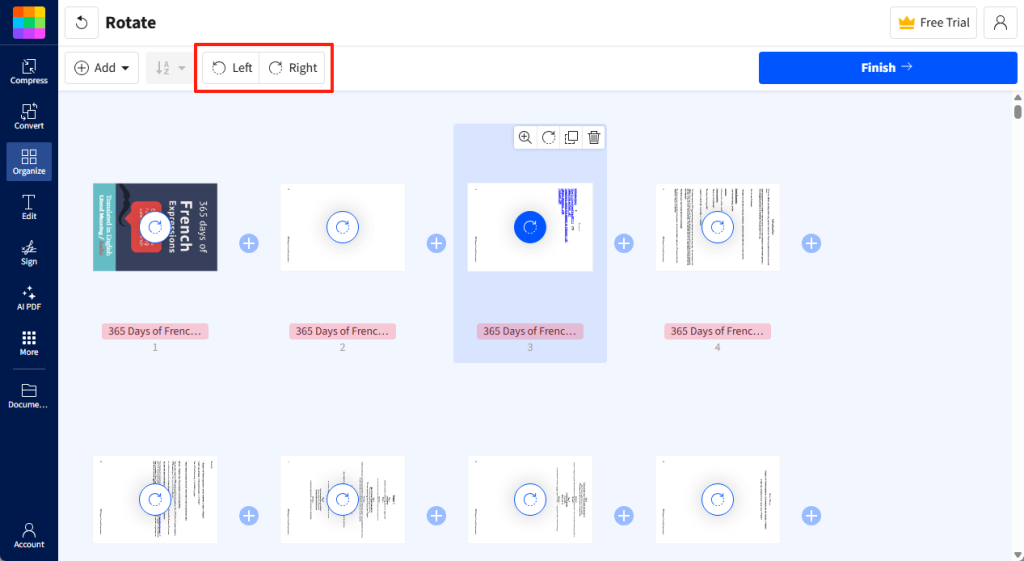
4. When OK, click Finish and download the PDF to your computer.
4. Rotate PDF in Adobe Acrobat
Best for: Professional users who don’t mind paying for an industry-standard solution.
Adobe Acrobat is an industry-standard PDF solution that works well on all platforms. It has a free version and a paid version. Many features, including page rotation, require upgrading to the Pro version to access. However, there is a workaround in Adobe Reader that lets you rotate PDFs while preserving the changes.
How to rotate a PDF in Adobe Acrobat Pro:
1. Open the PDF in Adobe Acrobat.
2. Find and select the Organize Pages option under the All tools section.
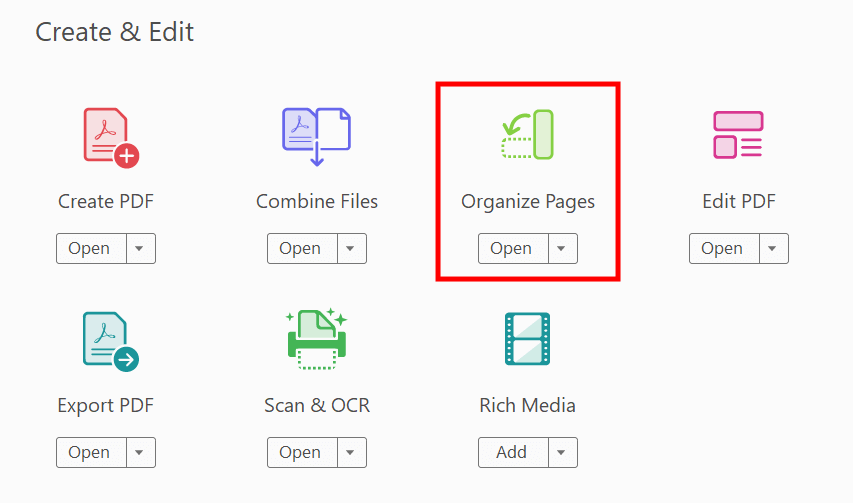
3. Select the pages you want to rotate.
4. Click the Rotate Left or Rotate Right button.
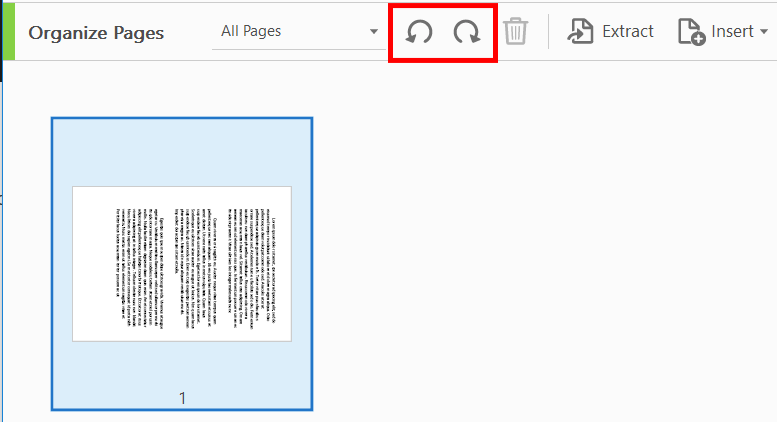
5. To conform, please click the Save button.
How to rotate PDF and save changes in Adobe Reader for free:
In Adobe Acrobat Reader, you can use the Print feature to rotate PDFs and save changes. However, please note that the text, images, and other elements in the document will become unselectable and cannot be edited. But don’t worry too much. If necessary, you can use OCR technology to make it editable again.
1. In Adobe Acrobat Reader, open the PDF document.
2. Click the Menu button. Choose View and select Rotate view. Click Rotate view right or Rotate view left to change orientation.
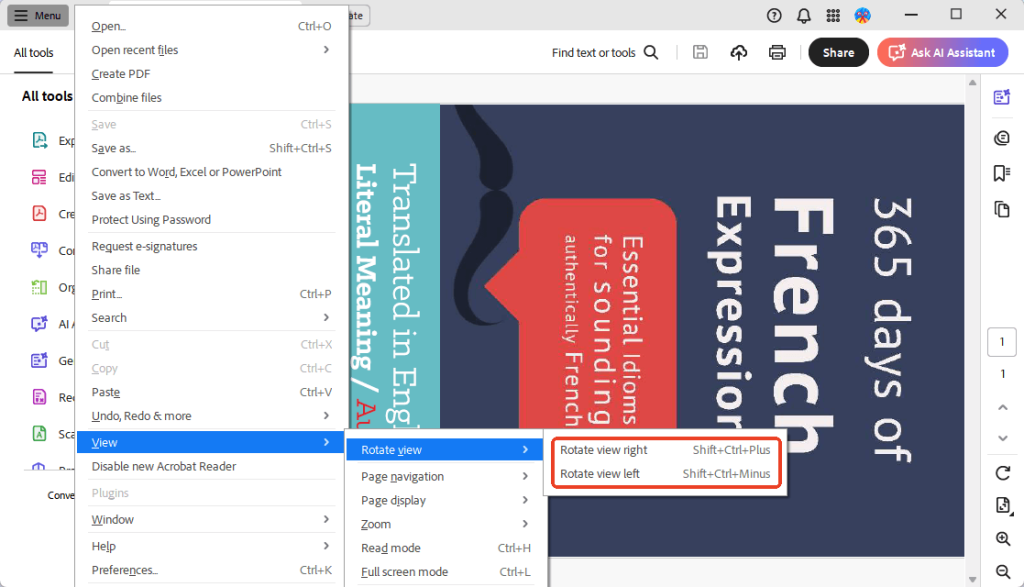
3. After that, click the Print button.
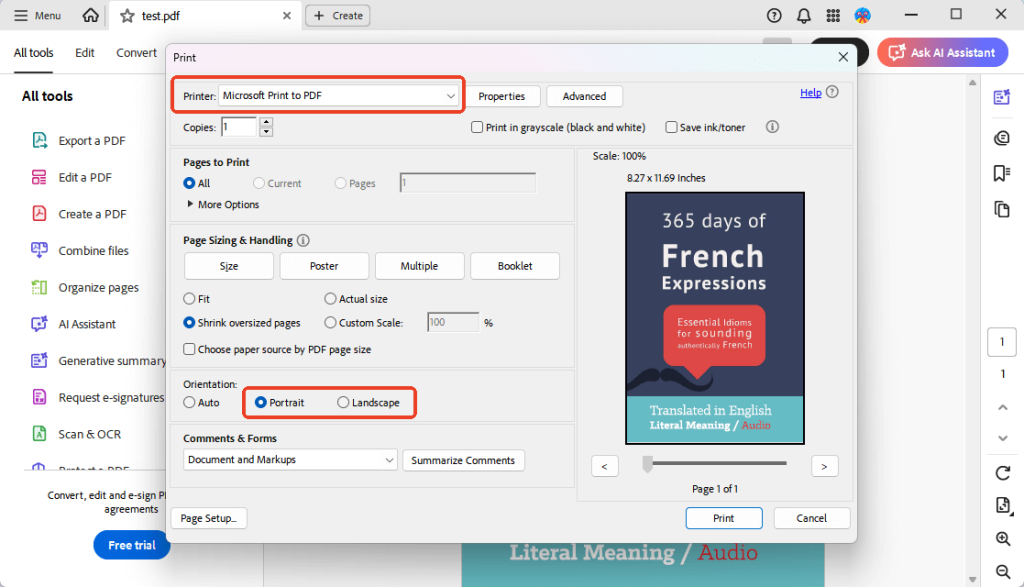
4. On the Print dialog, choose Microsoft Print to PDF as the printer. Select the pages to rint.
5. Under Orientation, select Portrait or Landscape.
6. Click Print. Then, name the file and select a location.
Now you will have a PDF in the correct orientation.
Conclusion
That’s all about how to rotate a PDF and save it for free. There are many tools available to help you complete your task. After learning about these tools and trying them out, you should have a clear idea of which one best suits your needs. Of course, if you prefer a professional, free tool, JOPDF is the way to go!
FAQs
Table of Contents

Your Best Free PDF Expert in PDF editing, compressing, converting, annotating, protect, organizing, and more.
Free DownloadWindows · macOS

Queena
Editor
“As a staff editor for JOPDF, Queena excels at guiding users to the optimal tools and solutions. When she's not analyzing the latest PDF solutions, she enjoys spending her free time playing with her four cats.”
![[2026 Newest] Expert Guide on How to Rotate a PDF in Google Drive](https://b.jopdf.com/wp-content/uploads/2026/01/how-to-rotate-a-pdf-in-google-drive-thumbnail.png)
