![[2026 Newest] Expert Guide on How to Rotate a PDF in Google Drive](https://b.jopdf.com/wp-content/uploads/2026/01/how-to-rotate-a-pdf-in-google-drive-thumbnail.png)
Introduction :
PDF rotation is essential when pages scan sideways, appear upside down, or disrupt smooth reading and sharing. Learning how to rotate a PDF in Google Drive enables users to quickly resolve misaligned pages and present documents neatly. This JOPDF article explains whether you can rotate a PDF in Google Drive and the best ways to rotate a PDF on Windows, Mac, iPhone, Android, and online. Continue reading to rotate PDFs with ease and ensure your documents are perfectly aligned in seconds.
Can You Rotate a PDF in Google Drive
Yes. Google Drive lets you rotate PDFs, but this function is primarily for viewing on-screen. In Google Drive, rotating a PDF usually changes its orientation only for preview purposes and isn’t permanent. As a result, the document can return to its original orientation after downloading or reopening. This restriction can be frustrating when dealing with scanned documents or pages with the wrong orientation.
If you need to save or share a permanently rotated PDF file, you may need to take additional steps or use third-party tools. As a free PDF editor, JOPDF makes it simple to rotate PDFs and maintain the correct layout on every device.
How to Rotate a PDF in Google Drive
Google Drive provides a straightforward way to access and organize PDF files online. Rotating a PDF helps correct orientation issues and makes documents easier to read and share. This option is especially useful for scanned files or documents opened sideways.
Find outhow to rotate a PDF on Google Drivein just a few clicks.
Step 1. Open Google Drive in your browser using the navigation bar. Or, Google Chrome users can locate the Google Drive icon in the upper-right grid menu of their browser window.
Step 2. Drag the PDF file from your desktop or computer folder directly into the Google Drive window, and it will upload automatically.
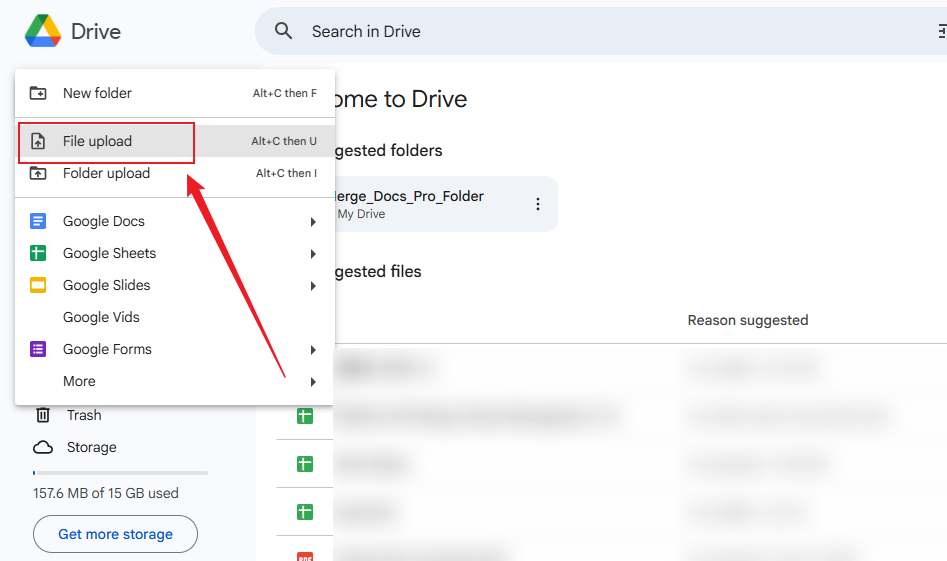
Alternatively, tap the New button and choose File Upload from the drop-down menu. And import your PDF to Google Drive this way.
Step 3. Tap the file name or icon twice to open your PDF. You’ll see a general preview window pop up over your Google Drive page.
Step 4. Using the Print function will launch a new window or tab, based on your current browser settings. This new view of your document will allow you to edit the PDF.
Tap the Rotate Counterclockwise button in the toolbox at the top of the print window to rotate the document 90 degrees counterclockwise. Continue clicking this button until the document rotates to the appropriate radial distance and appears as intended.
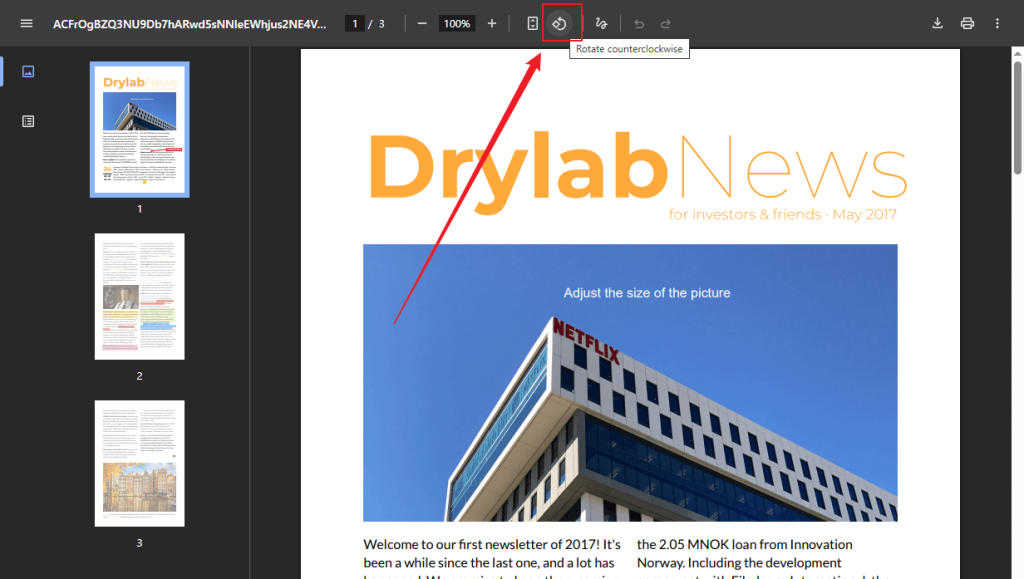
Or right-click and select either Rotate clockwise or Rotate counterclockwise. Keep performing this step until the PDF reaches the desired direction.
How to Rotate a PDF in Google Drive on Mobile
The Google Drive app does not offer a dedicated option to rotate PDFs permanently on mobile. The app mainly supports viewing rather than editing. However, you can use the “Print trick” in a mobile web browser like Chrome. It works when Google Drive is opened in a browser rather than the app, making it less convenient but workable.
Learn exactly how to rotate a PDF in Google Drive on Android and iPhone in just a few steps.
Step 1: Open the PDF on your phone via the Google Drive website.
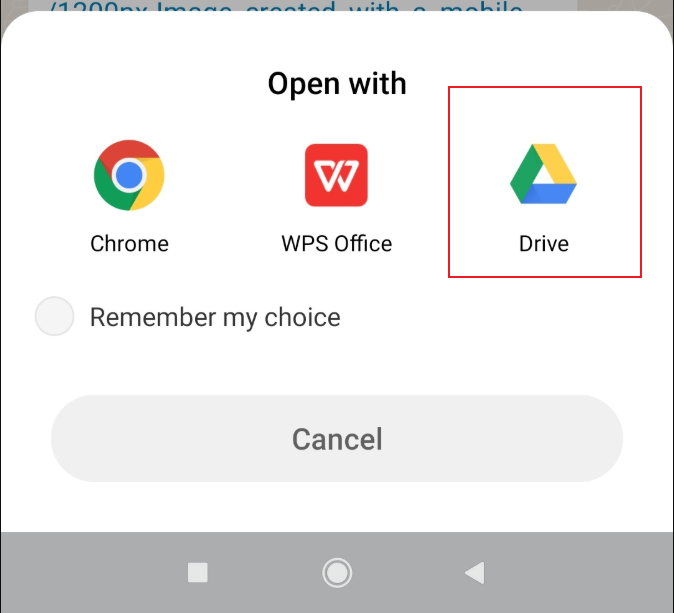
Step 2: Tap the three-dot icon and choose Open with. Then select Chrome or a browser.
Step 3: Tap the Print icon (often in the top right). In the print preview, you should see a Rotate icon to adjust the page orientation.
Step 4: Tap the Download/Save icon to save the rotated PDF to your device.
Alternative Ways to Rotate a PDF Permanently
Sometimes you need more than on-screen rotation, so learning to rotate PDF pages permanently is essential. You can also flip or mirror PDFs with free tools, keeping the changes permanent when sharing or printing.
Here are the three methods that give full control over your document’s orientation on desktop and online.
Option 1. Rotate PDFs for Free Using JOPDF
JOPDF is a desktop PDF editor for Windows and macOS that lets users edit a PDF for free. Using it, you can easily rearrange PDF pages, move them in any order you like, and organize your document exactly how you want.
Whether you need to rotate only one page in a PDF or multiple pages, or all pages, JOPDF makes rotation easy. This makes it ideal for correcting orientation issues, organizing your documents efficiently, and making sure every page appears exactly as intended. It provides an easy way to permanently rotate PDFs without any hassle.
Follow these steps to rotate individual or multiple PDF pages using JOPDF in just a few clicks. At the beginning, download and install JOPDF on your PC. Then, click Open PDF to upload the target PDF. Next, navigate to the Page tab.
✨Rotate Multiple PDF Pages
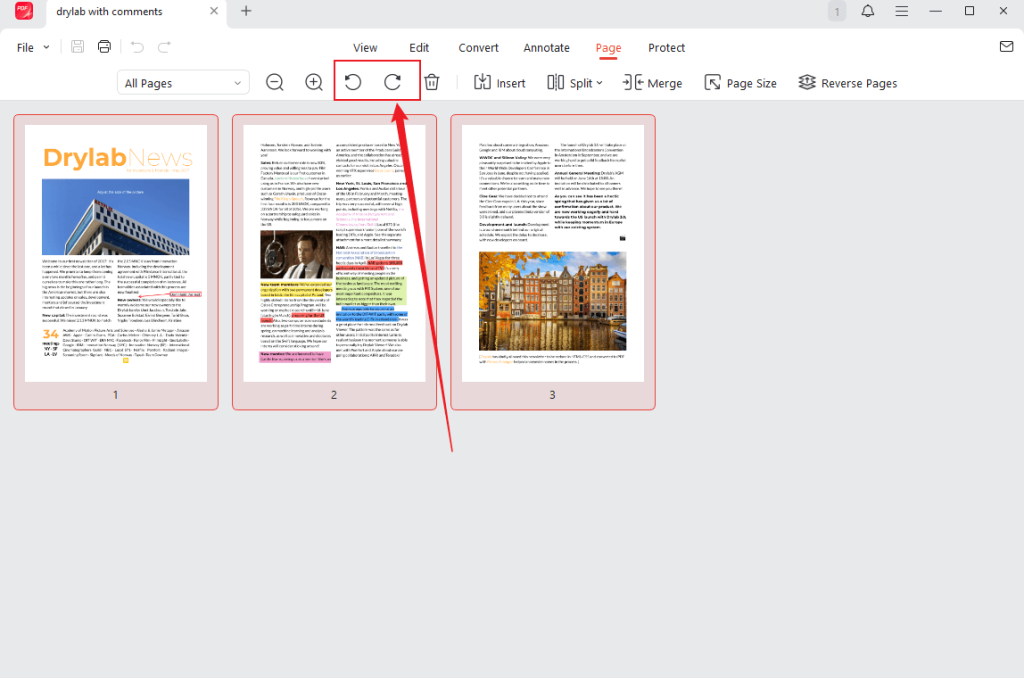
Step 1: Pick all the PDF pages you intend to rotate.
Step 2: Tap the Rotate Left or Rotate Right button on the top menu. The selected pages will adjust by 90 degrees, aligning exactly as intended.
✨Rotate a Specific Page
Step 1: Choose the PDF page you wish to rotate. Automatically, the sidebar will open on your screen.
Step 2: Select either the first or second icon in the sidebar to rotate the page 90° in either direction.
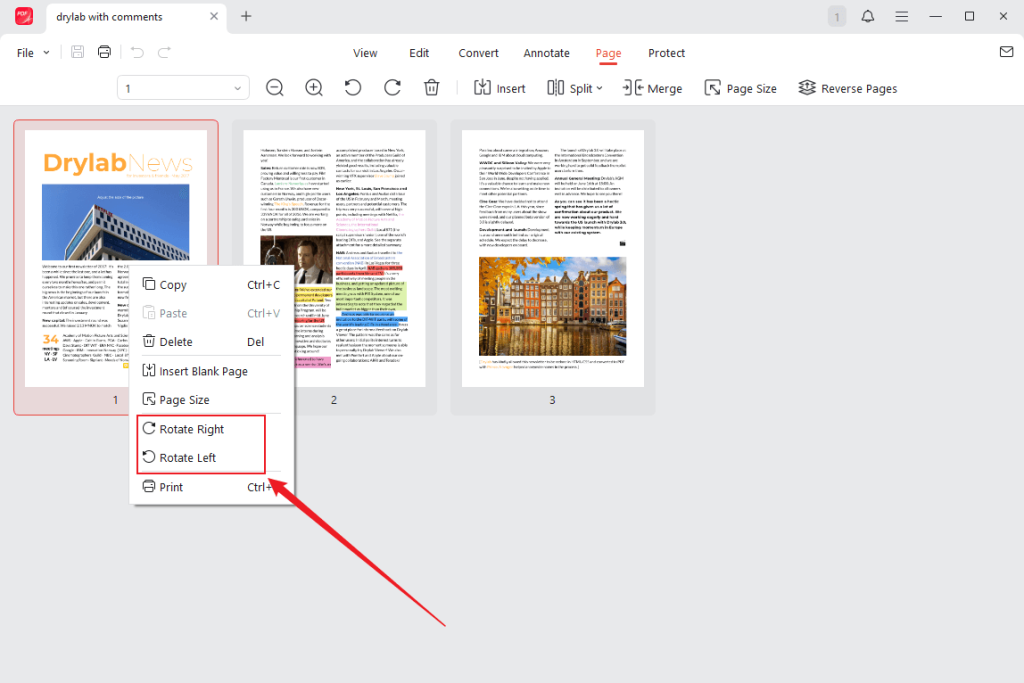
Alternatively, click the page with the right mouse button and pick Rotate Right or Rotate Left.
Option 2. Permanently Rotate a PDF via Google Drive and Google Docs
You can also change PDF to landscape or portrait permanently through Google Drive and Google Docs. This method turns your PDF into an editable file, allows you to modify the page orientation, and then saves it again as a PDF with the updated layout intact.
Learn how to permanently rotate a PDF quickly using Google Drive combined with Google Docs in a few clicks.
Step 1: Launch Google Drive. And upload the PDF you want to rotate.
To proceed, right-click the PDF and select Open with > Google Docs. The PDF will be converted into an editable Google Docs file.
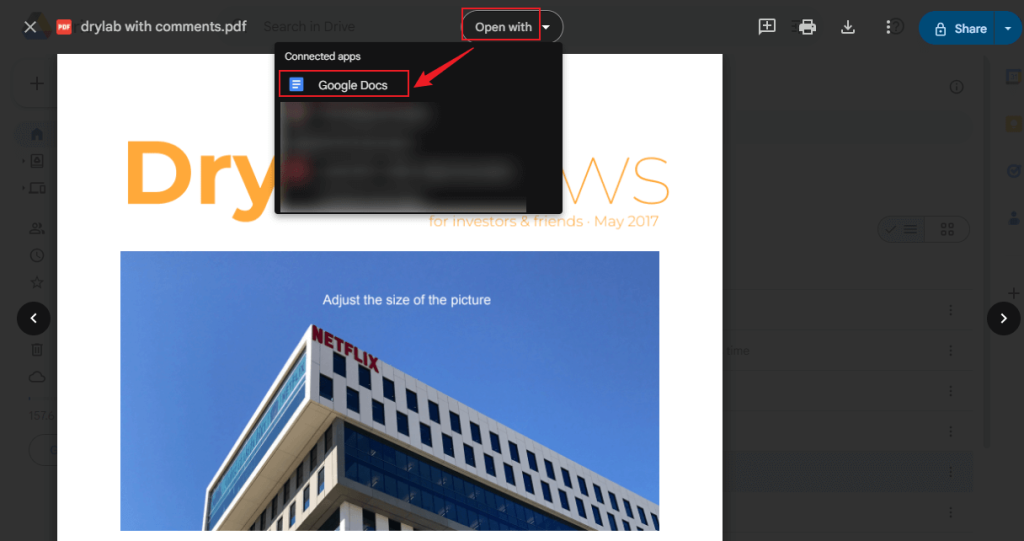
Step 2: Tap the File icon at the top-left corner, and choose Page setup from the dropdown menu.
Step 3. Within the Page setup window, select either Portrait or Landscape in the Orientation section. Click OK.
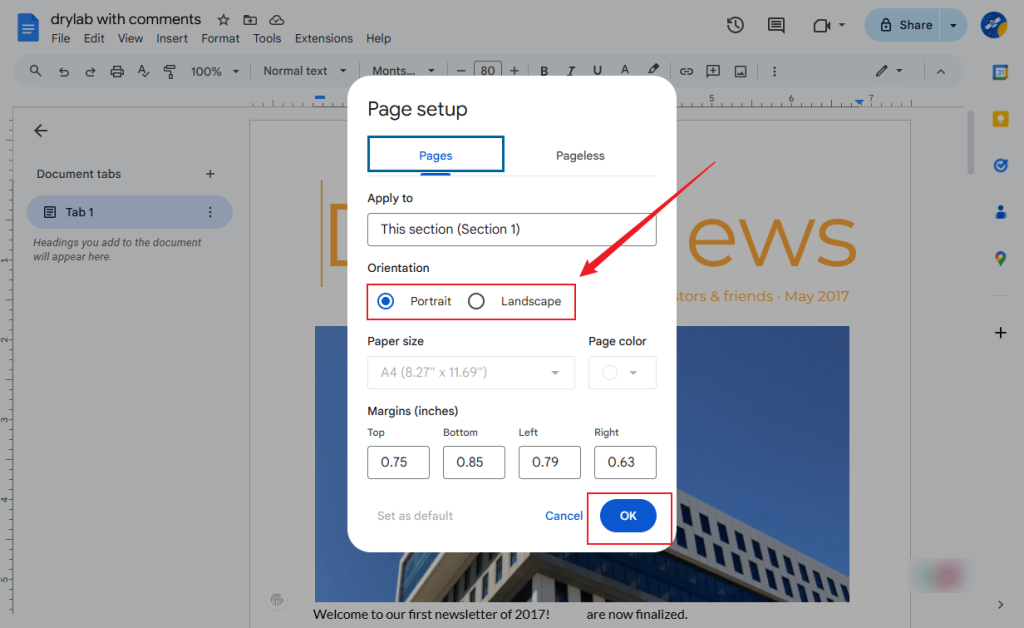
Adjust the content where required to ensure it fits properly.
Step 4: Go to the File menu, select Download, and click PDF Document (.pdf) to save the document.
Your PDF is now rotated permanently and prepared to share with others.
Option 3. Rotate a PDF Online in iLovePDF
iLovePDF offers an easy way to rotate PDF pages permanently straight from your web browser. It’s excellent for quickly correcting orientation, flipping pages, or adjusting scanned documents, all directly via your browser.
Discover how to rotate a PDF permanently online using iLovePDF in a few clicks.
Step 1: Open iLovePDF in your web browser. Click the Rotate PDF tool in the main menu.
Step 2: Tap Select PDF files to upload your desired PDF documents to the tool. Or, you can drop your PDF(s) directly in the program.
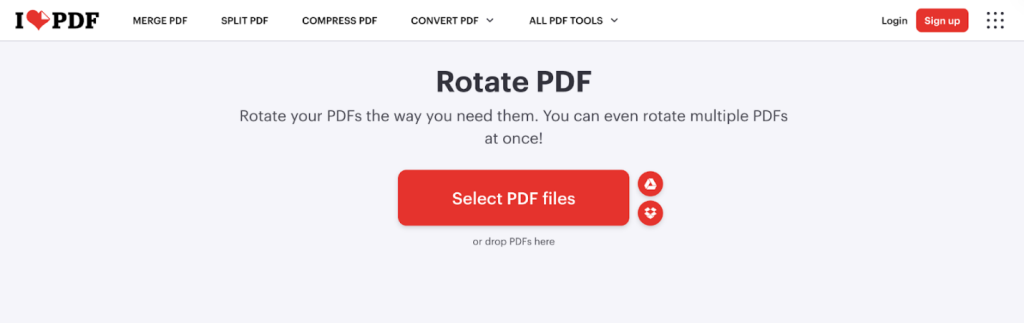
Step 3: When the PDF file is loaded into the tool, pick Right or Left under Rotation on the page’s right-hand panel. Then, click Rotate PDF at the bottom.
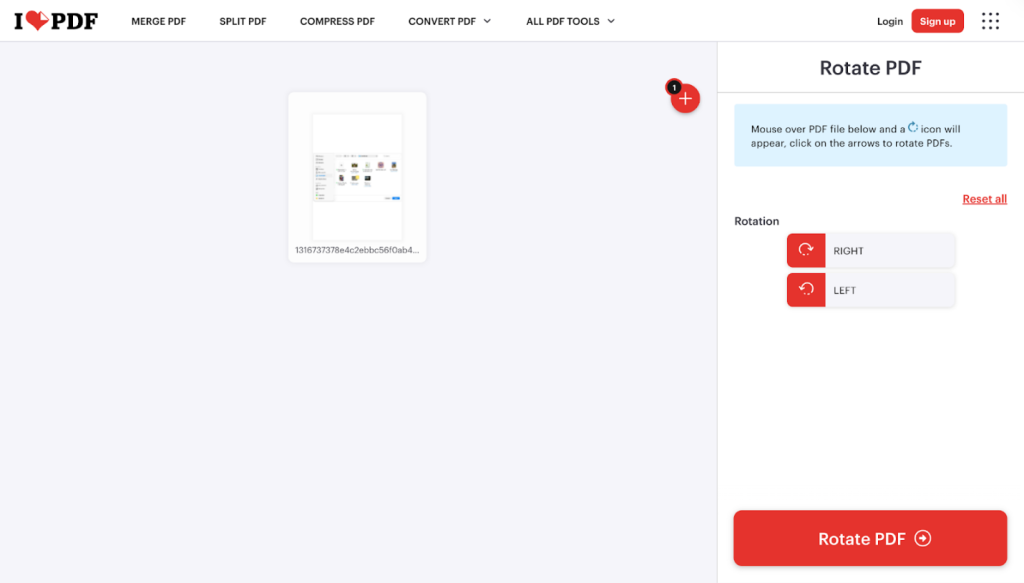
Step 4: After rotating the PDF, click Download rotated PDFs to save the file to your device.
Bottom Line
Although simple, rotating PDFs is key to making documents easy to read and professionally formatted. Knowing how to rotate a PDF in Google Drive makes it easy to fix orientation issues for quick viewing and sharing. However, for changes that stick, there are practical alternative ways to rotate PDFs permanently with tools like JOPDF, Google Docs, or iLovePDF. Using these options helps your documents maintain proper formatting across different devices. With these methods, managing and presenting your PDFs has never been easier.
FAQs
1. Temporary rotation (view only).
a. Open the PDF in Chrome.
b. Right-click on the PDF and select the Rotate icon to rotate pages counter-clockwise and keep clicking to get the desired orientation.
This rotates it for your current view only.
2. Permanent rotation.
a. Open the PDF in Chrome. And click the three-dot menu (top right).
b. Choose Print (or Ctrl+P).
c. Under Destination, select Change and choose Save as PDF.
d. Click More settings, expand Options, and check the Landscape box (or uncheck for Portrait) to adjust orientation for the entire document or specific pages.
e. Click Save in the Print dialog to get a new, rotated PDF.
Table of Contents

Your Best Free PDF Expert in PDF editing, compressing, converting, annotating, protect, organizing, and more.
Free DownloadWindows · macOS

Olivia
“Olivia is an editor at JOPDF, where she writes practical guides and insightful articles on managing PDFs—covering topics like editing, annotating, converting, and organizing files efficiently. Passionate about clear communication and digital productivity, Olivia enjoys spending her free time cooking, watching movies, and hiking to unwind and find inspiration for her writing.”