Introduction
Want to extract pages from PDF? You may want to share a single chapter in a large report, or you may need to pull an invoice from an annual statement. Fortunately, many tools are available to assist you. Check this article to find the method that suits you best!
Part 1. How to Extract Pages from PDF for Free
For occasional or one-time tasks, paying for a subscription is unnecessary. Fortunately, free PDF editors are available, and built-in tools can also help you accomplish the task. Let’s see the details.
Method 1. Use a Free PDF Editor – JOPDF
For those who frequently work with PDF files, a professional PDF editor is essential. When needed, you can open the PDF, select the tool, and get started.
Want to extract pages from PDF for free? Of course you can. While many PDF tools require subscriptions, there are still free options available, such as JOPDF.
JOPDF is a professional yet free PDF editor for Windows and Mac computers. It can help you extract, add, delete pages, edit text and images, add highlights, comments, shapes, and more. Additionally, it has an intuitive interface that is simple and easy to use.
Click the download button to get JOPDF and start!
Note
Currently, JOPDF can’t help you extract pages from PDF and save as new files. You can achieve this by deleting unwanted pages. However, don’t forget to back up your document beforehand to ensure you don’t lose the original.
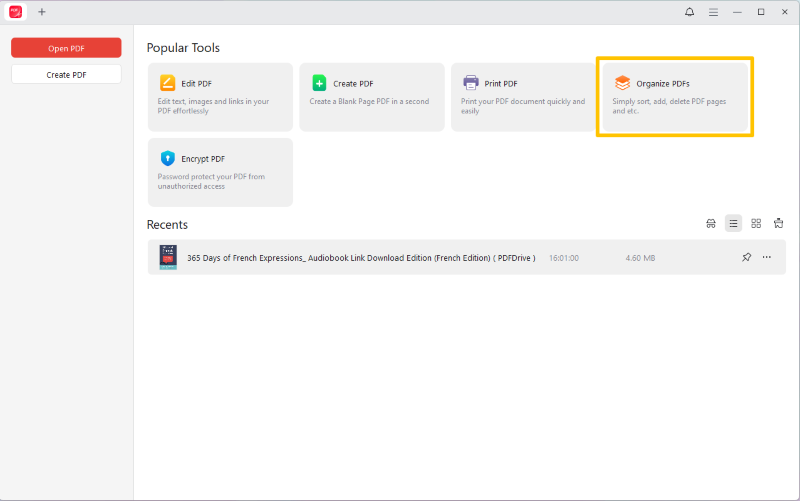
1. Open JOPDF on your computer. On the homepage, select the Organize PDFs option and choose your document.
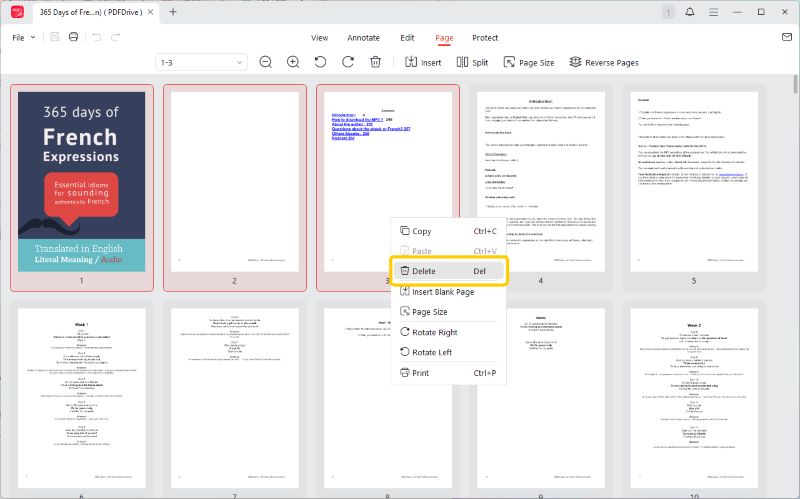
2. JOPDF will list all the pages, please select the pages you do not want to keep.
3. Finally, click the Delete button to delete pages from PDF and save the changes.
⭐ Best for: Users who need a reliable tool for frequent PDF management and want more advanced options than the browser method provides.
Method 2. Extract Pages Using a Browser
In fact, a powerful PDF extractor is already built into most web browsers like Google Chrome, Microsoft Edge, and Safari. You can use the “Print” feature to create a new PDF from a custom page range. It’s fast, completely free, and secure because your file never leaves your computer.
1. Open your PDF file in your web browser by dragging it into a new tab.
2. Press Ctrl+P (on Windows) or Cmd+P (on Mac) to open the Print menu.
3. Change the Destination or Printer to “Save as PDF.”
4. Under the Pages section, select Custom and enter the page number(s) or range you want to extract (e.g., “3” for just page three, or “5-8” for pages five through eight).
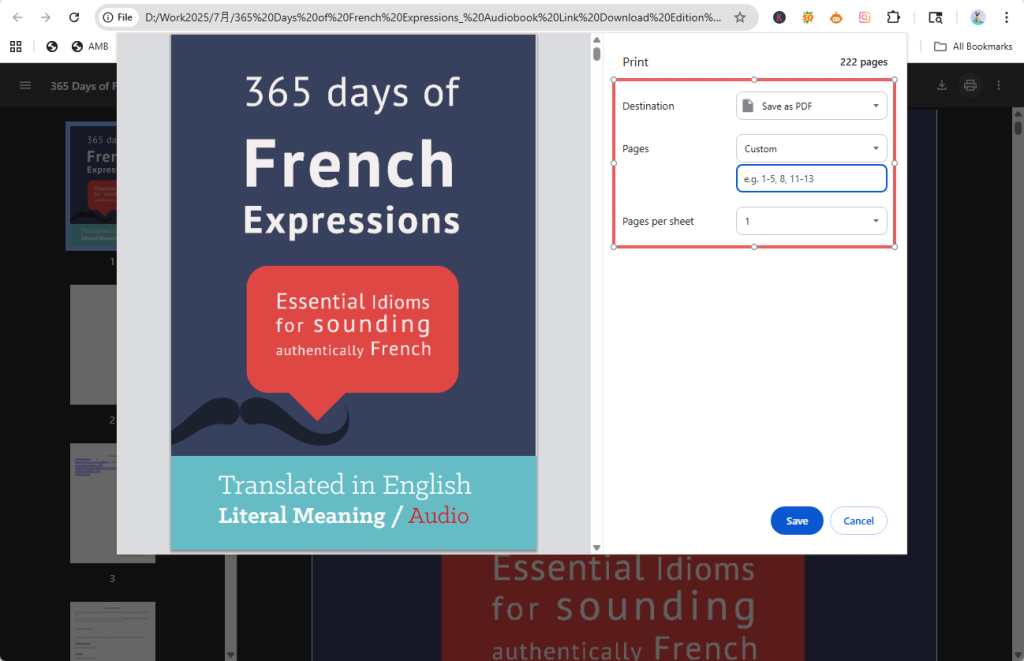
5. When Ok, click Save and select a location to store your new PDF.
⭐ Best for: A universal, secure, and offline method that works on almost any computer without needing any extra software.
Method 3. Use the Preview App on Mac
A quick way to extract pages from PDF on Mac is to use the Preview app. This app not only lets you view PDFs but also provides some basic editing tools to help you edit PDFs on your Mac. It allows you to simply drag and drop the pages you need.
1. Double-click the document to open it in Preview.
2. Go to the menu bar and select View > Thumbnails to show all the pages.
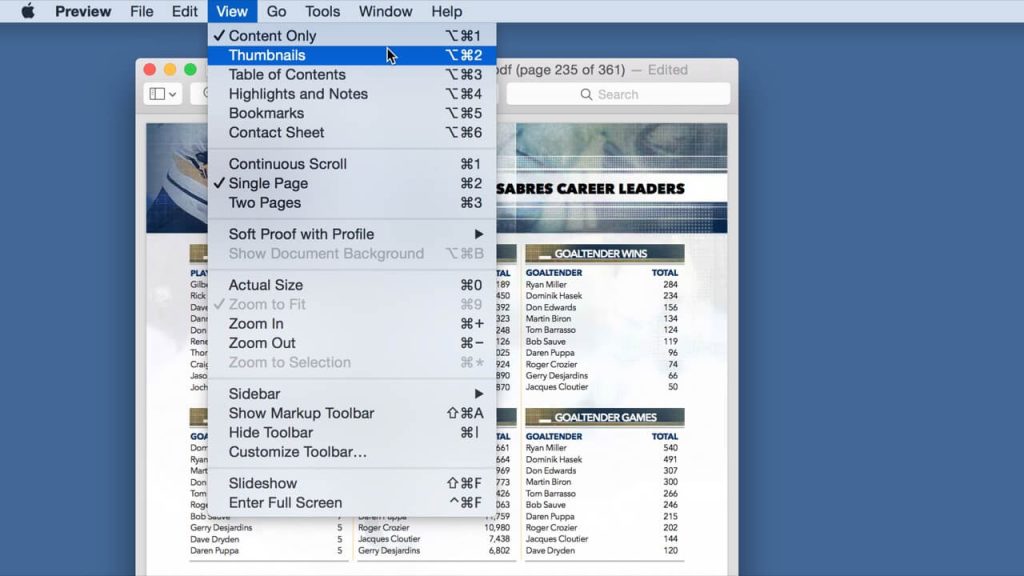
3. In the thumbnail sidebar, click on the page you want to extract. To select multiple pages, please hold the Command key while clicking each one.
4. Click and drag the selected thumbnails from the sidebar directly onto your desktop.
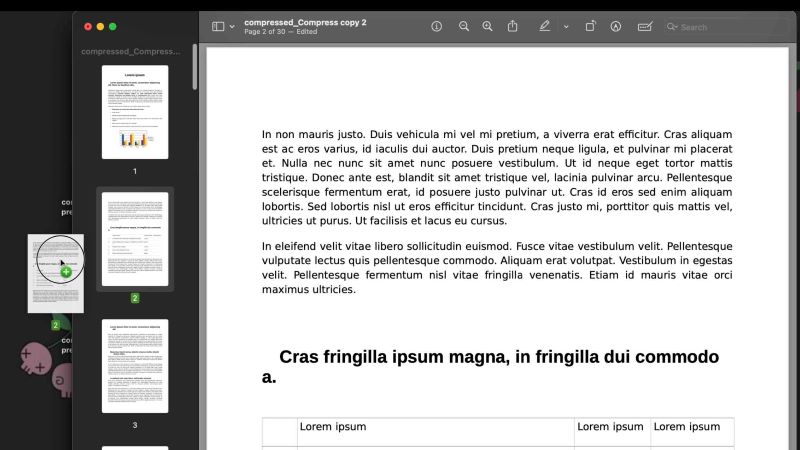
In this way, Preview will instantly create a new PDF file on your desktop that contains only the pages you have dragged over.
⭐ Best for: Mac users who want the quickest and most intuitive way to extract pages from a PDF.
Method 4. Use a Free Online PDF Extractor
Another free way is to use an online tool. It is an ideal choice for quick, one-time tasks. There is no need to download any software. You can do it directly in your browser. However, since it is online, a network connection is required.
Here, let me take Smallpdf as an example to show you how to extract pages from a PDF online for free.
1. In your browser, visit the Smallpdf extractor.
2. Click CHOOSE FILES to upload your PDF.
3. Now, select the pages you want to extract.
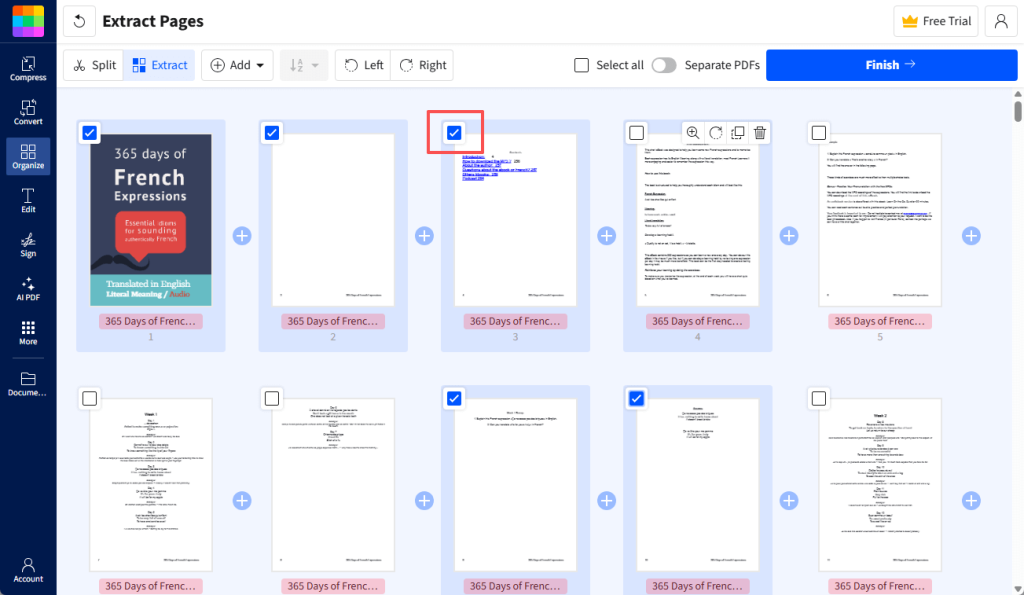
4. Click Finish to confirm and download the new documents.
⭐ Best for: Quick, occasional tasks with non-sensitive documents on any device. It’s the most convenient option if you don’t want to install software.
Part 2. How to Extract Pages from PDF with Adobe Acrobat (Paid)
Adobe Acrobat Pro is the industry standard for PDF management. Its Page Management tools enable easy extraction, deletion, rotation, and reordering of pages—features exclusively available in the advanced version.
However, given the high subscription costs, Adobe is more suitable for professionals.
1. Open your PDF in Adobe Acrobat Pro.
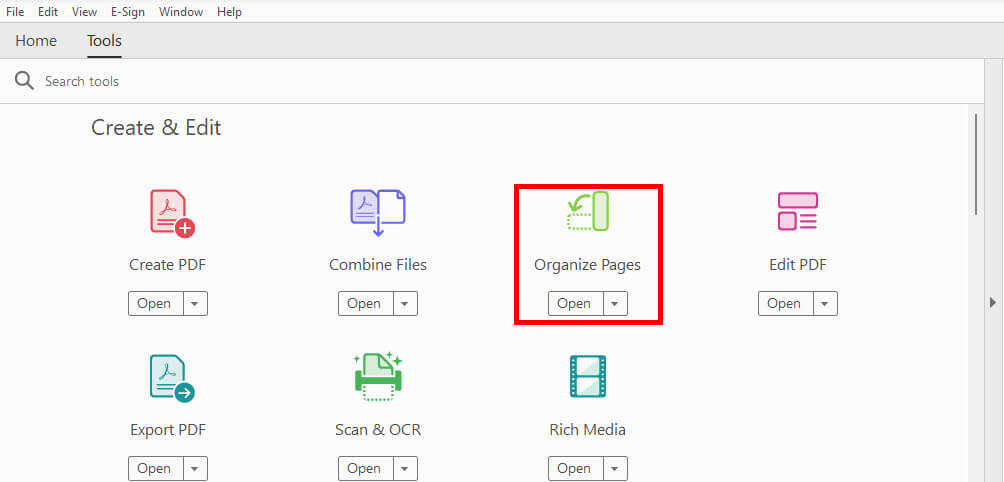
2. Select Organize Pages from the tool panel.
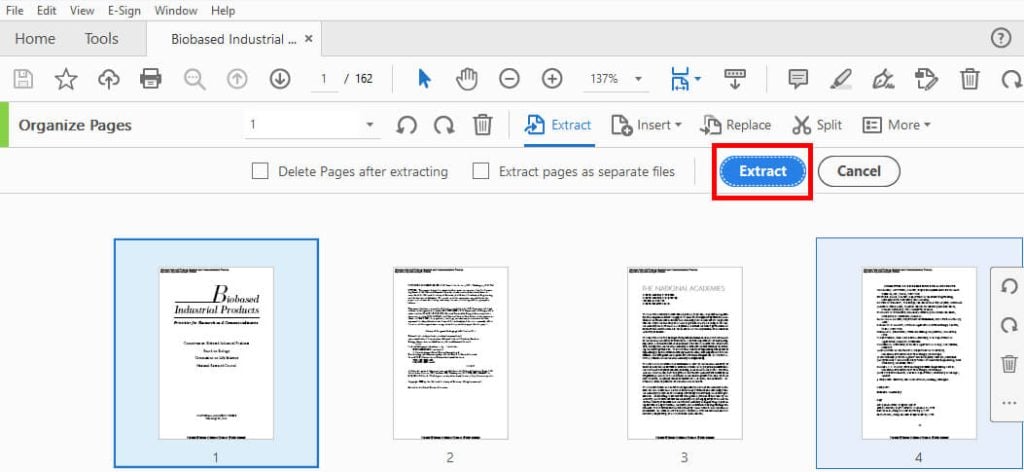
3. You will see a grid of all your document’s page thumbnails. Select the pages you want to extract.
4. In the toolbar above the thumbnails, click Extract.
5. A secondary toolbar will appear with options. You can choose to “Delete Pages After Extracting” or “Extract Pages as Separate Files.”
6. Click the blue Extract button to confirm.
⭐ Best for: Professionals and businesses that require advanced page management and integration into a larger document workflow.
Part 3. Which Method is Right for You?
Choosing the best method depends on your device, how often you work with PDFs, and your budget. Here’s a comparison table to help yu make a decision.
| Method | Best For | Cost | Requires Software? |
| JOPDF | Frequent use and more options. | Free | Yes |
| Web Browser | Universal, secure, and simple tasks. | Free | No |
| Preview (Mac) | The fastest and easiest for Mac users. | Free | No (Built-in) |
| Online Tool | Quick, occasional use on any device. | Free (with limits) | No |
| Adobe Acrobat | Professional and business workflows. | Subscription | Yes |
Conclusion
You can try all tools to see which one suits you best. However, if you want a professional way to extract pages from PDF for free, JOPDF is an excellent choice!
Not only is it feature-rich and easy to use, but beyond page extraction, it also offers many other tools to help you handle PDFs. Try it now!
FAQs
Table of Contents

Your Best Free PDF Expert in PDF editing, compressing, converting, annotating, protect, organizing, and more.
Free DownloadWindows · macOS

Queena
Editor
“As a staff editor for JOPDF, Queena excels at guiding users to the optimal tools and solutions. When she's not analyzing the latest PDF solutions, she enjoys spending her free time playing with her four cats.”
![[2026 Newest] Expert Guide on How to Rotate a PDF in Google Drive](https://b.jopdf.com/wp-content/uploads/2026/01/how-to-rotate-a-pdf-in-google-drive-thumbnail.png)
