Introduction :
Managing several PDFs at once can be challenging, particularly when you want to keep everything organized. But knowing how to combine PDFs on Windows 10 or Windows 11 makes document management easier and more efficient. With user-friendly PDF combiners, anyone can merge PDF files effortlessly for work, school, or personal use. This JOPDF article walks you step by step through 4 efficient ways to merge PDFs on your Windows machine.
How to Combine PDFs for Free on Windows via JOPDF
✨Best For: Users looking for a quick, free, and easy way to merge PDFs on Windows with overall PDF management and organization.
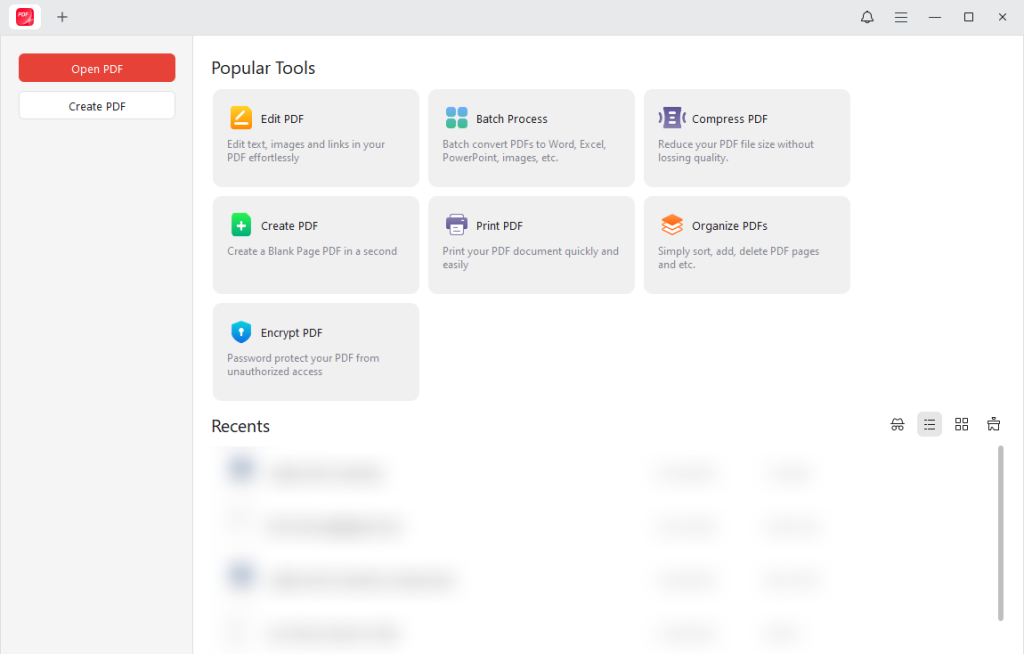
JOPDF is a powerful, versatile, and free PDF combiner for Windows. Its simple and intuitive interface lets you quickly combine multiple PDFs into one on Windows. JOPDF works well if you want to combine PDFs without Adobe Acrobat while maintaining high-quality files. Beyond merging, JOPDF also helps you edit PDFs on Windows, making it a complete, all-in-one PDF solution for everyday use. It processes PDFs directly on your Windows system, ensuring speed, privacy, and full control over your files.
Other Highlights of JOPDF:
- Combine images into one PDF from various formats like JPG and PNG with proper layout and clarity.
- Annotate and edit PDF text, images, and pages with ease.
- Split bigger PDF documents into multiple smaller files easily.
- Compress PDFs to reduce file size without quality loss.
- Convert PDFs to and from Word, Excel, or image files effortlessly.
- Add or remove pages, rotate pages, and reorder PDFs.
- Protect PDFs with passwords and set custom permission controls.
Learn the easiest way to combine PDF files for free on Windows via JOPDF in minutes.
Step 1. Click the button below to get this free PDF merger installed on your Windows computer. After the program is installed, run and open it.
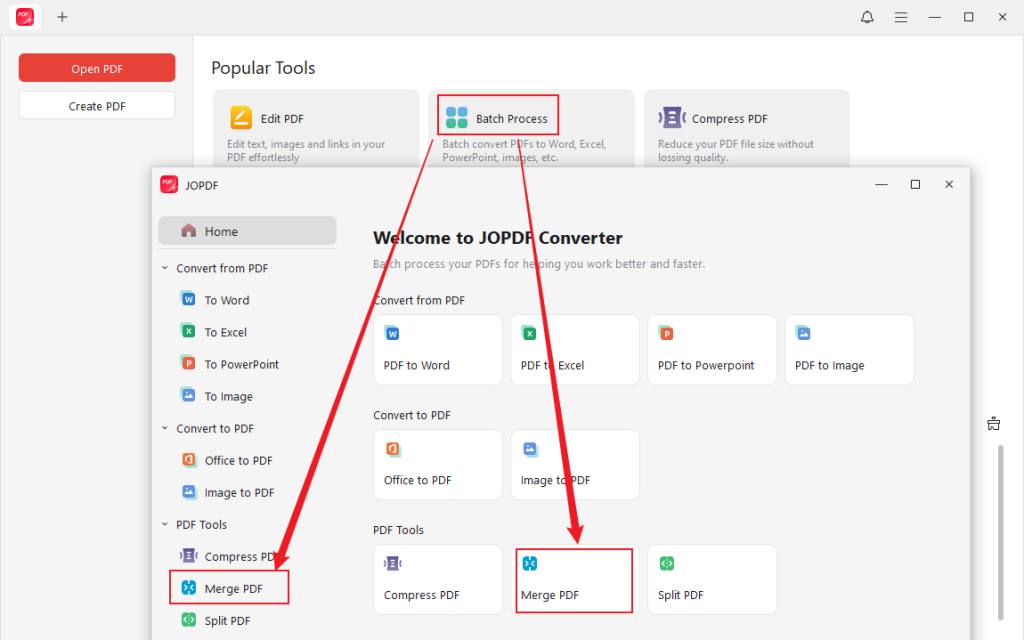
Step 2. Navigate to Batch Process under Popular Tools. And then select Merge PDF.
Step 3. Then press the +Add Files button at the top of the screen to upload all the PDF files you wish to combine into a single, merged PDF.
Tips
You can also open a PDF file with JOPDF first. Then go to Page > Merge PDF and add the PDF documents you want to combine. Similarly, you can drag the PDF files to reorder them so the merged PDF matches your preferred sequence.
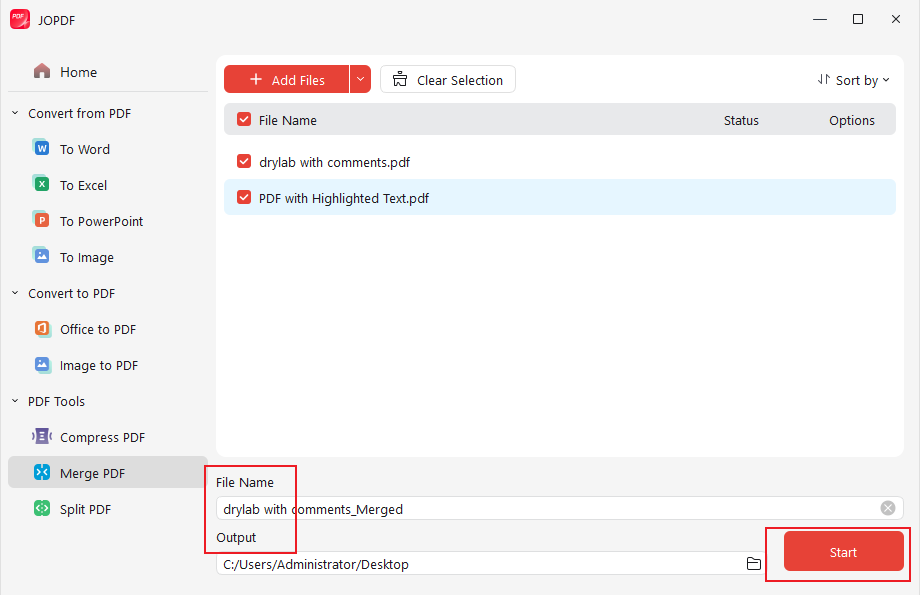
Step 4. Change both the file name and the output destination at the bottom of the interface. Then click Start in the lower-right corner of the screen. Within a few moments, your combined PDF will be ready.
How to Merge PDFs on Windows in Adobe Acrobat
✨Best For: Professionals looking for advanced PDF merging, full control, and enterprise-level document management across devices.
Adobe Acrobat is a professional PDF merger for Windows that lets you merge, reorder, and manage PDFs with complete control and reliability. Its powerful Combine feature lets you merge multiple PDFs into a single, organized file effortlessly. Furthermore, Adobe Acrobat helps you combine PDFs on Mac, ideal for those working across multiple devices.
Tips
Adobe Acrobat can range from US$12.99 to US$24.99 per month for individual subscriptions, depending on the plan. Such high prices may not meet the budget expectations of beginners and casual users. So if you’re looking for a free Adobe Acrobat alternative, JOPDF is a great choice. It lets you merge PDFs and handle other PDF tasks on Windows at no ongoing cost.
Let’s see how to combine PDF files on Windows with Adobe Acrobat in a few clicks.
Step 1. Install and open Adobe Acrobat on your Windows PC. Then open one of the PDF files you want to combine in the program.
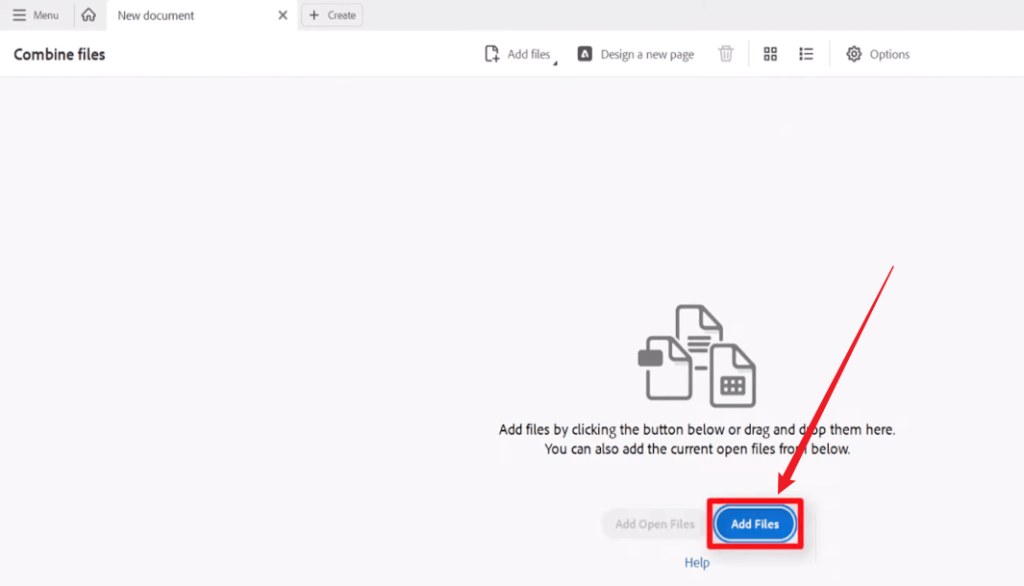
Step 2. Go to the Tools tab and select Combine Files. Click the Add Files button and choose the PDF files you wish to merge. Click Open.
Step 3. Within the Combine Files window, move files to arrange them or delete any unwanted ones.
Step 4. Once finished, click Combine Files in the upper-right corner.
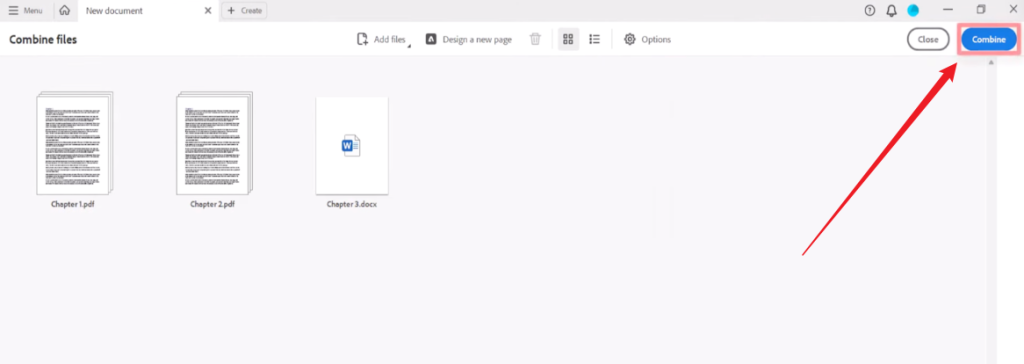
Choose Menu, then hit Save to save the combined PDF.
How to Merge PDF Files on Windows with PDFsam Basic
✨Best For: Users seeking a straightforward, no-cost tool to merge PDF files while managing PDFs efficiently on Windows.
PDFsam Basic is a free and open-source PDF combiner for Windows that helps you organize and manage your documents. Using it, you can quickly merge PDF files into a single, neatly arranged PDF. The program makes it easy to split, reorder, or combine PDFs thanks to its simple interface. Overall, PDFsam Basic offers a reliable and efficient way to manage and organize PDFs on Windows.
Explore how to combine PDFs on Windows 10 or Windows 11 with PDFsam Basic.
Step 1. Open the PDFsam Basic software on your Windows PC. And hit the “Merge” module on the main dashboard.
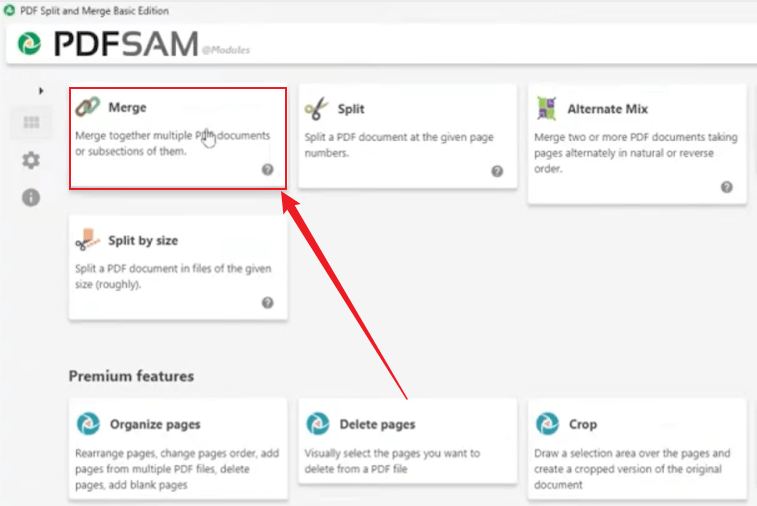
Step 2. Press Add, then browse and pick the PDFs you want to combine. Alternatively, simply drag and drop the PDFs into the application workspace.
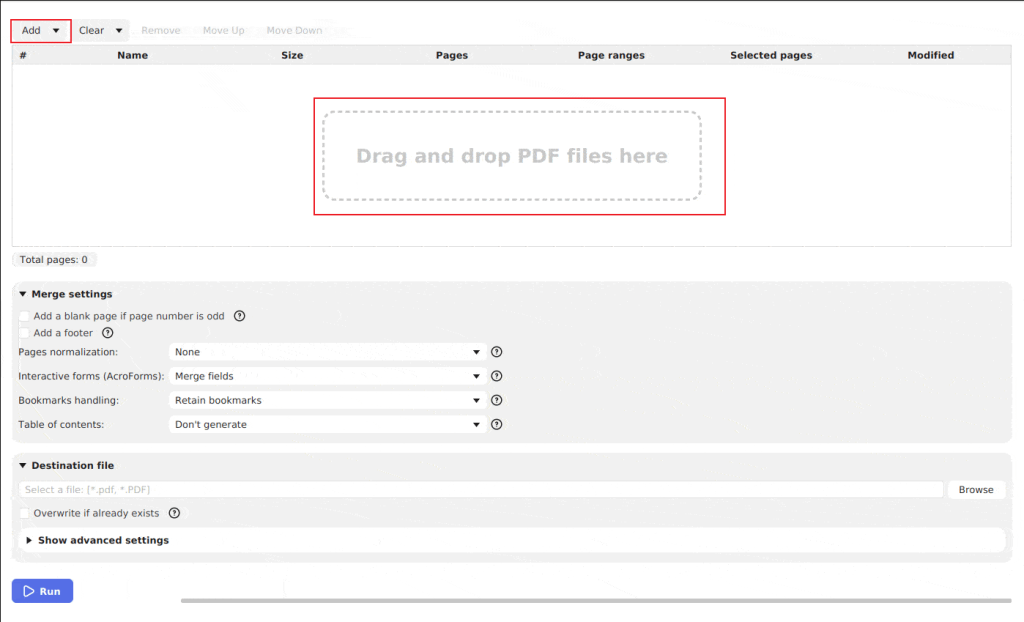
Step 3. After selecting the files, click Open to upload them into the program.
After your PDFs are uploaded, reorder them with the Move Up and Move Down arrows. Optionally, you can configure the merge and other settings.
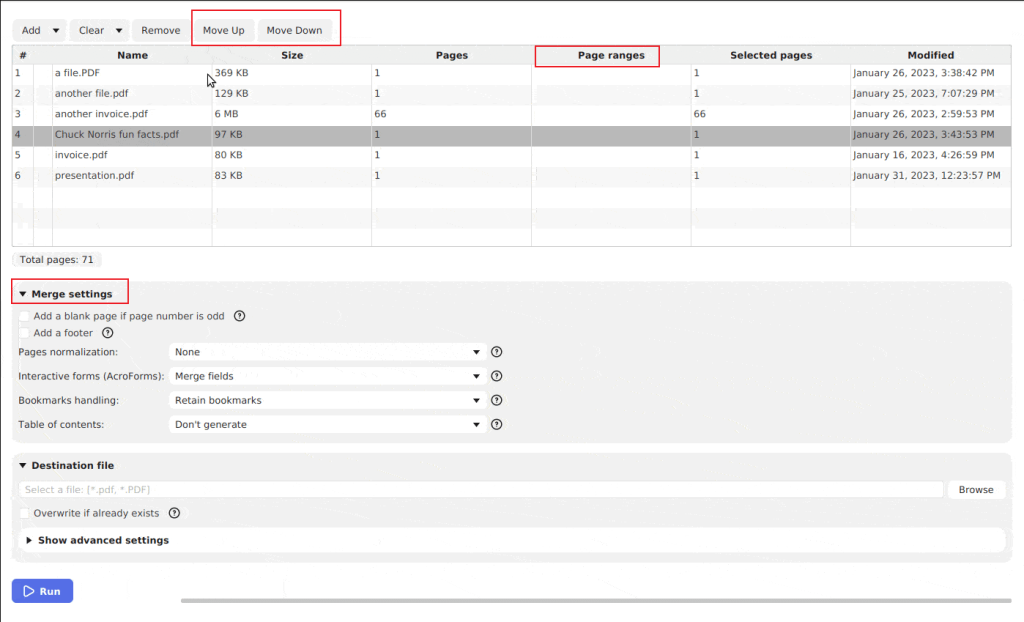
Step 4. Go to the Destination File section and pick the folder for saving the merged PDF.
Next, click the Run button at the bottom to merge your files.
How to Combine PDF Files on Windows via Online Smallpdf
✨Best For: Users looking for a fast, online way to merge or manage PDFs without installing anything.
Smallpdf is a convenient online PDF combiner that lets you merge PDFs without installing additional software. With an active internet connection, you can use its intuitive interface to combine PDFs or split a PDF in just a few clicks. Smallpdf simplifies PDF management, allowing you to download your merged files instantly from anywhere.
Discover how to combine PDFs online on Windows using Smallpdf in just a few clicks.
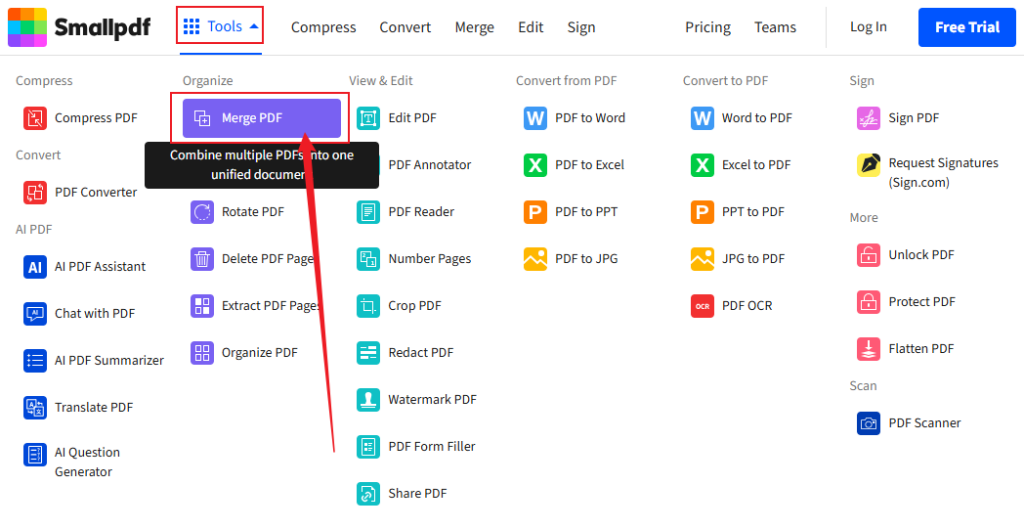
Step 1. Go to the official Smallpdf website in your web browser and click on “Merge PDF” on the main dashboard.
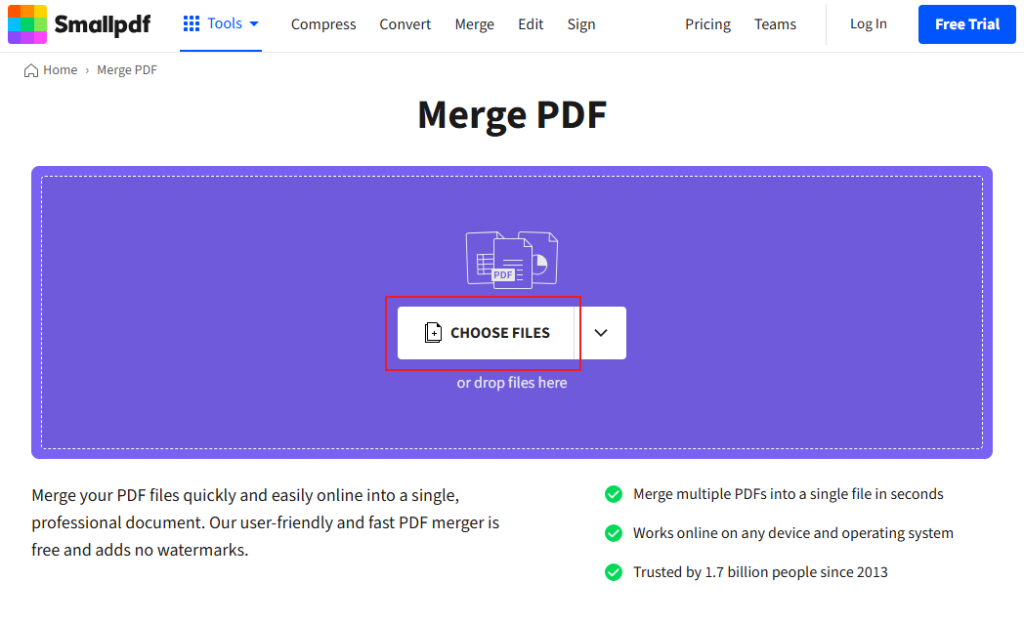
Step 2. Drag and drop PDFs into the provided area or click Choose Files to add them.
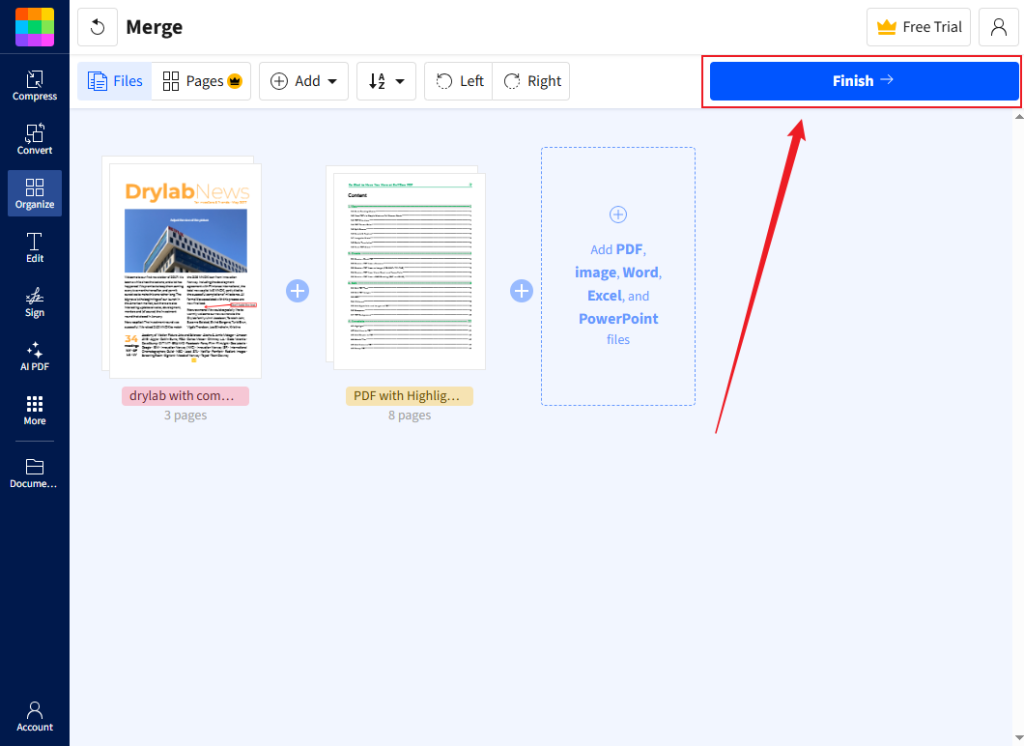
Step 3. Once the PDFs appear in the interface, reorder files, rotate pages, or eliminate unnecessary pages.
Step 4. When satisfied with the arrangement and settings, press Finish in the upper-right corner to merge the files.
Wait for the process to finish, then click Download to save your merged PDF.
Other Recommended PDF Combiners for Windows
We’ve already looked at some of the top free PDF mergers for Windows above. However, if you want extra tools, there are multiple solutions available to swiftly merge PDF files on Windows. Both online and offline solutions include capabilities ranging from basic PDF merging to enhanced editing and security.
Other Recommended PDF Combiners for Windows:
- SwifDoo PDF
- Foxit PDF Editor
- PDF-XChange Editor
- Sejda PDF
- iLovePDF
- Nitro PDF Pro
Quick Sum Up
Combining PDFs is an essential task for managing documents efficiently and keeping files organized. And picking the right PDF combiner allows merging and organizing files to be hassle-free. Here, we reviewed several techniques on how to combine PDFs on Windows, from beginner-friendly apps to professional solutions. Those wanting a free way to combine PDF files on Windows can rely on JOPDF, PDFsam Basic, and Smallpdf for efficient merging.
FAQs
1. Free Desktop Tools – Use free software like JOPDF or PDFsam Basic (open-source) lets you merge, reorder, and edit PDFs offline without paying for Acrobat.
2. Microsoft Store App – Use PDF Merger & Splitter by AnywaySoft to merge PDFs directly via the Store.
3. Online Services – Go to web-based tools such as Smallpdf, iLovePDF, or CleverPDF to merge PDFs online.
4. Browser Print to PDF – Using a web browser, open PDFs, print them to a single PDF, and save the combined version.
All of these methods are free, easy to navigate, and work perfectly on Windows 10/11.
Table of Contents

Your Best Free PDF Expert in PDF editing, compressing, converting, annotating, protect, organizing, and more.
Free DownloadWindows · macOS · Linux

Olivia
“Olivia is an editor at JOPDF, where she writes practical guides and insightful articles on managing PDFs—covering topics like editing, annotating, converting, and organizing files efficiently. Passionate about clear communication and digital productivity, Olivia enjoys spending her free time cooking, watching movies, and hiking to unwind and find inspiration for her writing.”