Introduction :
Sometimes, you need to convert PDF to rich text format to easily modify text or reuse content. Compared to converting PDF to DOCX, RTF is the file format that offers border compatibility and simpler formatting. How to convert PDF to RTF effortlessly? What is the best PDF-to-RTF converter? In this comprehensive JOPDF article, I will recommend several excellent PDF converters and outline the exact steps to transform PDFs into RTFs.
PDF is widely used in our study and work owing to its ability to preserve formatting across devices and operating systems. In some cases, you need to edit the PDF content across different word processors. The editable RTF format is the better choice, as it can handle text-heavy documents in Microsoft Word, LibreOffice, WPS, and Google Docs. In the following content, I will walk you through how to convert PDF to RTF on Windows, Mac, and online with the exact steps.
How to Convert PDF to RTF on Windows
On Windows, there are several methods for converting a PDF to RTF. Here, I will introduce you to 2 effective PDF-to-RTF converters. Now, let’s check them one by one.
Method 1. Batch Convert PDFs to RTFs for Free Using JOPDF
Compared to using paid PDF converters, a free PDF converter is our first choice. JOPDF, a completely free PDF converter, is highly recommended. As a PDF to Word converter, JOPDF enables you to convert PDF to DOCX, DOC, and RTF. Meanwhile, it supports converting RTF to PDF. Furthermore, you can use it to convert multiple PDFs to RTFs simultaneously, reducing the time spent on repetitive tasks. Here are the steps to batch convert PDFs to RTFs for free in JOPDF.
Step 1. Click the button below to download and install this free PDF to RTF converter on your Windows PC.
Tips
You can also use JOPDF to convert PDF to RTF or other formats on Mac for free. Simply click the button below to get this free Mac PDF converter.
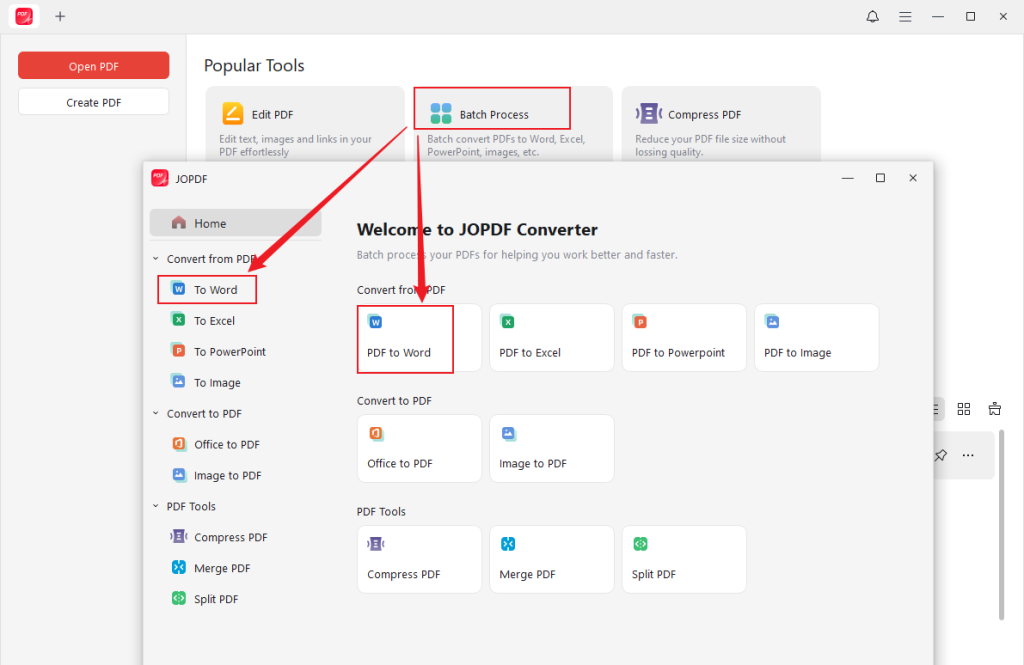
Step 2. Run JOPDF on your Windows PC, click the Batch Process option, and click the PDF to Word or To Word option.
Step 3. Click the + Add Files button to import your PDF documents and set RTF as the Format. Meanwhile, you can customize the page range that you want to convert. Also, specify the output folder as needed.
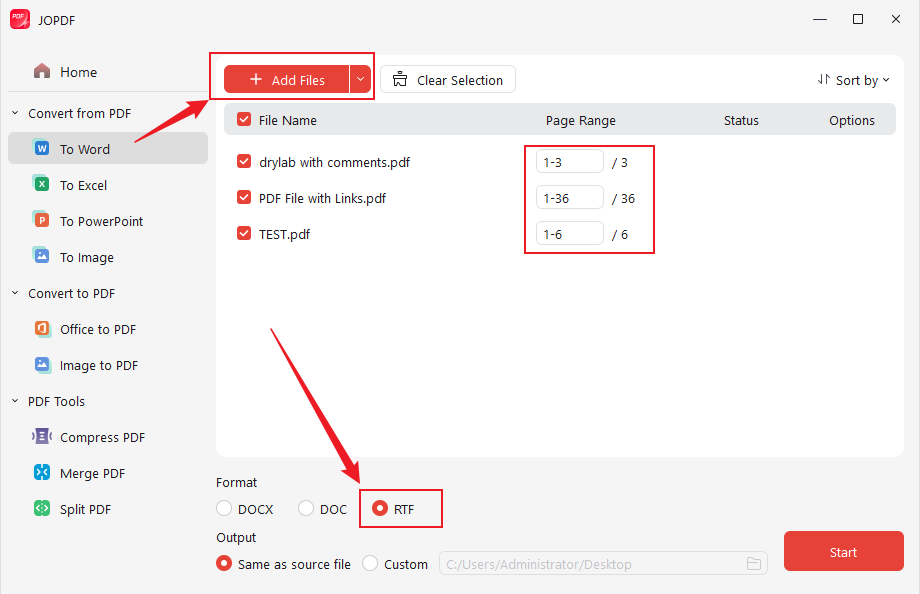
Step 4. At last, click Start to perform the PDF to RTF conversions.
Beyond PDF conversion, JOPDF offers other useful features as follows:
- Edit PDFs on Windows, Mac, and Linux for free.
- Redline PDFs.
- Extract images from PDFs.
- Convert PDFs to Letter size, A4, or other page sizes.
- Make a PDF smaller for email.
- Password-protect PDFs.
- …
Method 2. Convert PDF to RTF Using Microsoft Word
Microsoft Word is a professional word processor. In addition to handling DOCX, DOC, and RTF formats, it supports opening PDFs and exporting them as Word formats. Hence, you can use it to convert a PDF file to RTF on Windows. However, the original formatting may change for complex PDFs. If you need to convert PDF to RTF without losing formatting, JOPDF is the ideal choice.
If you have installed Microsoft Word and want to give it a try, follow the steps below to change a PDF to RTF in Microsoft Word on Windows.
Step 1. Launch Microsoft Word, click Open to locate and choose your PDF file, and click Open to import it.
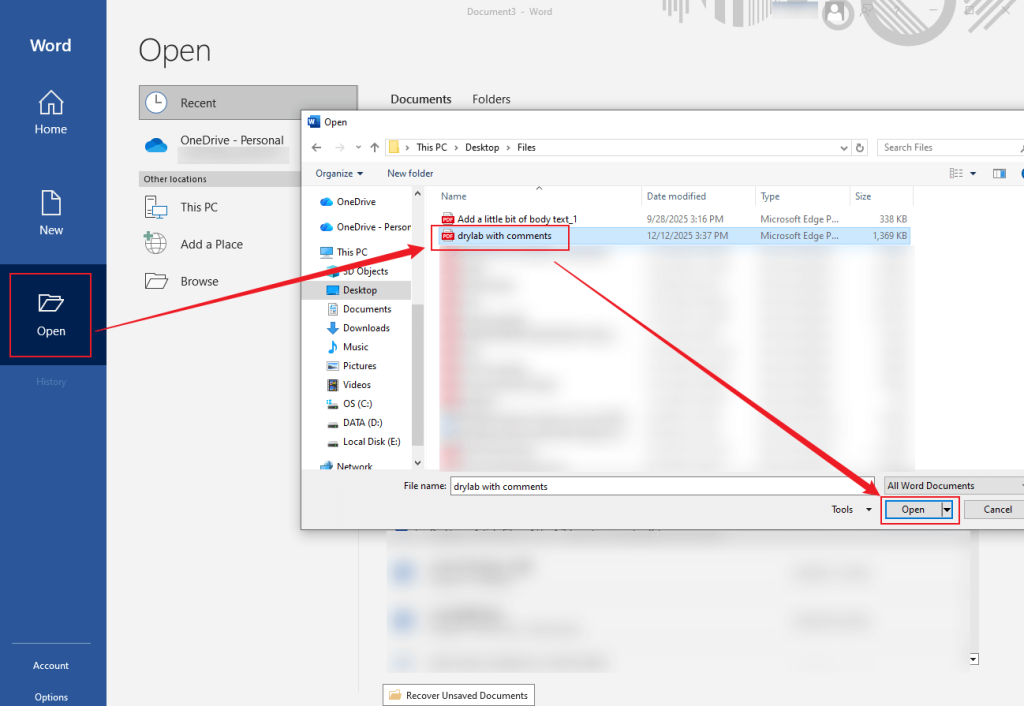
Step 2. A pop-up will appear. Click OK to allow Word to convert the PDF to an editable document. Then, you can edit the file according to your needs.
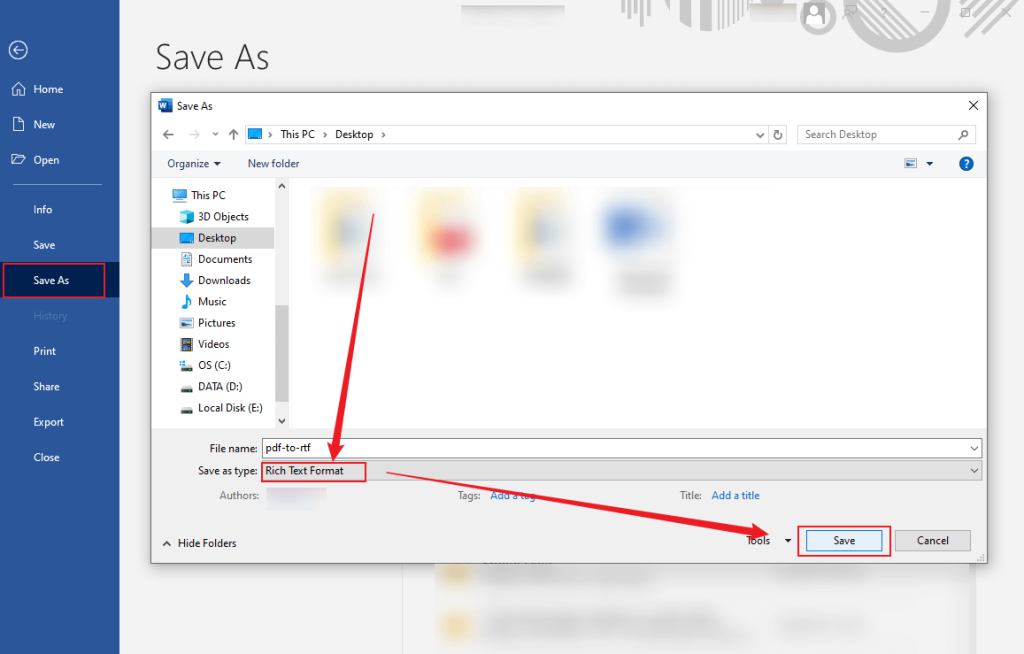
Step 3. Next, click File, select Save As, and choose a folder to save the exported file. Expand the “Save as type” dropdown and choose the Rich Text Format option. Finally, click Save.
How to Convert PDF to RTF on Mac
How to convert a PDF file to RTF on Mac? Built-in features and third-party converters can be your choice. Here, I will introduce two methods, including Adobe Acrobat and Preview.
Method 1. Convert a PDF File to RTF in Adobe Acrobat on Mac
Adobe Acrobat is one of the best PDF-to-RTF converters for Mac, which enables you to convert PDF to RTF without losing formatting. Additionally, it enables you to convert PDFs to JPGs, PNGs, and other formats. Moreover, with its OCR feature, it makes converting scanned PDFs easy. How to convert PDF to RTF in Adobe Acrobat? Here’s how:
If you mind the expensive subscription fee of Adobe Acrobat, try the free Adobe Acrobat alternative, JOPDF for Mac!
Step 1. Enable Adobe Acrobat on your Mac, go to File, and click Open to upload your target PDF file.
Step 2. In the Tools pane, find and click the Export PDF option.
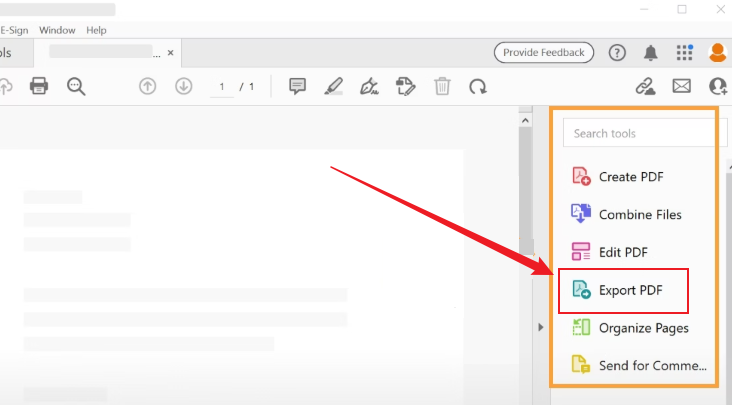
Step 3. Click Other format and select the RTF option. At last, click the Convert or Export option and choose a folder to save it.
Method 2. Use Preview and TextEdit for Manual Conversion
Additionally, you can use macOS’s built-in programs, Preview and TextEdit, to get an RTF file from a PDF. This method works well for text-based PDFs. To convert a PDF file to RTF, you need to use Preview to edit and copy text from the PDF, then paste the copied content into TextEdit, and save the file in RTF format. Refer to the guidance below and give it a try.
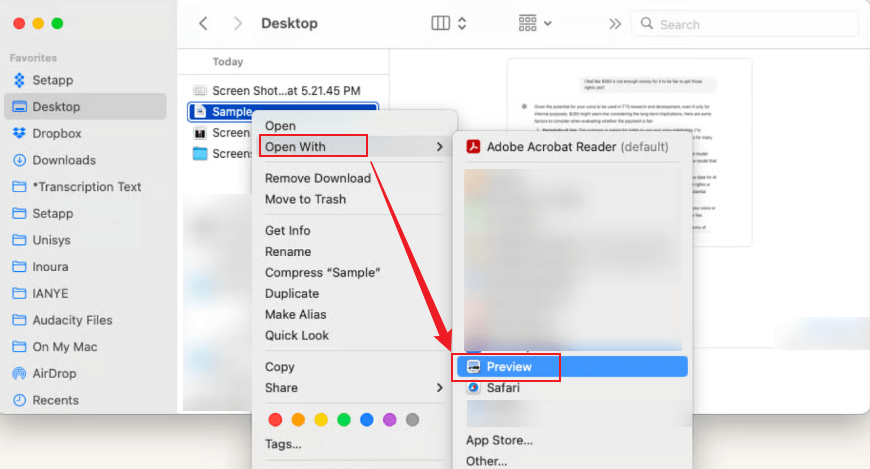
Step 1. Locate your target PDF and double-click it to open it in Preview if you have set Preview as the default PDF viewer. If not, right-click the PDF, click Open With, and choose Preview.
Step 2. Press Command + A to choose all text in the PDF file, and then press Command + C to copy the selected text.
Step 3. Launch TextEdit and go to File > New to create a new document. Then, press Command + V to paste the copied text.
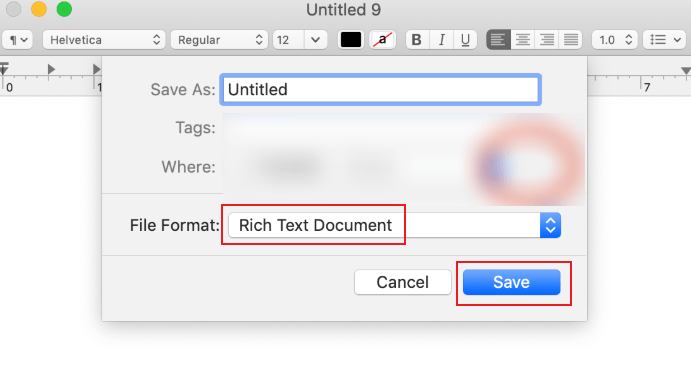
Step 4. Click File and select Save to enable the Save dialog. Open the File Format dropdown and click the Rich Text Document option. At last, name the RTF file, choose a save location, and click Save.
How to Convert PDF to RTF Online
When you don’t want to install any software, online PDF-to-RTF converters are convenient. Additionally, most online tools can work on Windows, Mac, and mobile devices. Here, I have rounded up a list of safe, free online PDF to RTF converters.
- FreeConvert
- Online2PDF
- PDF Candy
- Convertio
- CloudConvert
- Zamzar
- PDF24 Tools
Here, I’d like to take FreeConvert as an example. Follow the steps below to get an RTF file from a PDF online in FreeConvert.
Step 1. Open a browser on your desktop or mobile device and visit the official website of FreeConvert.
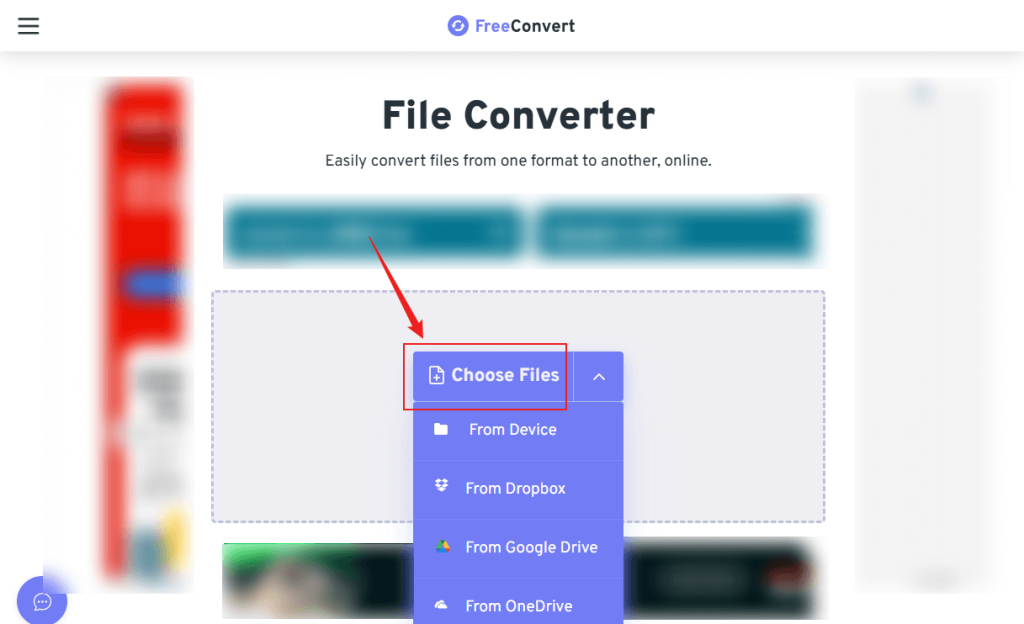
Step 2. Click Choose Files to import the target PDF from your local storage. Or, upload your file from Dropbox, OneDrive, or Google Drive.
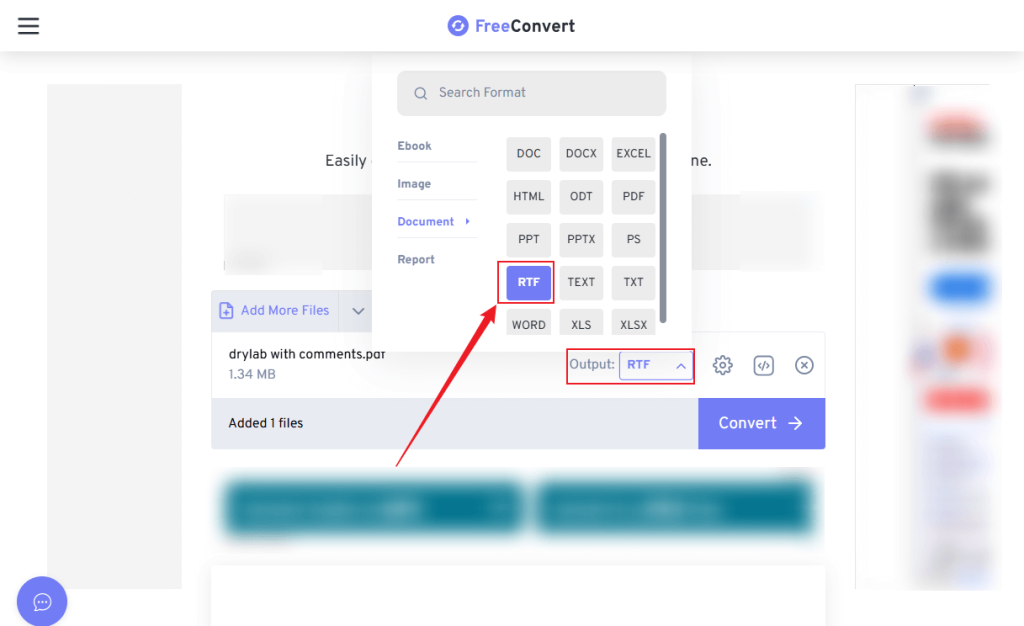
Step 3. Open the Output list and click the RTF option. Optionally, click the Settings icon to add a password to the file.
Step 4. Then, click Convert. When the conversion is over, download the RTF file.
Other Recommended PDF to RTF Converters
In addition to the above converters, you can also try the following converters.
⭐SwifDoo PDF: Full-feature PDF editor and converter with OCR.
⭐Google Drive & Google Docs: Convert PDFs to RTF, EPUB, TXT, or other formats with collaborative workflows.
⭐Wondershare PDFelement: Cross-platform PDF to RTF converter.
Conclusion
It is an effective way to make a PDF editable while maintaining compatibility by converting the PDF to RTF. In this comprehensive article, I introduce you to Windows, Mac, and online PDF converters, along with detailed tutorials. With the right tool, you can get an RTF file from a PDF efficiently. Among the converters listed above, I preferred JOPDF most for its free nature and useful features.
FAQs
Table of Contents

Your Best Free PDF Expert in PDF editing, compressing, converting, annotating, protect, organizing, and more.
Free DownloadWindows · macOS

Olivia
“Olivia is an editor at JOPDF, where she writes practical guides and insightful articles on managing PDFs—covering topics like editing, annotating, converting, and organizing files efficiently. Passionate about clear communication and digital productivity, Olivia enjoys spending her free time cooking, watching movies, and hiking to unwind and find inspiration for her writing.”
![7 Best PDF Converters in 2026 [Pros, Cons, and More]](https://b.jopdf.com/wp-content/uploads/2026/02/best-pdf-converter.png)
![[2026] 4 Ways to Combine PNG to PDF on Windows, Mac, and Online](https://b.jopdf.com/wp-content/uploads/2026/02/combine-png-to-pdf.png)