Introduction :
Today, making static documents into lively presentations is vital for work, school projects, or business meetings. Learning how to convert PDF to PowerPoint lets you transform reports, eBooks, and proposals into editable slides effortlessly. The right PDF to PPT solutions streamline your work, whether you’re in school or the office. Transform your PDFs into vibrant PPT presentations using the best conversion techniques!
What Does “PDF to PPT” Conversion Actually Mean
PDF to PPT conversion is the process of turning a PDF file into an editable PowerPoint presentation. It lets you turn a static PDF document into a PowerPoint (.ppt or .pptx) file, ready for editing and presenting. With PDF to PPT, you can turn reports, guides, or documents into editable slides in no time.
Static vs editable PowerPoint files
⭐Static conversion: In this conversion, the PDF content is added to slides as static images. Although the slides look just like the original PDF, the text, charts, and graphics remain uneditable. The design stays the same, but you have no ability to make changes.
⭐Editable conversion: This conversion turns PDF text, tables, and images into PowerPoint elements you can edit freely. You’re able to edit, reposition, and resize content in PowerPoint, perfect for presentations needing flexibility.
In a nutshell, most people prefer editable PowerPoint files. They let you make updates and edits without starting the entire presentation over.
Use Cases for PDF to PowerPoint Conversion
Converting PDFs to PowerPoint can save time and make presentations more dynamic. Awareness of PDF to PowerPoint use cases demonstrates the benefits of converting PDFs for educational, professional, or business purposes.
Explore these key PDF to PowerPoint use cases for work, school, or business.
🎈Editing slides: Adjust your presentation without starting from scratch.
🎈Rebranding decks: Adjust logos, colors, and designs to fit your brand.
🎈Updating charts: Update data and visuals from previous reports.
🎈Client presentations: Adjust slides in no time for meetings or presentations.
🎈Training materials: Transform manuals and guides into interactive content for learners.
Best Ways to Convert PDF to PPT
Converting PDFs into editable presentations becomes effortless when you pick the right tool. Slides remain fully editable, retaining formatting, charts, and images when using the best PDF to PPT converters. Whether for work, school, or client projects, using reliable converters saves time and effort, making your presentations look professional and polished. Here are some of the most effective offline and online methods.
Method 1. JOPDF for Free PDF to PPT Conversion
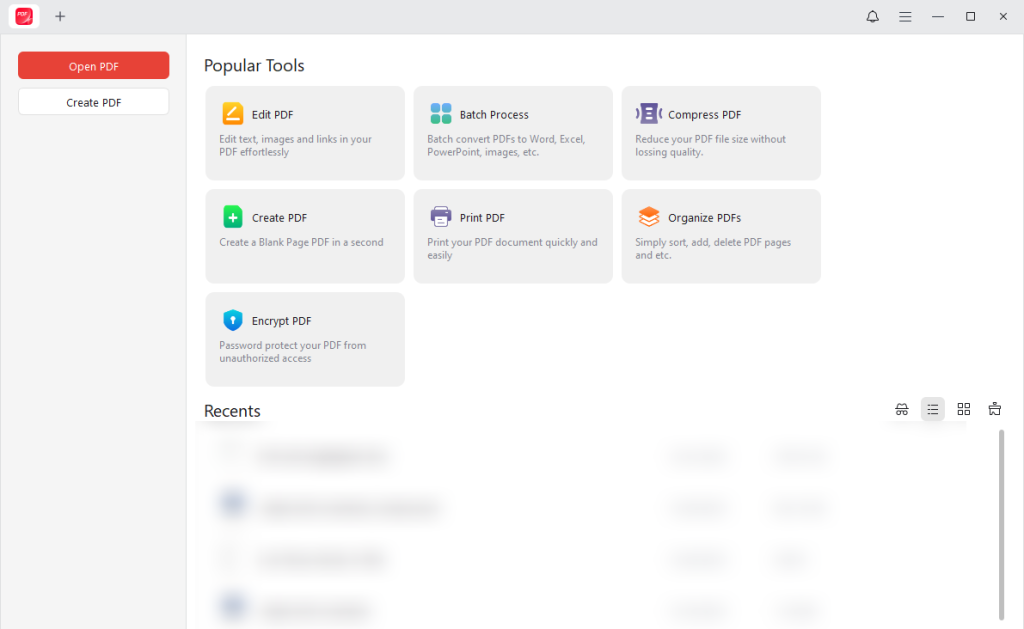
JOPDF makes it simple to convert PDF to PowerPoint for free while maintaining the original document’s design. This tool is a free PDF to PPT converter for Windows, Mac, and Linux, making cross-platform use easy. In addition to PDF to PPT conversion, JOPDF allows you to combine JPGs into one PDF for added convenience. Many users trust JOPDF as a dependable free alternative to Adobe Acrobat for everyday PDF tasks.
I’ve used JOPDF for PDF conversions many times, and it has proven dependable every time. A clean and intuitive interface ensures you can upload PDFs and select output types quickly. I can quickly convert PDFs to PowerPoint, and the original layout always stays the same. I also appreciate the extra features, like merging JPGs into a single PDF, which makes JOPDF feel like a complete, reliable tool for all my PDF needs.
Pros of JOPDF:
Pros of JOPDF:
- No subscriptions required—lightweight, offline, and compatible with any OS while keeping your data private.
- The straightforward, uncluttered interface makes it great for anyone seeking quick, simple conversions.
- Fast and reliable for converting multiple PDF files into editable PowerPoint (PPT) files.
- Keeps text and images intact in straightforward documents, enabling easy post-conversion editing in PPT.
- Offers data security with TLS encryption and automatic file deletion after an hour for online versions.
Cons of JOPDF:
Cons of JOPDF:
- Without mobile versions.
Method 2. Adobe Acrobat PDF to PowerPoint
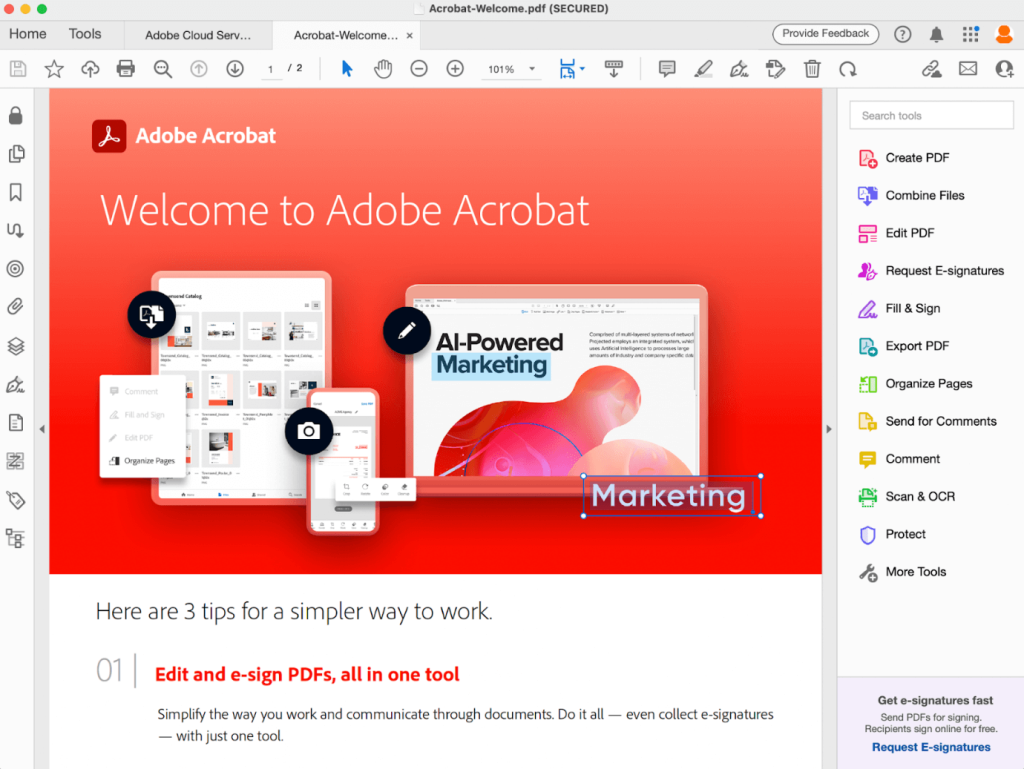
For high-quality PDF management, Adobe Acrobat is widely trusted. You can easily convert PDF to PPT in Adobe Acrobat, ensuring that formatting, images, and layouts are perfectly preserved. This makes it ideal for creating polished, editable presentations from your existing PDFs. Plus, Adobe Acrobat allows you to handle, annotate, and safeguard PDFs seamlessly.
Pros of Adobe Acrobat:
- Maintains the original styling, quality, and formatting of the PDF file during conversion.
- Offers seamless integration with other Adobe products and Microsoft PowerPoint for the web.
- Ensures consistent results with dependable performance for documents of any complexity.
- Allows large file handling and batch conversion, streamlining work with multiple PDFs.
Cons of Adobe Acrobat:
- Complex items such as equations, gradients, or specific lists might not transfer accurately and may require editing in PowerPoint.
- Adobe Acrobat Pro is a professional, subscription-based product that may be expensive for casual or infrequent users who may not use all its advanced features.
- The software might lag or consume significant system resources, even on top-tier devices.
Method 3. Microsoft PowerPoint Import PDF Feature
Microsoft PowerPoint is also a flexible and dependable conversion tool. You can quickly convert PDF to PPT in Microsoft PowerPoint in a few clicks. Besides that, it also allows you to save a PowerPoint as a PDF.This built-in feature lets you import PDF content directly into slides, enabling quick edits and seamless integration with your existing presentations.
Pros of Microsoft PowerPoint:
- The built-in tool makes PDF conversion straightforward, with no extra software needed.
- By embedding the PDF as an object, it remains accessible and opens in a viewer during the presentation.
- Adding screenshots or images of PDF pages preserves the original visual layout.
- Enables you to move, resize, and crop the image within the PowerPoint slide.
Cons of Microsoft PowerPoint:
- There is no dedicated feature that converts a PDF into a well-structured, editable PowerPoint presentation.
- The PDF may appear as a low-resolution image icon or preview within the slide.
- The content becomes a static image; text cannot be edited or selected like regular text, and hyperlinks, animations, or transitions cannot be applied.
Method 4. Smallpdf for Online PDF Conversion
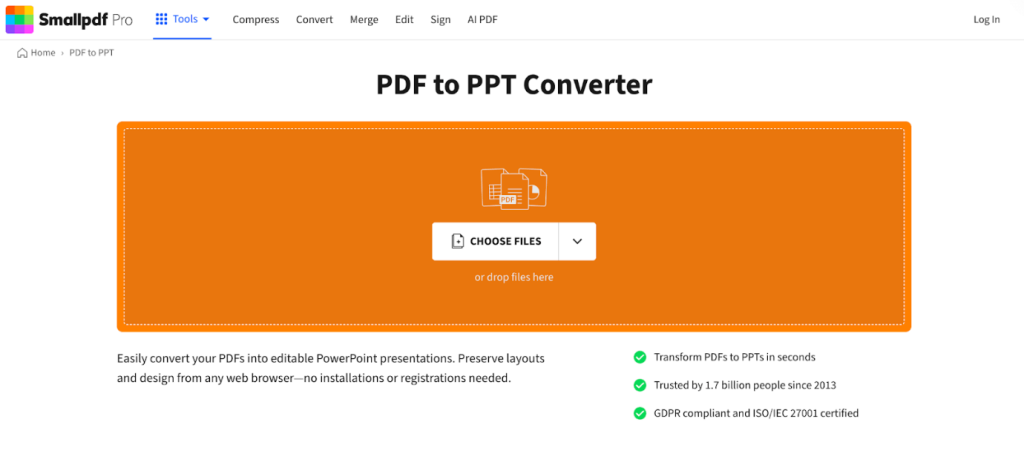
Lastly, Smallpdf works as a fast online PDF to PPT converter, enabling direct conversion of PDFs into editable PowerPoint files. It runs quickly, is user-friendly, and requires no setup, making conversions effortless everywhere. Additionally, it handles multiple file formats while keeping your layout and images intact.
Pros of Smallpdf:
- Operates on any device without setup, making daily PDF to PPT work easy.
- Efficient conversions, with a reputation for handling everyday PDF to PPT needs.
- Includes Optical Character Recognition (OCR) for creating editable PowerPoint slides, not just image copies.
- Works seamlessly with Google Drive and Dropbox for seamless file access.
Cons of Smallpdf:
- The free tier has daily usage caps and restricted access, frustrating frequent users.
- Can struggle with complex PDFs, leading to misaligned text, images, or lost formatting in the PPT output.
- Can slow down when handling large or complicated PDFs.
How to Convert PDF to PPT Step by Step
Turning PDFs into editable presentations is now simpler with today’s tools. This section shows how to convert PDF to PowerPoint online and offline, based on your needs. Next, we’ll guide you through the detailed steps for offline and online conversions.
How to Convert PDF to PowerPoint Offline
Read this part to learn how to convert a PDF to PowerPoint on Windows for free using JOPDF. You can use the same offline approach on Mac and Linux to convert PDFs safely offline.
Find out how to convert PDF to PPT offline using JOPDF for free.
Step 1. Download and install JOPDF on your Windows or Mac computer. After launching the program, open the desired PDF file.
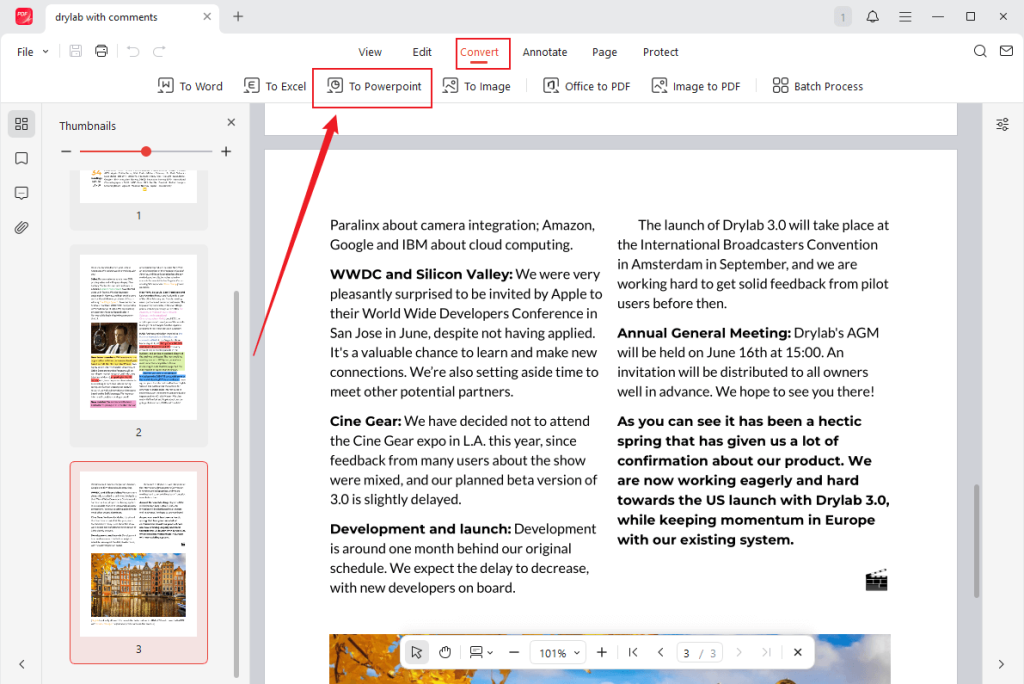
Step 2. Navigate to the Convert option in the toolbar and select the To PowerPoint tool.
Tips
If you need to convert multiple PDF files to PowerPoint, click Batch Process under Popular Tools on the start page. In the pop-up windows, select the desired conversion tool.
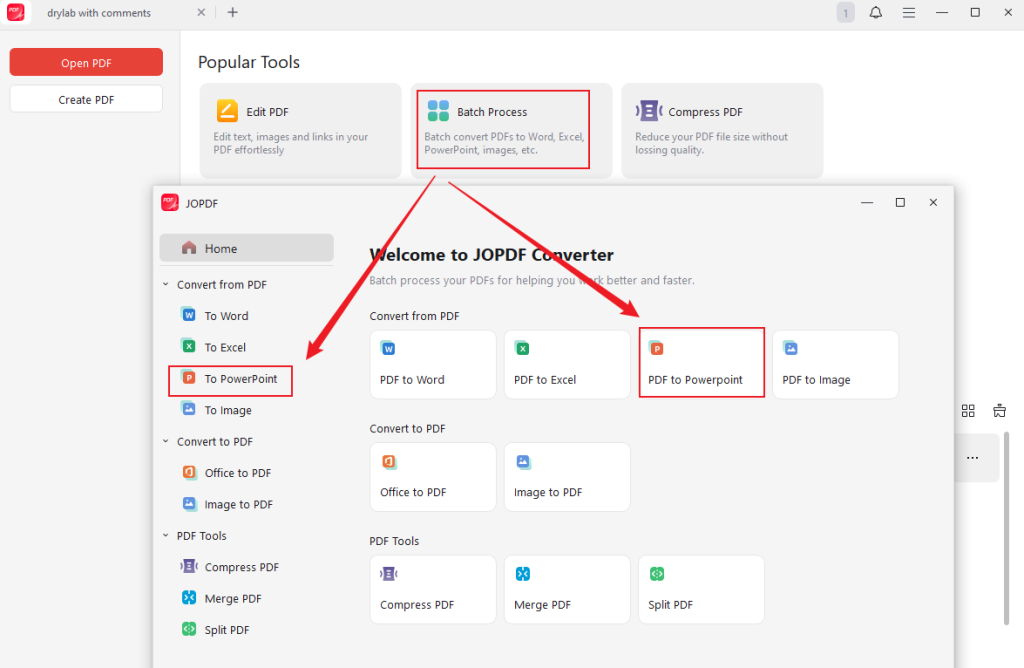
Step 3. Tap the Add Files button to open PDFs. Alternatively, drag and drop the desired PDF files into the converter window.
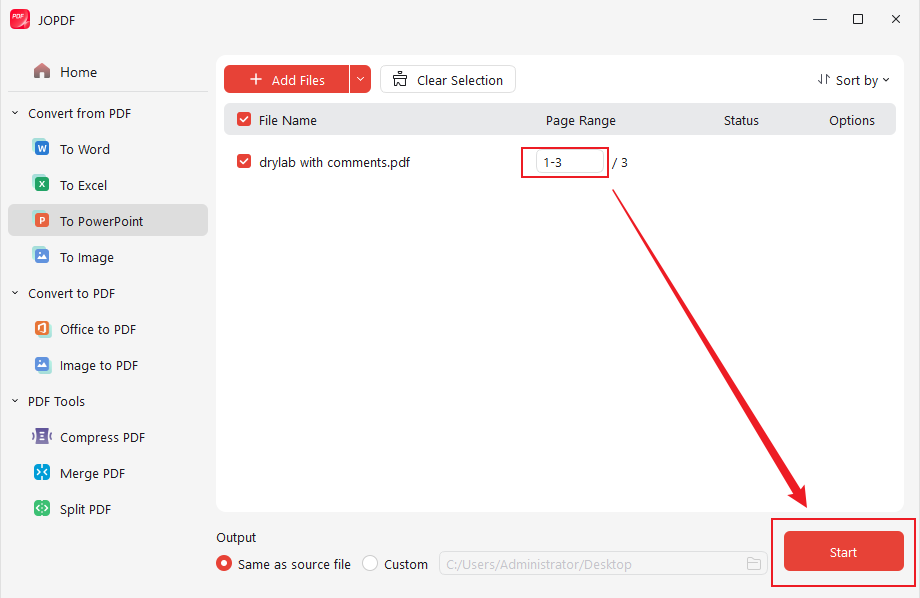
Step 4. Then, choose PPT as the output format and pick the folder to save your converted files.
After setting all parameters, click Start to begin the conversion. Within moments, the PDF document automatically becomes a PowerPoint presentation.
How to Convert PDF to PPT Online
Smallpdf lets you quickly convert PDF to PPT online by uploading your file in a browser. Once uploaded, the tool automatically processes the document. In turn, you get a downloadable PowerPoint file within seconds, with no software installation required.
Learn how to convert PDF to PPT online with Smallpdf.
Step 1. Open Smallpdf in your web browser. Under Tools, select PDF to PPT to proceed with the conversion.
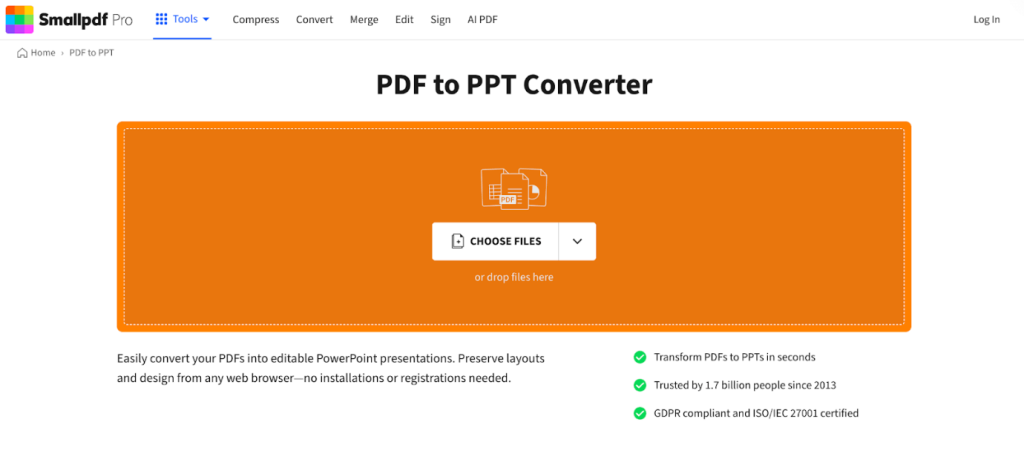
Step 2. Hit Choose Files to upload your PDF file. Files can be added instantly by dropping them into the interface. Then, click Convert.
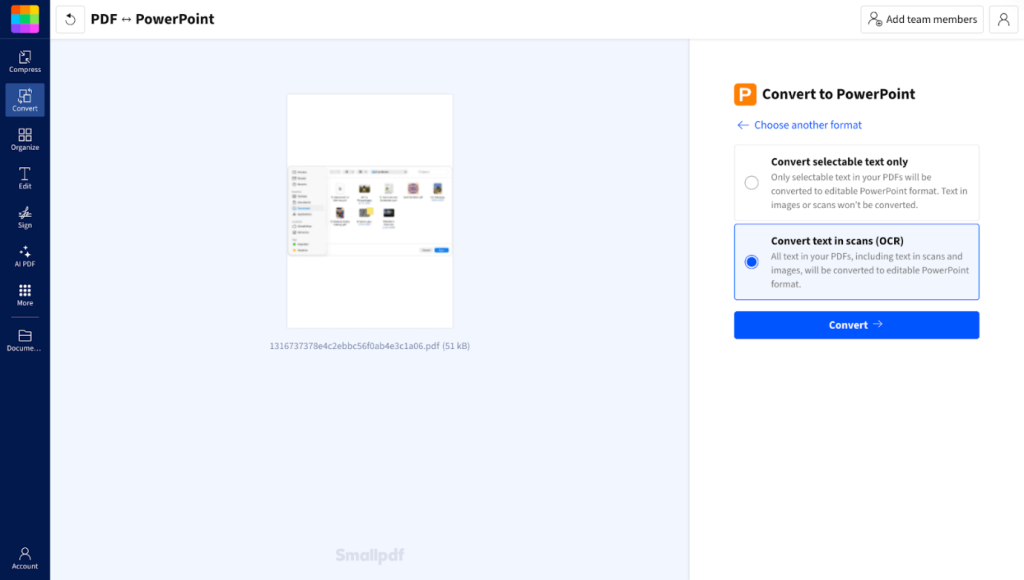
Step 3. In just seconds, Smallpdf converts your PDF into PPT format automatically. Hit Download to save the converted PowerPoint locally.
Final Words
Turning PDFs into presentations is easy when you use the right tools. This article explains several effective ways to convert PDF to PPT, depending on your workflow. By using the best PDF to PPT converter, you can quickly produce professional, editable presentations. Whether for work, school, or personal projects, these tools make PDF to PPT conversion seamless. This makes creating presentations quicker while maintaining polished, professional slides.
FAQs
Table of Contents

Your Best Free PDF Expert in PDF editing, compressing, converting, annotating, protect, organizing, and more.
Free DownloadWindows · macOS

Olivia
“Olivia is an editor at JOPDF, where she writes practical guides and insightful articles on managing PDFs—covering topics like editing, annotating, converting, and organizing files efficiently. Passionate about clear communication and digital productivity, Olivia enjoys spending her free time cooking, watching movies, and hiking to unwind and find inspiration for her writing.”
![7 Best PDF Converters in 2026 [Pros, Cons, and More]](https://b.jopdf.com/wp-content/uploads/2026/02/best-pdf-converter.png)
![[2026] 4 Ways to Combine PNG to PDF on Windows, Mac, and Online](https://b.jopdf.com/wp-content/uploads/2026/02/combine-png-to-pdf.png)