Introduction :
Sometimes, you need to extract images or share individual pages from a PDF, such as turning a report, brochure, or article into images. Using the best PDF-to-JPG converters helps make the entire process quick, reliable, and stress-free. Learn in this article from JOPDF how to convert PDF to JPG on PC, mobile, or online, so sharing and saving content becomes effortless. Let’s get going!
Converting PDFs to JPG enhances convenience and makes sharing files simpler. Key benefits are as follows:
✨Easy sharing: Images are widely supported across devices and platforms.
✨Quick previews: View PDF content without opening the whole document.
✨Editing flexibility: Use JPGs in presentations, social media, or design software.
✨Space-saving: Single pages as images often use less storage than PDFs.
How to Convert PDF to JPG on Windows
Converting a PDF to JPG on Windows is simple and fast, whether you want to save a single page or an entire document as an image. You can convert PDFs to JPGs in just a few clicks without losing quality with the right tools.
2 Best PDF to JPG Converters for Windows
Using the right tool to convert PDFs to images on Windows helps you work faster while keeping results sharp. Discover two top PDF to JPG converters for Windows, helping you convert PDFs to JPGs quickly.
#1. JOPDF
JOPDF is a versatile, user-friendly tool that stands out as a free PDF to JPG converter for Windows and Mac, perfect for quickly turning your documents into images. You can use JOPDF to seamlessly change PDFs to JPGs, PNGs, BMPs, and TIFFs, maintaining high-quality output.
Whether it’s a single page or an entire document, JOPDF allows you to combine JPGs into one PDF easily. In addition, you can use the tool to edit PDFs for free before converting them. JOPDF allows you to easily extract images from PDFs for quick sharing or reuse.
#2. SwifDoo PDF
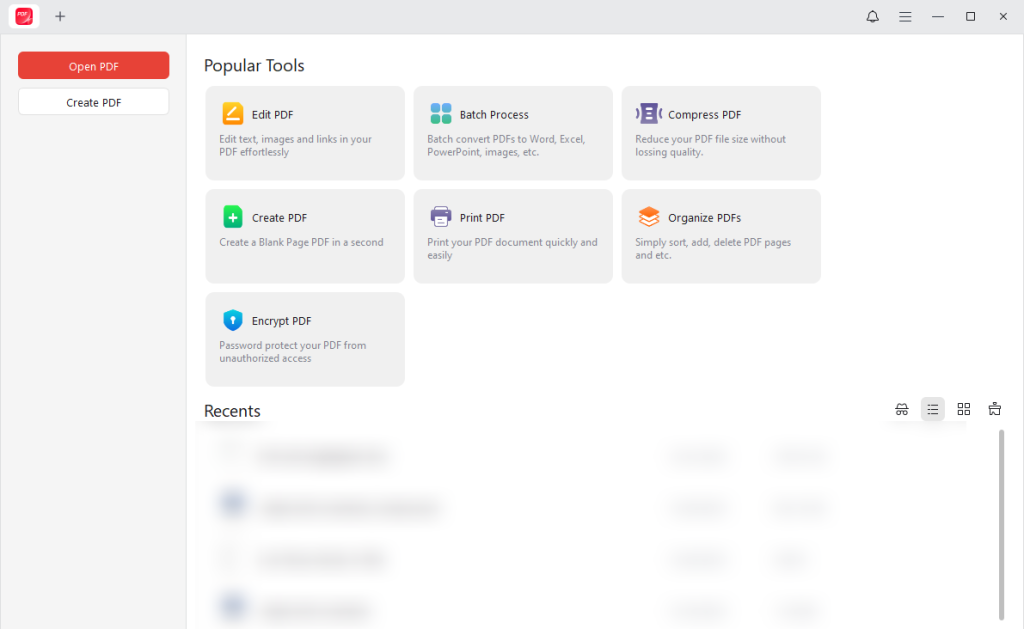
SwifDoo PDF lets you effortlessly turn a PDF into a JPG with just a few simple steps. Known as a reliable Adobe Acrobat alternative, it offers fast conversion, high-quality output, and an intuitive interface. Whether it’s just one page or an entire document, SwifDoo PDF makes conversion fast and easy.
Exact Steps to Change a PDF to a JPG on Windows
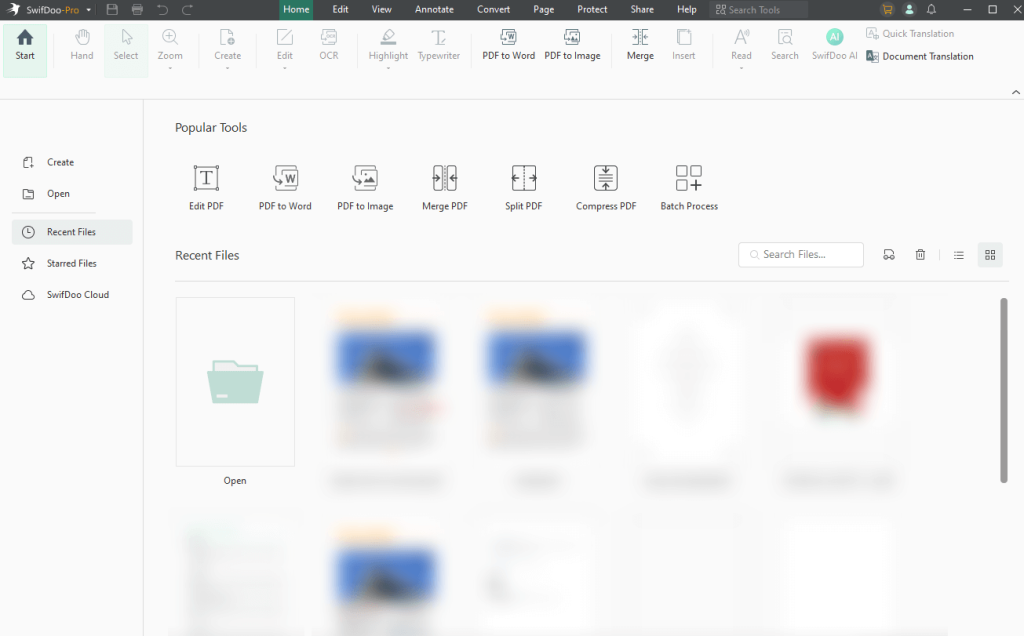
If you want to know how to convert PDF to JPG on Windows for free, JOPDF makes the process simple and fast. Its simple, clean interface and powerful features make it quick and hassle-free to turn your PDFs into high-quality images.
Discover the steps to convert PDF to JPG on Windows using JOPDF for free in a few clicks.
Step 1. Get JOPDF from its official website and install it on your Windows computer.
Navigate to the Convert tab at the top and select the To Image tool.
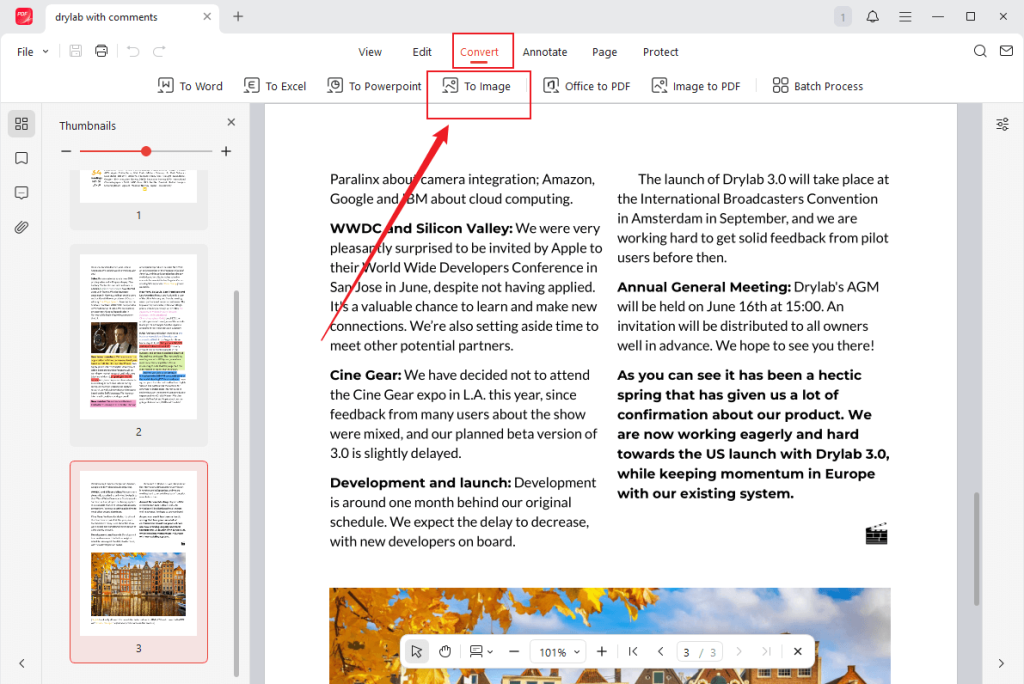
Step 2. Tap the +Add Files button to open PDFs. Or, simply drag and drop them into the converter window.
Step 3. Choose JPG as the output Format. Then select your Method and Quality.
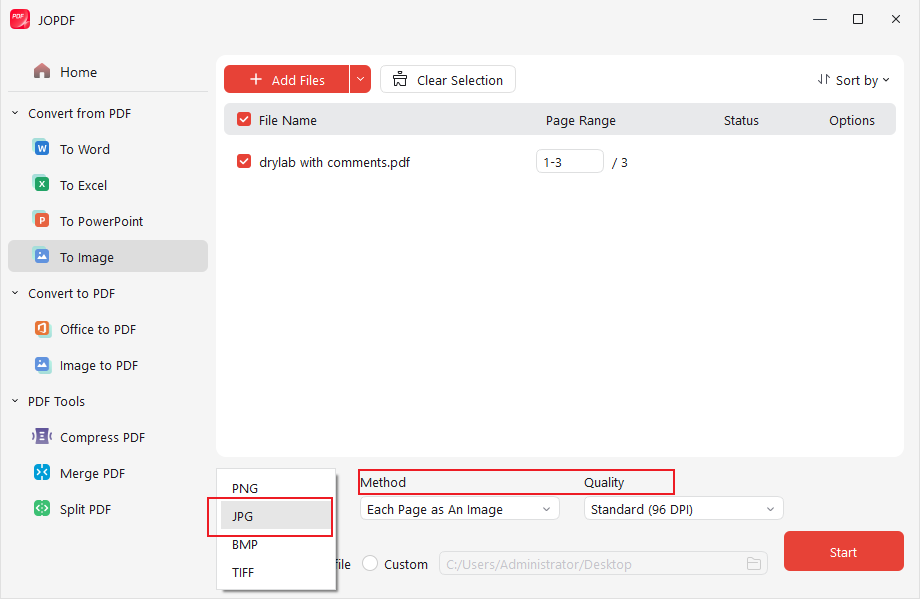
Then, choose the storage folder where you wish to save the converted files.
Step 4. After configuring all conversion settings, tap Start to proceed. Just a few seconds, and your PDF is now a JPG.
How to Convert PDF to JPG on Mac
Adobe Acrobat Pro is known as the best PDF to JPG converter for Mac, providing consistent, high-quality conversions. With Acrobat, you can quickly convert PDF to PPT, JPG, Word, or other formats without losing formatting, making it perfect for sharing or presentations. This tool lets you easily convert PDF pages into sharp, high-resolution JPG images.
Explore how to convert PDF to JPG on Mac in Adobe Acrobat in a few clicks.
Step 1. Get Adobe Acrobat Pro from the official site and install it on your Mac. Launch the program and open your PDF file in the software.
Step 2. Select the file, then export it to the new format by navigating to the right pane and selecting the Export PDF tool.
Alternatively, navigate to the menu and select File. Choose Export to and select Image.
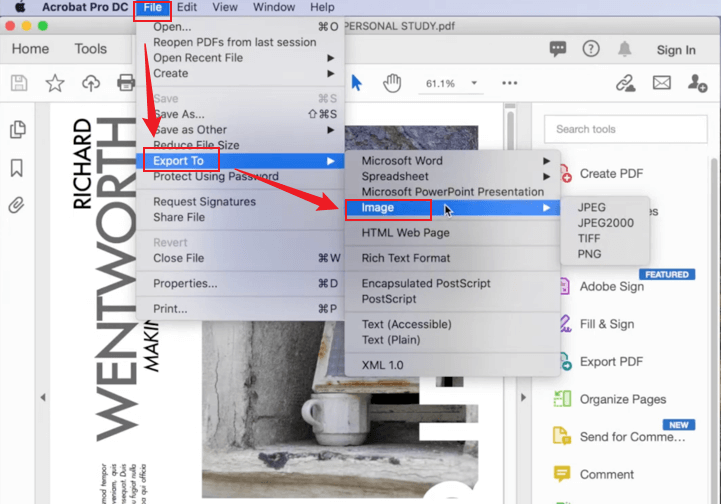
Step 3. Choose an image format type (e.g., JPG file, TIFF, etc.). Then, click Export.
Step 4. In the Save As dialog box, save your file. Select the location and rename the file if needed. Then tap Save.
Tip: If you are saving several PDF pages as images, each page will be saved as an individual image file.
More PDF to JPG converters that work well on Mac:
- JOPDF
- Preview
- PDFelement
- PDF Expert
- Smallpdf
How to Convert PDF to JPG Online
For quick conversions on any device, online PDF to JPG tools are easy and accessible. They run in your browser, are usually free for basic tasks, and let you convert files quickly from anywhere.
6 excellent online PDF to JPG converters:
- iLovePDF
- Canva
- Smallpdf
- PDF2Go
- Adobe Acrobat Online
- PDF Candy
With iLovePDF, you can quickly and effortlessly turn PDF into JPG using just your web browser. It works on desktops and mobile devices without needing any installation. In addition to image conversion, it allows you to make a screenshot into a PDF, and to easily merge, compress, and organize files.
Explore how to convert PDF to JPG online using iLovePDF.
Step 1. Open iLovePDF on your web browser. Select the PDF to JPG tool from the listed options.
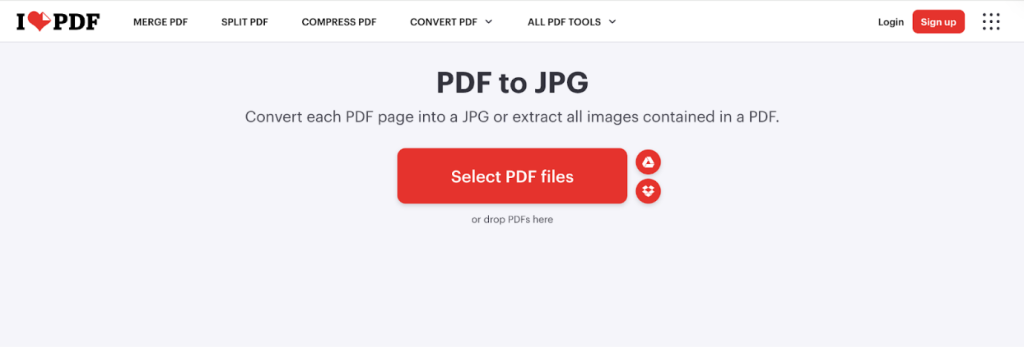
Step 2. Click Select PDF files and import your desired PDF files. Alternatively, drop your preferred PDF files directly into the program.
Step 3. After uploading your PDF, choose Convert to JPG at the bottom. iLovePDF will instantly convert your PDF into a JPG.
Step 4. Hit Download JPG images to save the JPGs to your device.
How to Convert PDF to JPG on Phone
Many users wonder, “Does Android or iPhone have built-in features to turn PDF into JPG? The answer is No. Android and iPhone don’t offer built-in features that let you convert a PDF to a JPG directly. Android and iPhone come with built-in PDF viewers and scanners, yet they lack a dedicated feature to convert PDF pages to JPG. Third-party solutions are required.
To convert PDFs to JPG on your phone, you can use third-party apps from the App Store or Google Play or online converters in your mobile browser. Popular choices include dedicated converters such as PDF to JPG Converter, PDFTOJPG, or PDF Converter – PDF to JPG (iOS). Plus, you can use Android apps such as Aconvert’s PDF to JPG Converter, or online tools like HiPDF and Xodo’s PDF to JPG. These apps and online tools function on both iPhone and Android, removing the need for desktop software.
Use Xodo to easily convert PDF to JPG on iPhone and Android—here’s how.
Step 1. Use your web browser to open the Xodo PDF to JPG converter.
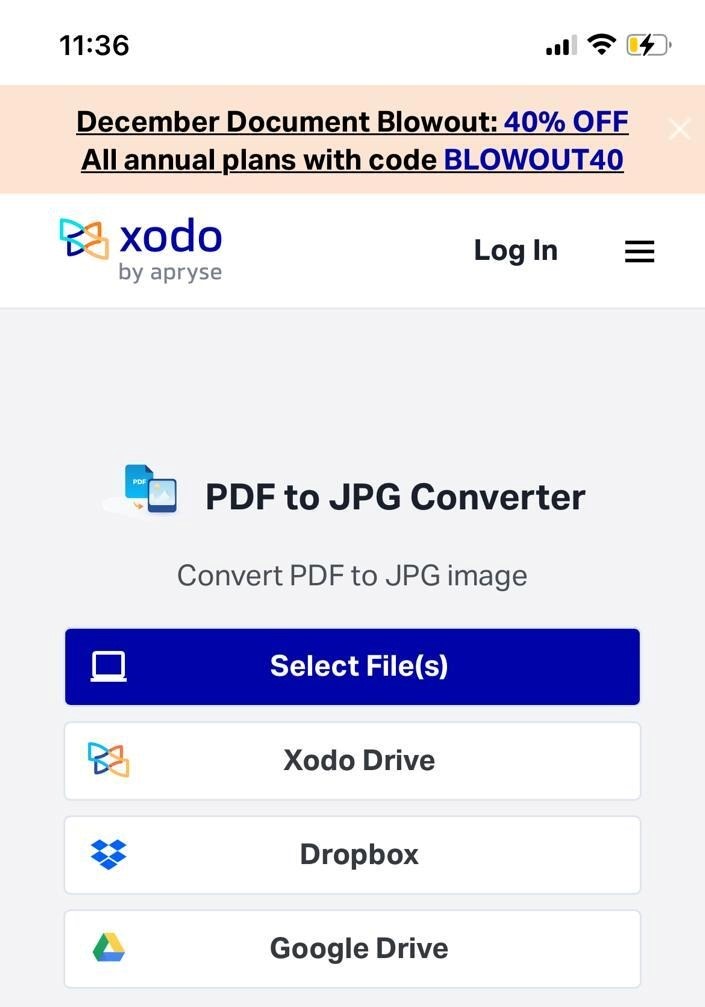
Step 2. Use Select File(s) to import your PDF and prepare it for JPG conversion.
Step 3. Tap Convert to begin the conversion process.
Step 4. Click the Download button to save a single PDF page or all pages.
To Wrap Things Up
Converting PDFs to images is now important for sharing, editing, and reusing content on different devices. Whatever platform you use—Windows, Mac, iPhone, Android, or online—reliable tools are ready to help. Choosing the proper method makes it simple to understand how to convert PDF to JPG and other image formats while keeping your files sharp. With the methods covered here, handling PDF conversions becomes fast and easy anytime.
FAQs
Step 1. Open Adobe Acrobat Pro, then load your PDF file.
Step 2. In Adobe Acrobat Pro, choose File > Export To > Image, or click Export PDF on the right.
Step 3. Choose JPG from the list of output formats.
Step 4. Click Export. Use the Save As window to choose a folder, optionally rename the file, and click Save.
Table of Contents

Your Best Free PDF Expert in PDF editing, compressing, converting, annotating, protect, organizing, and more.
Free DownloadWindows · macOS

Olivia
“Olivia is an editor at JOPDF, where she writes practical guides and insightful articles on managing PDFs—covering topics like editing, annotating, converting, and organizing files efficiently. Passionate about clear communication and digital productivity, Olivia enjoys spending her free time cooking, watching movies, and hiking to unwind and find inspiration for her writing.”
![7 Best PDF Converters in 2026 [Pros, Cons, and More]](https://b.jopdf.com/wp-content/uploads/2026/02/best-pdf-converter.png)
![[2026] 4 Ways to Combine PNG to PDF on Windows, Mac, and Online](https://b.jopdf.com/wp-content/uploads/2026/02/combine-png-to-pdf.png)