Summary :
PDF files are invented to prevent unwanted editing while Word documents are designed for flexible editing. Sometimes, to update the information in a PDF, you need to convert the PDF back to Word format. For instance, convert a PDF form, resume, or other document to Word. If you haven’t found one satisfying converter tool, this article offers top suggestions. Read this JOPDF tutorial to see how to save a PDF as a Word Document using 4 free methods. Regardless of what device you use, here comes the solutions.
How to Save PDF as Word with JOPDF: Preserving Formatting & Layout
JOPDF will be your favorite program to change a PDF to a Word document. It is lightweight, free and intuitive. Unlike other software, it has no hidden version or paywall. You can save your Word document in DOCX or DOC format, and also convert PDF to RTF. You can also perform batch PDF to Word conversion for free in one task. JOPDF for Windows and Mac allows you to edit PDFs on different OS.
Discover how to save a PDF as a Word document for free on Windows or Mac.
Tip: JOPDF lets you convert PDF to Word offline without an Internet connection, free with no account, sign up or trial.
Step 1: Download and launch JOPDF, and open the PDF you desire to convert to Word with the converter.
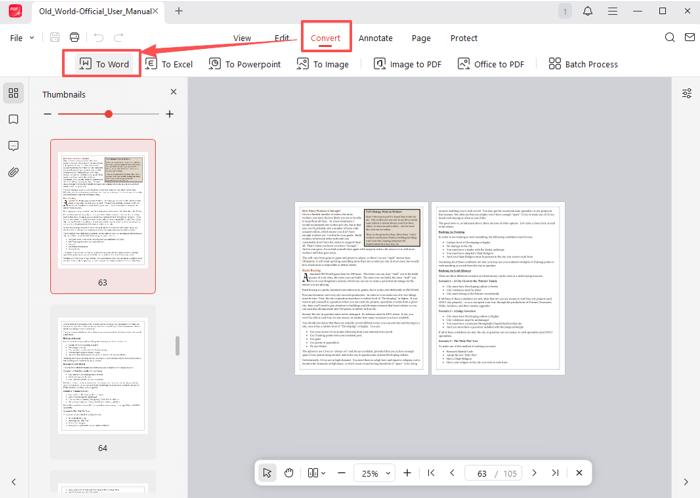
Step 2: Click Convert > To Word from the top to access the conversion tools window.
Step 3: Select a Word filename extension, and customize the saving location.
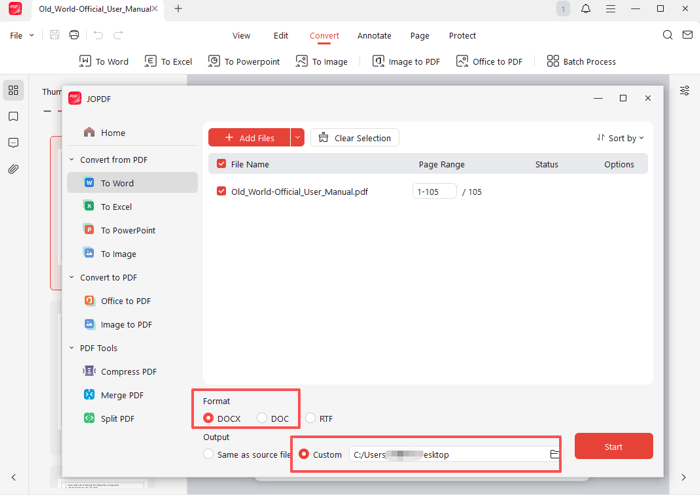
Step 4: Tap the Start button to save the PDF as a Word document in seconds.
Alternative: How to Convert PDF to Word on PC/Laptop or Mac: Step by Step
If you want to save a PDF file as a Word document without opening the PDF, the steps below are simpler.
Step 1: Open the JOPDF you’ve downloaded and installed.
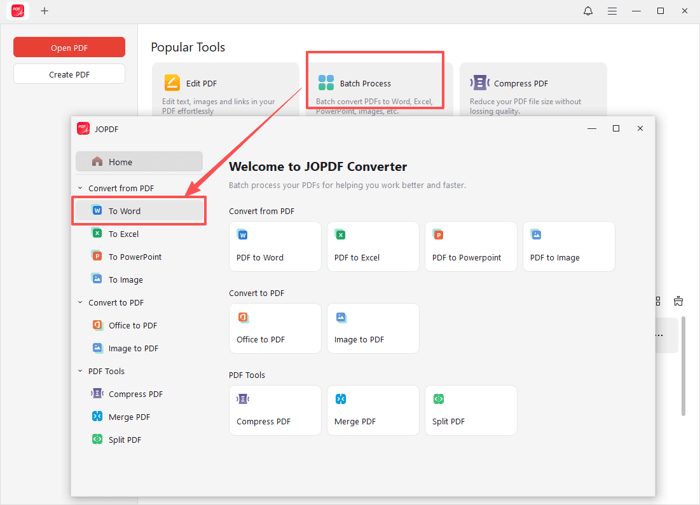
Step 2: Click Batch Process in the start interface and select To Word in the pop-up window.
Step 3: Add the PDF you try to convert to a Word document for free, and set the output options.
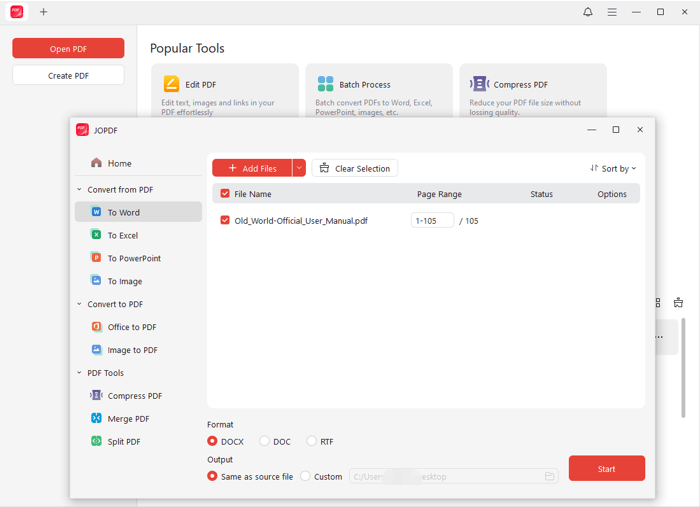
Step 4: Press Start to convert the PDF to Word without changing the format or layout.
Key features:
- Convert PDF to/from, Word, Excel, PowerPoint, and image.
- Merge images/PDFs into one PDF, and split and compress PDFs.
- Directly edit images in PDFs as well as edit text, hyperlinks, and pages without conversion.
- Annotate, and secure PDF documents.
How to Convert PDF to Word Using Microsoft Word
One of the best ways to save a PDF as a Word document is using the Microsoft Word program. Microsoft Office Suite users are lucky to have the free conversion solution. Not many people know that they can open a PDF in the Word desktop application and turn the text into editable parts. Then, you can use the Word editing options to change the bullet points, tables or anything other.
Check out how to convert PDF to Word on Mac or Windows in Word.
Step 1: Launch the Word desktop program, and access the File > Open option.
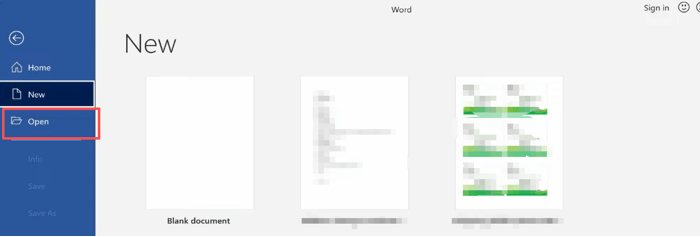
Step 2: Select the PDF document you try to convert to Word format and click Open.
Step 3: Word displays a notice window to ask you to confirm the conversion. Click ‘OK‘.
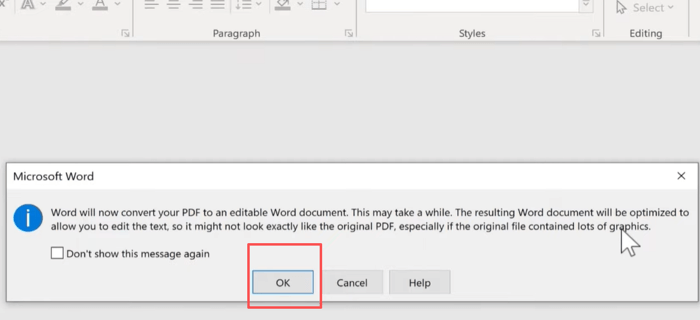
Step 4: In a moment, the PDF is converted to a PDF. Navigate to the Save as option to save the PDF as a Word doc.
How to Change PDF to Word via Google Drive & Google Docs
When talking about how to save a PDF as a Word document, a web-based tool is handy. A reliable choice group is the Google Drive and Google Docs apps. Google Drive is an online free document storage service and the Docs is for document creating and editing. They work like the last MS Word approach for non-Office users. However, lower your expect for the resulting formatting and layout.
Let’s see how to convert a PDF to Word on a Mac, or Windows using Google Drive and Google Docs.
Step 1: Log into Google Drive with your Google account, and upload the PDF to convert to Word.
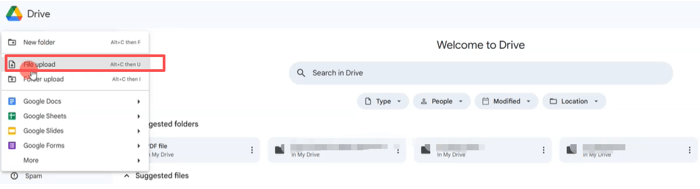
Step 2: Right-click the uploaded PDF in Drive and click the Open with option > Google Docs.

Step 3: Once the PDF is opened and converted to an editable Google Doc file, click File > Download.
Step 4: Select the format as Microsoft Word (.docx) to download the Word file. That’s all about how to use Google Drive to convert a PDF to Word via Google Docs.

How to Turn a PDF into a Word Doc with Zamzar
If your document is not confidential, an online converter is the go-to approach. You can save a PDF as a Word document online for free conveniently in browsers. Zamzar is one of the best comprehensive converter that can handle more than documents and also media and drawing files. With Zamzar, you can convert a file from PDF to Word on Mac, Windows, Linux, Android, iPhone, and any other devices. It allows batch conversion and doesn’t require a sign-up.
Explore how to convert a PDF to a Word document online for free with no sign up or email required.
Step 1: Visit zamzar.com and click the Choose Files button to upload the PDF you’d like to save as a Word document.
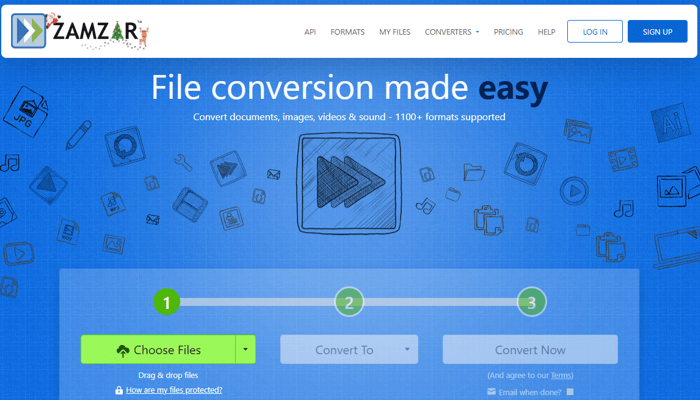
Step 2: Click the Convert to button to select the converted file format like doc or docx.
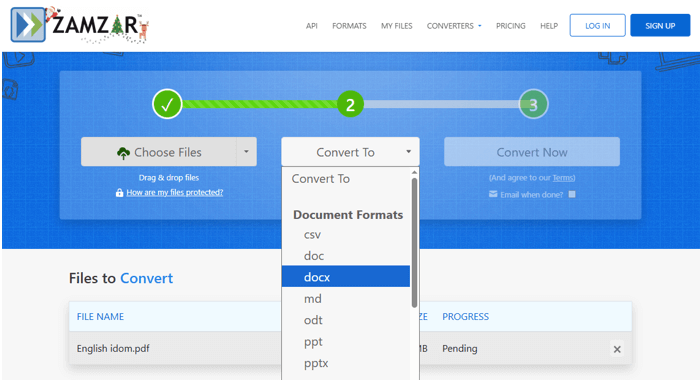
Step 3: Click the Convert Now button to change the PDF to Word.
Batch Convert PDF to Word
JOPDF and Zamzar are free methods to convert a PDF to Word on Mac/Windows without Adobe Acrobat. They can both batch convert PDF files to Word documents and keep the formatting.
JOPDF lets you convert as many PDF files as you want without limitations. When you open the PDF to Word converter tool, add all your PDFs in one go, and start converting. That’s it. If you wonder how to save a PDF as a Word document on a Mac, Zamzar and JOPDF also cater to your needs.
Conclusion
Are you still looking for the best way to convert PDF to MS Word? After trying so many software, we selected out the four options. The Google Docs and Word are trustworthy and free but the converted documents can be a bit messed up. JOPDF offers you the ideal conversion accuracy, speed, and zero cost.
FAQs
Table of Contents

Your Best Free PDF Expert in PDF editing, compressing, converting, annotating, protect, organizing, and more.
Free DownloadWindows · macOS · Linux

Selena
Staff Editor
“Selena is a staff editor working for JOPDF, passionate and committed to providing how-to and round-up articles. Over 8 years of specialized skills and experience in PDF solutions, hoping to help users ease their lives and solve whatever they encounter. "Work smarter, not just harder!"”