Introduction :
Whether you are a student, professional, or businessperson, it is a common task to save an Excel file as a PDF. PDF is a popular format owing to its advantages of preserving original formatting and universal compatibility. For financial reports, invoices, charts, or data summaries, it is better to convert Excel to PDF for easy sharing or archiving. How to save Excel as PDF? In this JOPDF article, I will walk you through the step-by-step guidance.
Saving Excel as a PDF offers a professional look, broad compatibility, a smaller file size, and preserves formatting. In Microsoft Excel, you can use its built-in options to save an Excel file as a PDF. What can you do if you don’t have Microsoft Excel installed? Try third-party Excel to PDF converters! JOPDF is worth a try, which supports converting CSV and XLSX to PDF for free. All in all, anything you want to know about Excel to PDF is included in the following content. Now, let’s delve into!
How to Save Excel as PDF
Microsoft Excel is known as a powerful spreadsheet application that can organize, analyze, visualize, and calculate data. Meanwhile, it offers features for PDF workflows, including both exporting to PDF and importing data from PDF files. There are two methods to save an Excel file as a PDF in Microsoft Excel. Let’s check them one by one.
Method 1. How to Save an Excel File as a PDF Using “Save As” / “Export”
Step 1. Open your Excel file in Microsoft Excel first.
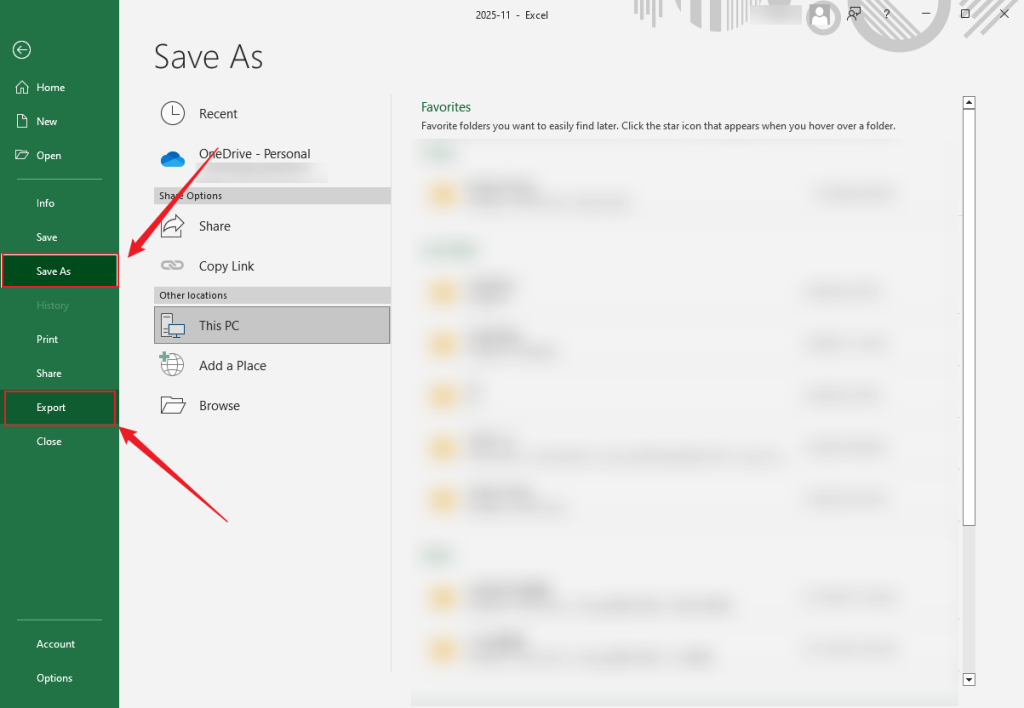
Step 2. Click File from the top menu and click the Save As option. Alternatively, click File and select the Export option.
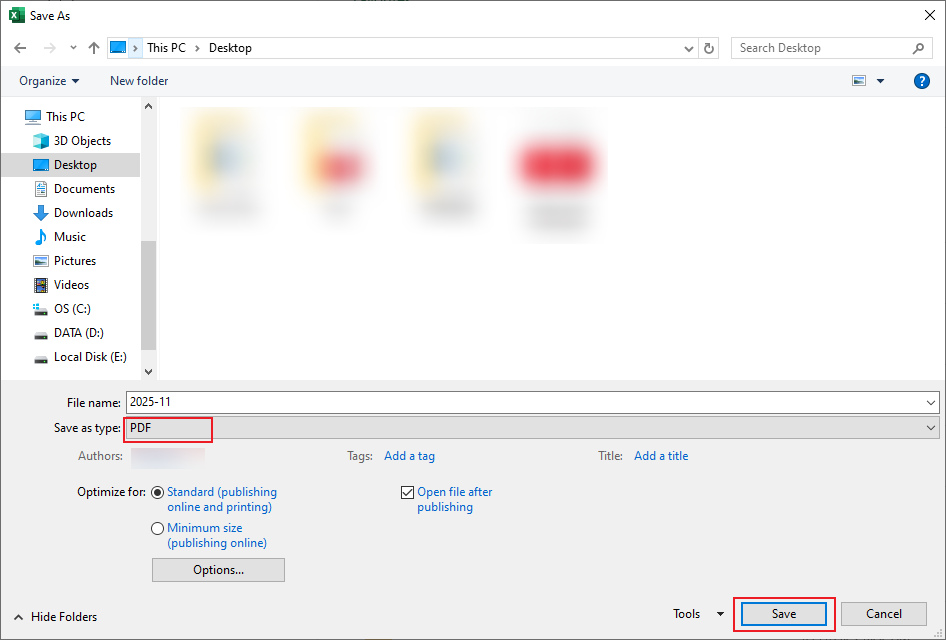
Step 3. Then, choose a target folder as the destination. Open the “Save as type” dropdown and click the PDF option. If you click the Export option, click the Create PDF/XPS Document option, and then choose its saving path. Finally, click on Save.
Tips
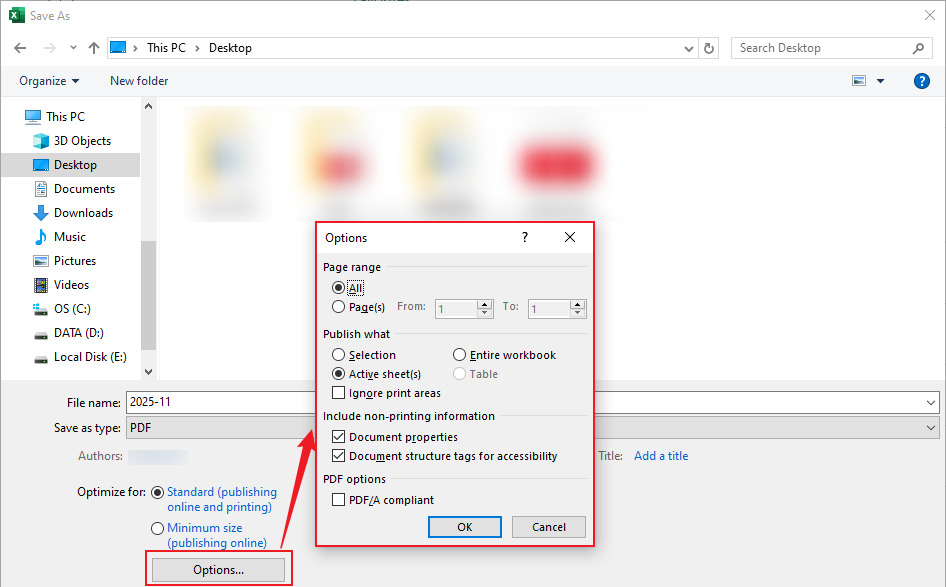
You can also click the Options… button if you want to export the active sheet, entire workbook, or selected sheets.
Method 2. How to Save Excel as PDF Using “Print to PDF”
After opening your Excel file in Microsoft Excel, follow the steps below to save it as a PDF using “Print to PDF”.
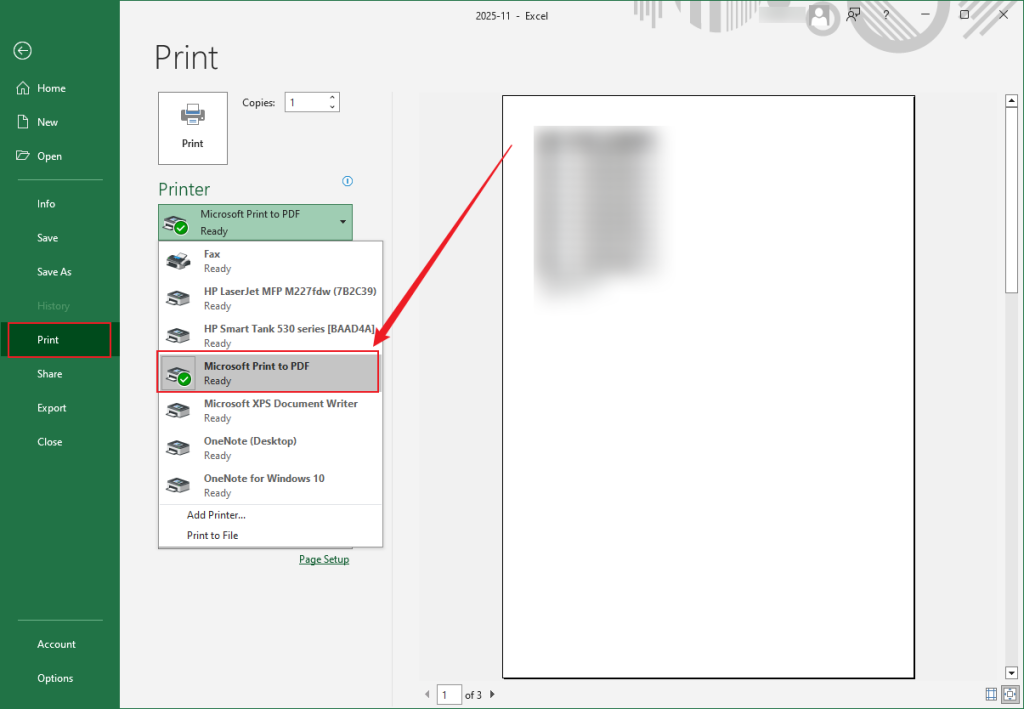
Step 1. Click File and select the Print option.
Step 2. Open the Printer list and select the Microsoft Print to PDF option.
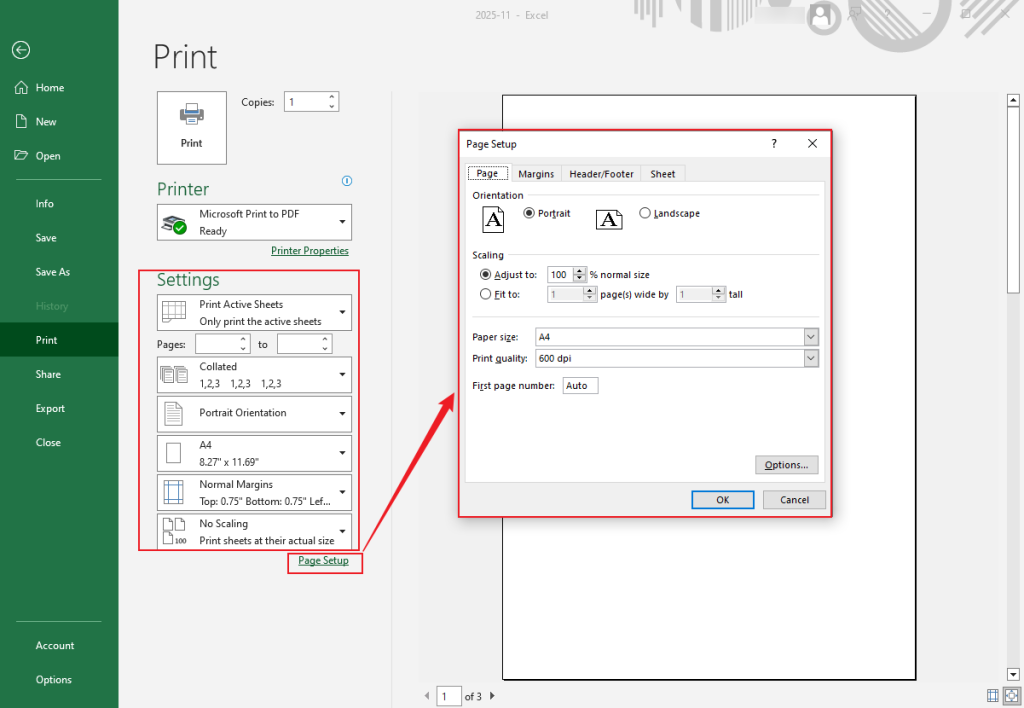
Step 3. Under the Settings section, adjust the page orientation, size, or margins, and customize other settings as needed. Meanwhile, you can click Page Setup to adjust other page settings.
Step 4. Next, click Print. Finally, name the file, choose its saving path, and click Save.
How to Save Multiple Excel Sheets as One PDF
If your Excel file has multiple sheets, how can you save them as one PDF? Below are 3 methods for your choice. Follow me to learn how to save multiple Excel sheets as one PDF.
Method 1. Save Entire Workbook as a PDF via “Save As”
Here’s how to convert Excel workbook to PDF:
Step 1. Open your Excel workbook in Microsoft Excel.
Step 2. Go to File > Save As to choose where to save the file. Expand Save as type and choose PDF.
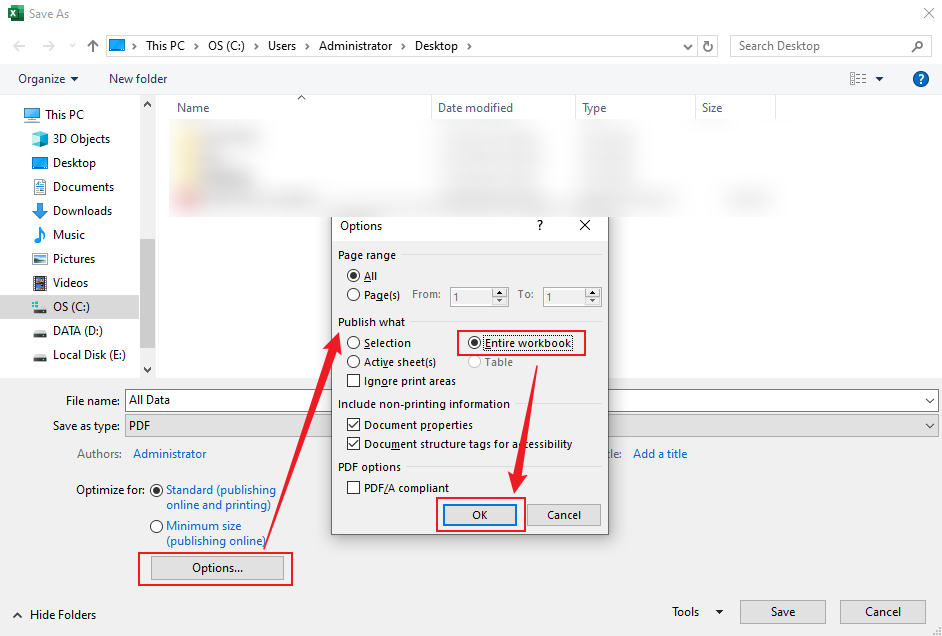
Step 3. Click Options, tick the Entire workbook checkbox, and click OK.
Method 2. Save Specific Sheets as One PDF
Step 1. Open your Excel file first and hold Ctrl or Command to select the sheets you want. Then, click File.
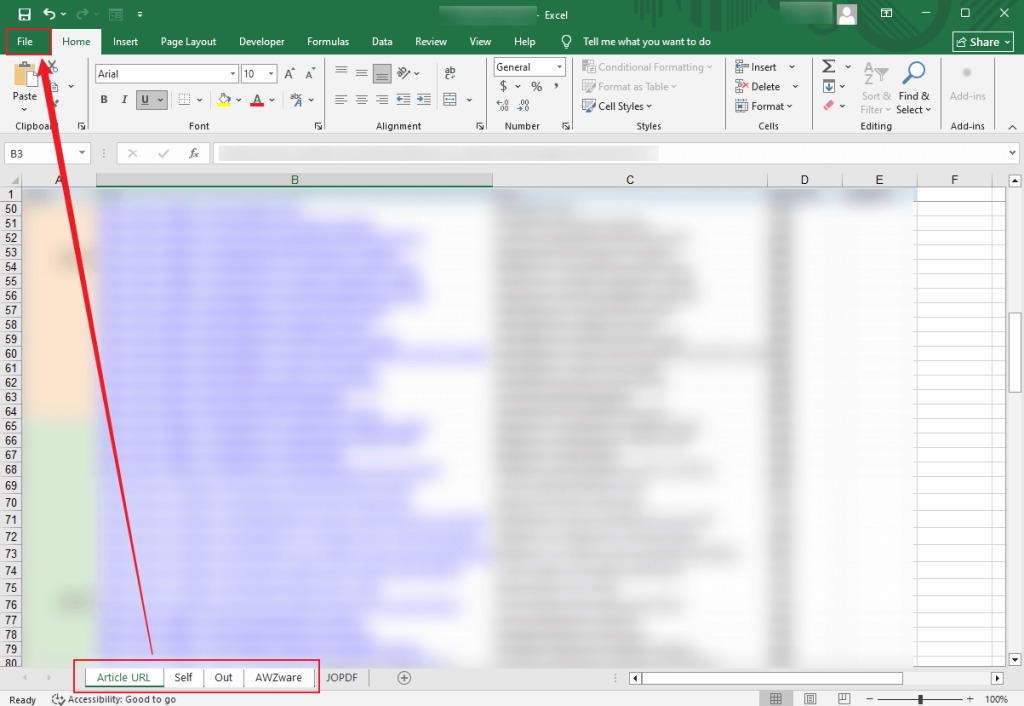
Step 2. Click Save As and choose the destination folder for the file. Set PDF as the output format. Click Options and click the Selection option.
Step 3. At last, save the PDF file.
Method 3. Save Multiple Excel Sheets as One PDF via “Print to PDF”
Compared to the above methods, this method offers greater control over page setup, margins, scaling, headers, and more. Here’s how:
Step 1. Open the Excel file and select all sheets or the selected sheets you want to save as PDF.
Step 2. Click File, select Print, and set Microsoft Print to PDF as the printer.
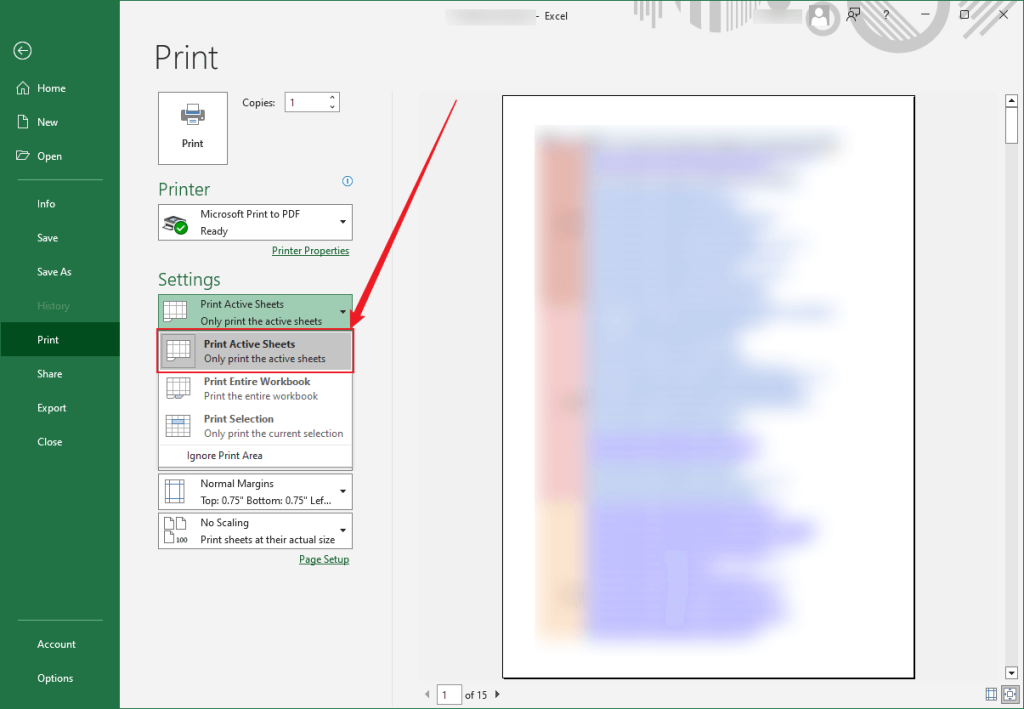
Step 3. Under settings, select the Print Active Sheets option and adjust other settings as needed. At last, click Print.
How to Save Excel as PDF Without Cutting Off
How to save Excel as PDF without cutting off content? The steps are as follows:
Step 1. Click the Page Layout tab from the top menu, click the Orientation option in the Page Setup group, and select Landscape or Portrait according to the table. Meanwhile, adjust the Size and Margins. Additionally, in the Scale to Fit group, set Width to 1 page and set Height to Automatic.
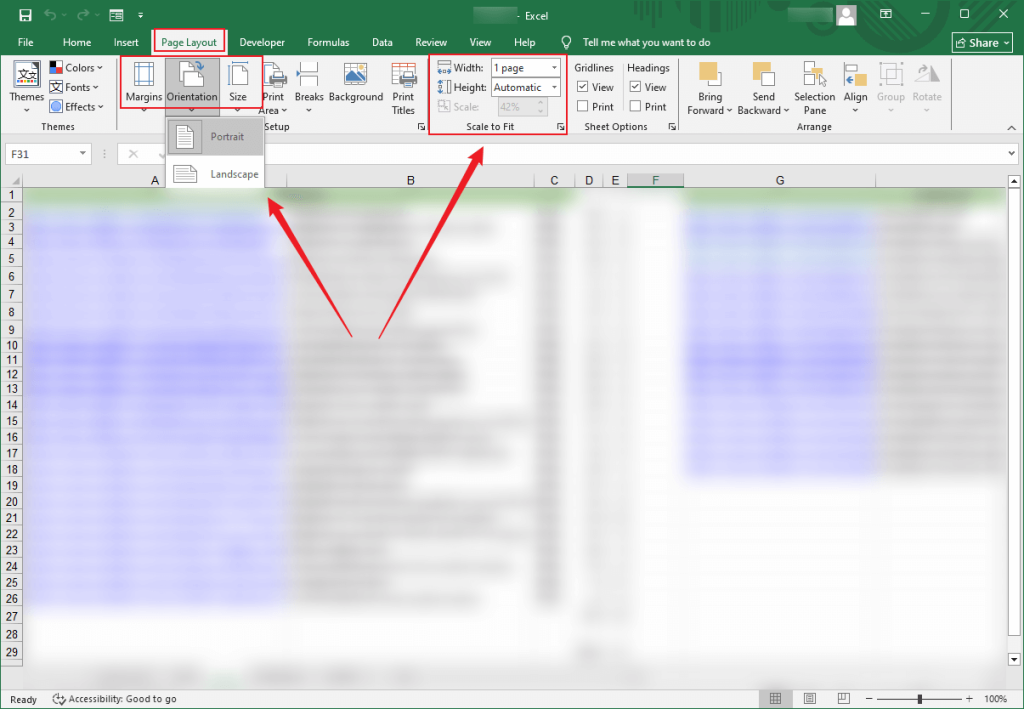
Step 2. Next, choose one method above to save the Excel as a PDF without cutting off content.
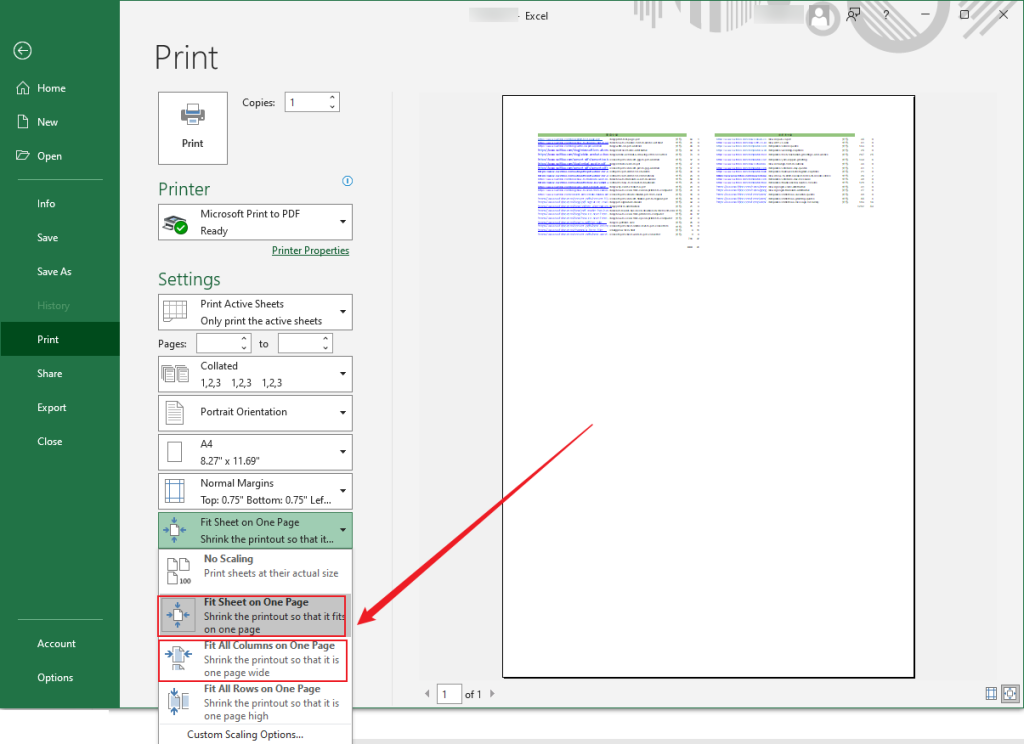
Alternatively, you can use the Scaling options. Once the Print Preview is open, under Settings, select the Fit Sheet on One Page or Fit All Columns on One Page option, and click Print.
How to Convert Excel to PDF Step by Step
How to convert Excel to PDF with Microsoft Excel? Third-party Excel to PDF converters can be your choice. In this section, I will recommend and introduce excellent converters for you. Moreover, the step-by-step guidance on how to convert Excel to PDF is also included.
Method 1. Convert Excel to PDF for Free with JOPDF
JOPDF is a 100% FREE Excel to PDF converter for Windows, Mac, and Linux. With its intuitive interface and simple operation, you can easily master how to convert Excel sheets to PDF. Additionally, JOPDF supports converting PDF to PPT, Word, and images and vice versa. More importantly, JOPDF is a free PDF editor with a wide range of features. It enables you to annotate PDFs, encrypt PDFs, rearrange PDF pages, and more with PDFs. For more features of JOPDF, download it and start your exploration journey.
Now, let’s learn how to convert Excel to PDF for free using JOPDF.
Step 1. Click the button below to download and install this free Excel to PDF converter on your Windows or Mac PC. Next, launch it.
Step 2. On the main interface, click Batch Process and click the Office to PDF option.
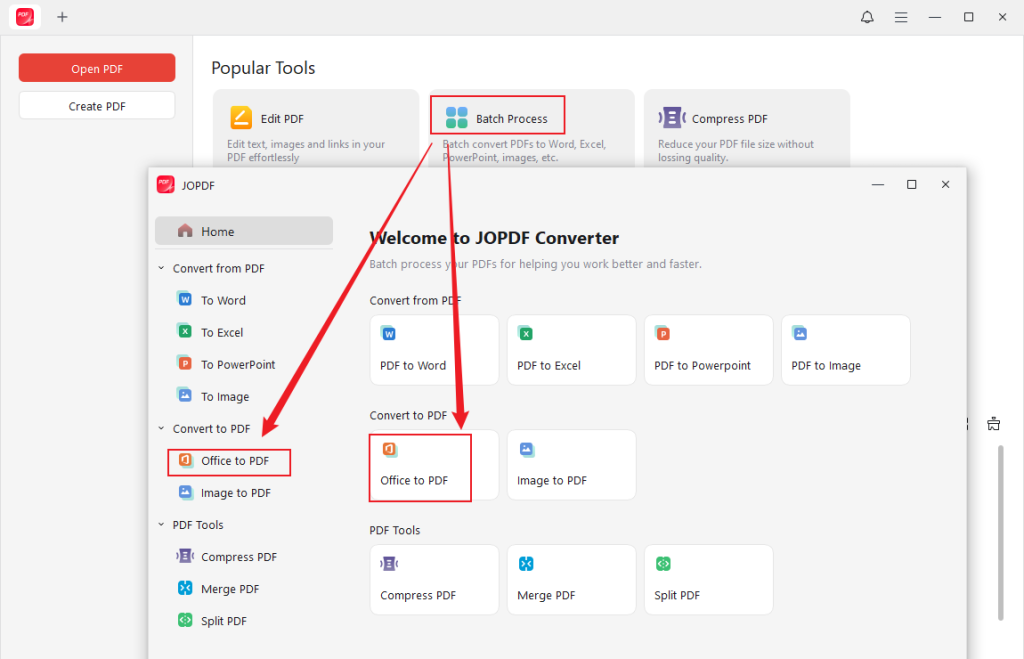
Step 3. Click the + Add Files button to upload one or multiple Excel files. Select the save folder for the PDF files and click Start.
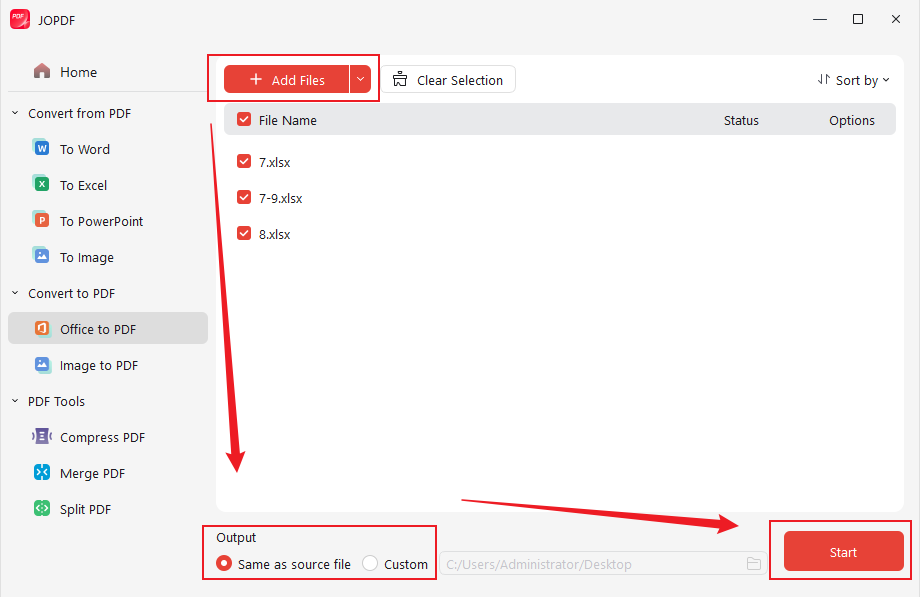
Once the Excel to PDF conversions are over, you can locate where the PDF is or edit the PDF in JOPDF.
Method 2. Convert Excel to PDF Online with Smallpdf
Don’t want to install any software? Consider online Excel to PDF converters. There are many safe, useful online PDF tools available, such as Smallpdf, iLovePDF, SwifDoo PDF Online Converter, FreeConvert, etc. Choose Smallpdf from them. It is an online Excel to PDF converter that enables you to convert Excel to PDF or vice versa with ease. In addition, it enables you to convert PDF to JPG and more. Here, follow the steps below to convert Excel to PDF online using Smallpdf.
Step 1. Navigate to Smallpdf’s website in your browser and select the Excel to PDF option from the Tools list.
Step 2. Add your Excel file to Smallpdf by dragging and dropping. Or, click CHOOSE FILES.
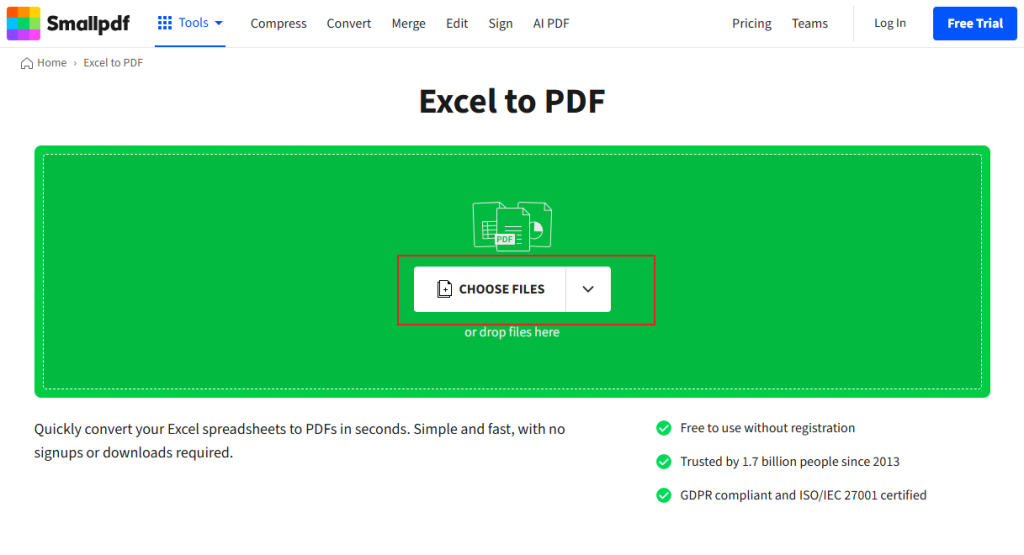
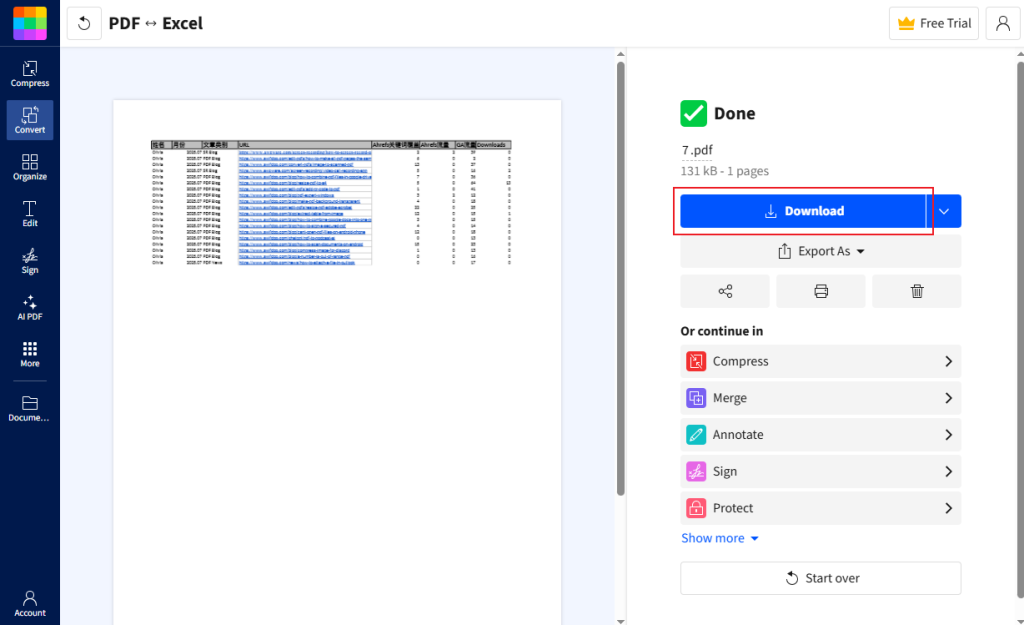
Step 3. Then, the Excel to PDF conversion will start automatically. Once done, click the Download button.
Conclusion
To make your Excel files easy to archive or share, save them in the PDF format. How to save Excel as PDF? Microsoft Excel offers built-in “Save As”, “Export”, and “Print” features to save Excel workbook files as PDF. In the content above, I show you comprehensive guidance and exact steps. If you don’t have Microsoft Excel installed, try Excel to PDF converters. JOPDF is a free PDF converter that is worth trying. If you want to convert Excel to PDF without software, consider online PDF converters.
FAQs
Go to Page Layout first.
Customize Width and Height in the Scale to Fit group.
Optionally, set the page size to A4 or Letter.
Finally, save the Excel as a PDF.
Table of Contents

Your Best Free PDF Expert in PDF editing, compressing, converting, annotating, protect, organizing, and more.
Free DownloadWindows · macOS · Linux

Olivia
“Olivia is an editor at JOPDF, where she writes practical guides and insightful articles on managing PDFs—covering topics like editing, annotating, converting, and organizing files efficiently. Passionate about clear communication and digital productivity, Olivia enjoys spending her free time cooking, watching movies, and hiking to unwind and find inspiration for her writing.”