Introduction
PDF is a great choice for document sharing because it preserves layout and fonts. However, sometimes you don’t need the document itself but rather images. This guide will teach you how to convert PDF to PNG using four different methods.
Method 1. How to Convert PDF to PNG for Free Without Losing Quality
If you are looking for a free, high-quality solution, JOPDF is the perfect choice. JOPDF is a lightweight PDF editor and converter specifically designed for Windows and macOS. Its interface is simple and straightforward, and it is extremely easy to use. What’s more, all its functions, including conversions, are free!
As for PDF conversion, it processes files locally on your computer, so you don’t have to worry about privacy risks. In addition, it can adjust settings based on your needs. For example, you can choose a quality setting of 96 DPI, 200 DPI, or higher.
Here is how to change PDF to PNG using JOPDF:
1. Click the button below and install it on your Windows or Mac computer.
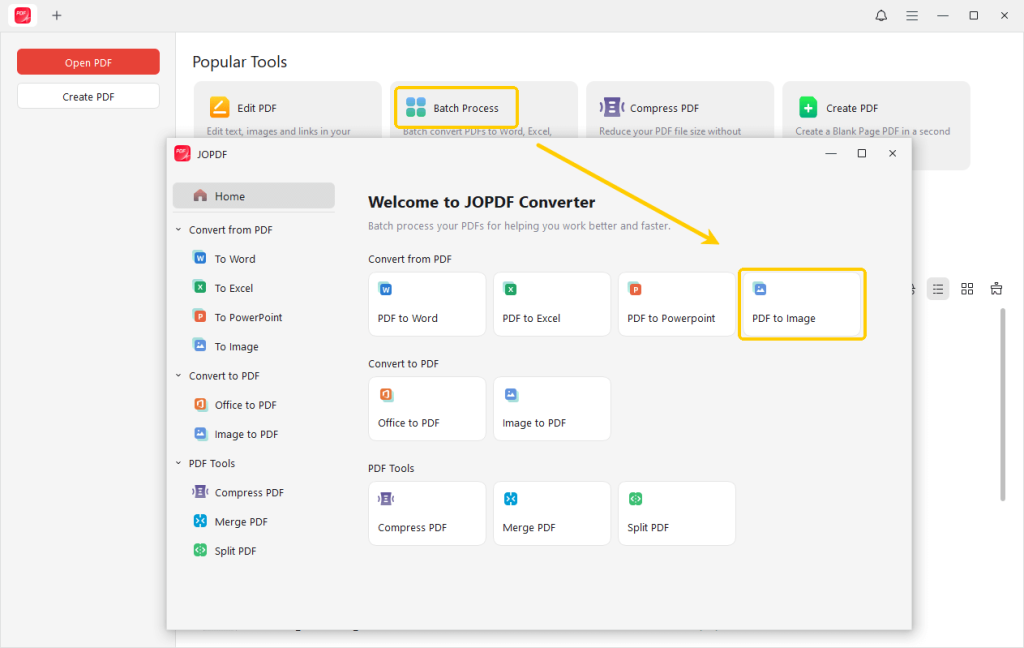
2. Launch JOPDF and then choose the Batch Process option. Then, select PDF to Image.
3. Add all the documents you want to convert. If needed, you can change the page ranage to save time.
4. Next, adjust the conversion method and quality.
- Select to save each page as an image or all pages as one image.
- For standard screen use, 96 DPI is fine. For high-quality print or presentations, select 300 DPI.
5. When OK, click the Start button, and JOPDF will process the file immediately.
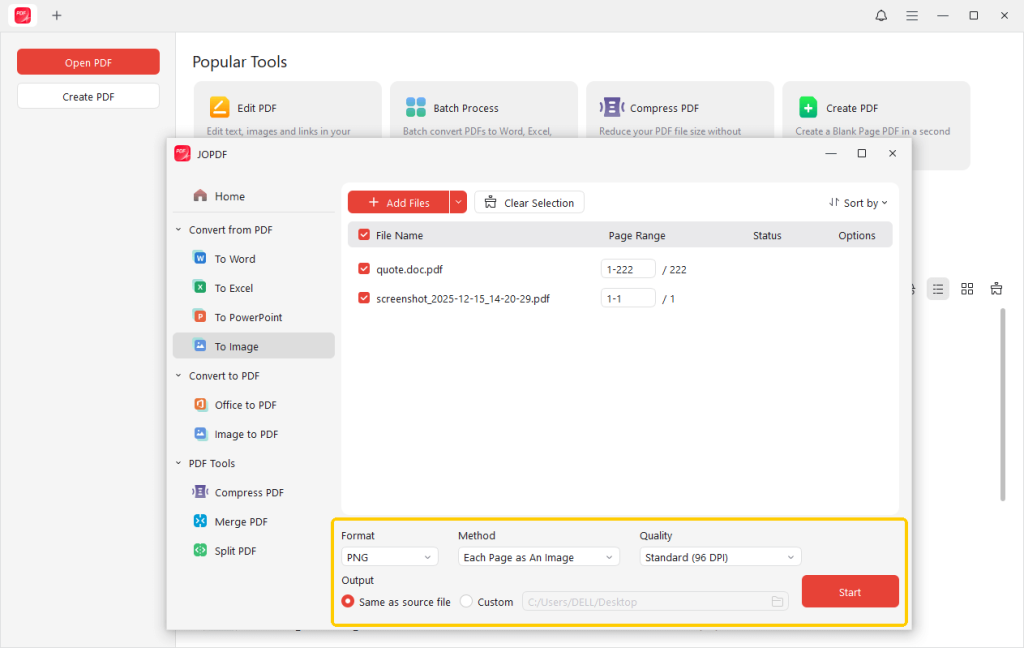
As you can see, with JOPDF, you can easily obtain high-quality PNG images without spending a penny!
If you often need to deal with PDF documents, then you should definitely download JOPDF. It offers a range of tools to help you handle almost any task.
⭐ Best For:
- Users who want a 100% free solution.
- Converting sensitive documents offline.
- Batch processing multiple pages at once.
Method 2. How to Convert PDF to PNG Using Mac Preview
If you are a Mac user, you are in luck. macOS comes with a built-in tool called Preview that is surprisingly powerful. You don’t need to install any extra software if you just need to convert a single file quickly.
However, if you need to convert multiple documents, this could take considerable time, as you will have to repeat these steps. To save time, you can try JOPDF, which supports batch processing.
Check to learn how to use Preview to turn a PDF into a PNG:
1. Right-click the file > Select Open With > Preview.
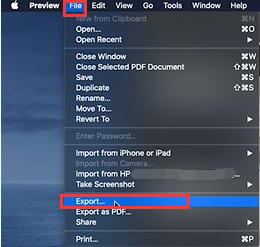
2. Click on File from the menu bar, then select the Export… option.
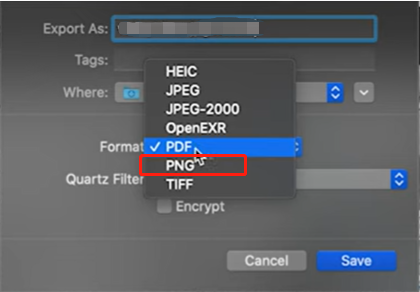
3. Then, you will see a dialog box. Click the Format dropdown menu and select PNG. Next, set the resolution.
4. Choose where you want to save the file and click Save.
⭐ Best For:
- Mac users who need to convert a single document quickly.
- Users who don’t want to download third-party applications.
Method 3. How to Convert PDF to PNG with Adobe Acrobat Pro
Adobe invented the PDF format, so it is no surprise that Adobe Acrobat Pro DC offers a robust conversion tool. It allows for deep customization, such as handling color spaces (RGB vs. CMYK) and filters.
However, these features are locked behind a paid subscription, which costs $15-$25 per month. There is no doubt that, for ordinary use, the cost is too high when tools like JOPDF do it for free.
Anyhow, let’s see how to make the conversion with Acrobat:
1. Launch Adobe Acrobat Pro and open the document.
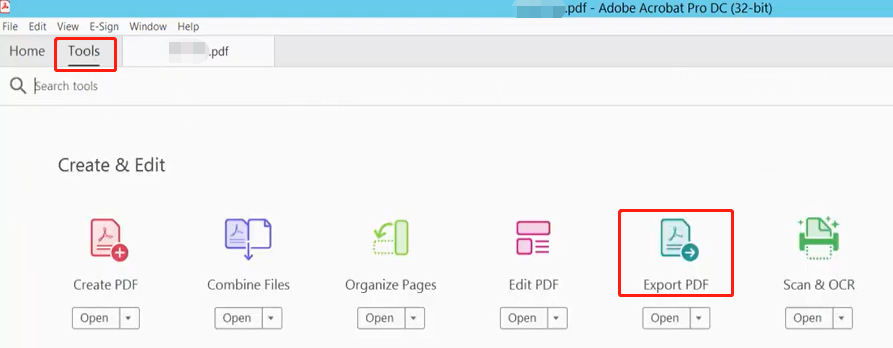
2. Go to Tools, and click on Export PDF.
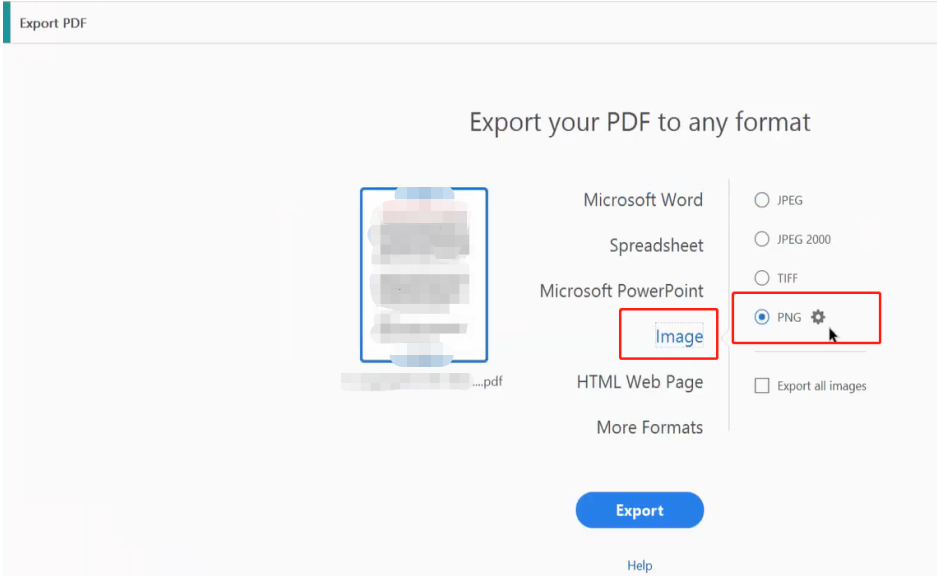
3. Select Image from the list of formats, and then click on PNG.
4. If you need specific settings, click the small Gear Icon next to the PNG selection.
5. Finally, click the blue Export button and select a destination folder.
⭐ Best For:
- Professionals who already have a subscription and need advanced control.
Method 4. How to Convert PDF to PNG in Canva
If you don’t want to or are unable to install the software, you can use a network converter such as Canva, Smallpdf, or iLovePDF, which are websites that let you convert files directly in your browser.
However, most online converters limit the number and size of files that can be uploaded. Furthermore, if your document contains sensitive or private information, for security reasons, it is best not to upload it to a third-party server.
Below is an example to use Canva:
1. Go to your browser and go to Canva PDF to PNG converter (https://www.canva.com/features/pdf-to-png-converter/).
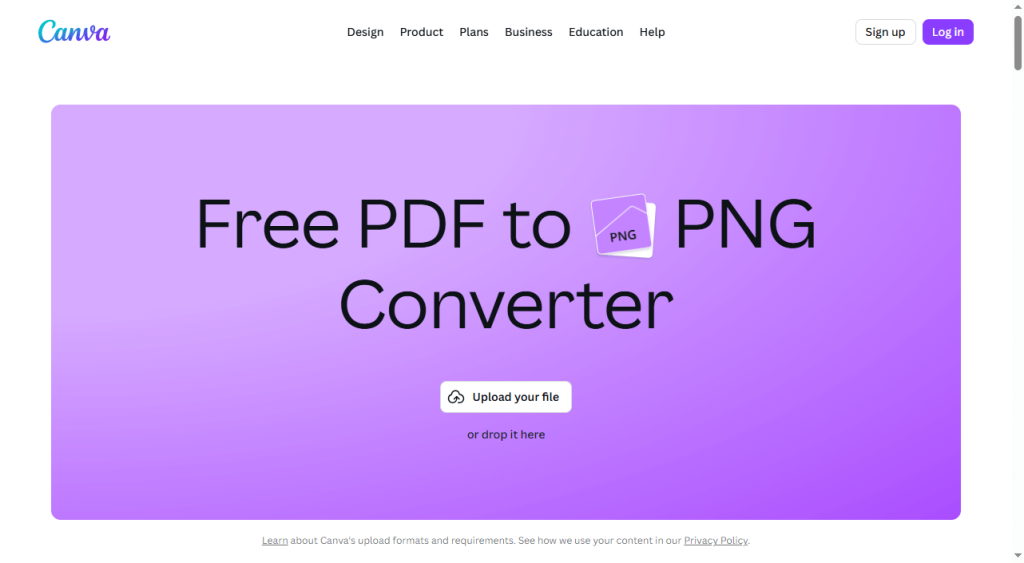
2. Drag and drop your PDF into the browser window.
3. Then, click the Download button.
4. Select PNG under File type and click Download.
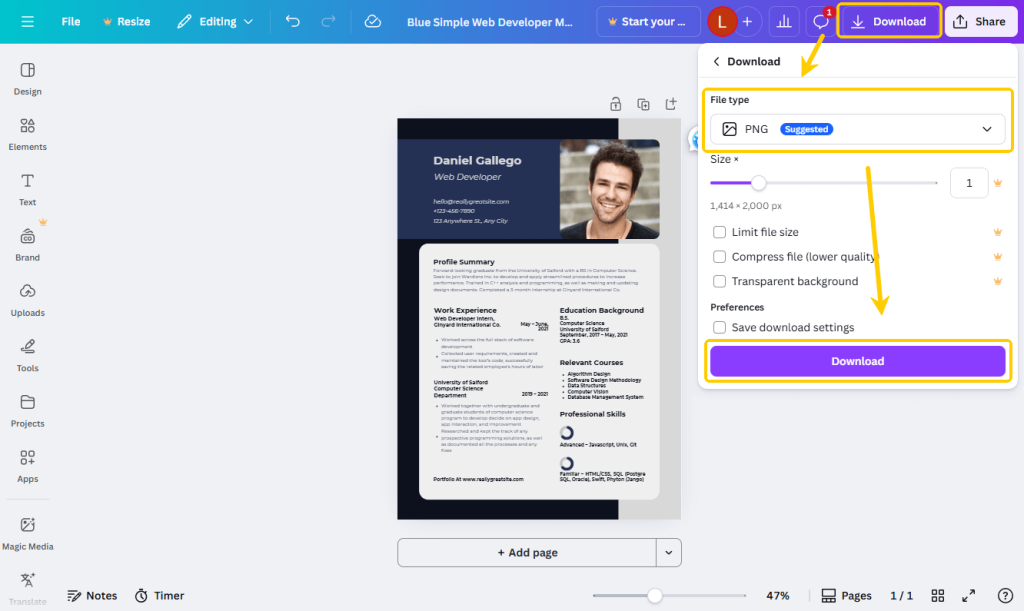
5. Once done, you can go to the Downloads folder to check the image.
⭐ Best For:
- One-time tasks on shared computers.
- Who do not want to install software.
Comparison: Which Method Should You Choose?
To help you decide, here is a quick summary of the pros and cons:
JOPDF: The overall winner. It combines the security of offline processing with the zero cost of online tools. It supports high-resolution output and doesn’t limit your file count.
Mac Preview: The best choice for Mac users who only need to convert one file quickly.
Adobe Acrobat: Powerful and professional, but expensive. Only use this if your company pays for it.
Online Converters: Good for emergency use, but avoid them for sensitive or private documents.
Anyway, you can make a flexible choice based on the current situation. This method is the best at present, but it might not be so in the future. You can try all of them to get a good understanding. Then, when you need to make the conversion, you can start right away!
Conclusion
Have you found the best method? Although Apple users have built-in options and enterprise users can rely on Adobe, for everyone, the most user-friendly tool is JOPDF. It offers professional-level conversion quality, and it is completely free.
Don’t settle for blurry screenshots or expensive subscription services. Download JOPDF immediately and start converting your documents into high-quality images in just a few seconds.
FAQs
Table of Contents

Your Best Free PDF Expert in PDF editing, compressing, converting, annotating, protect, organizing, and more.
Free DownloadWindows · macOS

Queena
Editor
“As a staff editor for JOPDF, Queena excels at guiding users to the optimal tools and solutions. When she's not analyzing the latest PDF solutions, she enjoys spending her free time playing with her four cats.”
![7 Best PDF Converters in 2026 [Pros, Cons, and More]](https://b.jopdf.com/wp-content/uploads/2026/02/best-pdf-converter.png)
![[2026] 4 Ways to Combine PNG to PDF on Windows, Mac, and Online](https://b.jopdf.com/wp-content/uploads/2026/02/combine-png-to-pdf.png)