Introduction
A dedicated conversion tool can help you extract data from a PDF into an Excel spreadsheet. This guide will show you how to convert PDF to Excel using four proven methods, from the industry-standard Adobe Acrobat to a powerful free tool called JOPDF.
Important: Native vs. Scanned PDFs
Before we dive into the methods, it is important to understand the two types of PDF files you might be dealing with, as this will determine which method works best for you.
🔶 Native PDFs: These are documents created directly in software such as Microsoft Word or Excel. The text inside is “live” and selectable. Converting these files to Excel is usually highly accurate, and almost any tool can handle them.
🔶 Scanned PDFs: These are essentially photographs of a paper document. If you can’t select text with your mouse, you have a scanned PDF. To convert these, you need software equipped with OCR (Optical Character Recognition) technology, which “reads” the image and translates it into text.
Method 1. The Best Free Way to Convert PDF to Excel: JOPDF
If you are looking for a free solution that doesn’t require an internet connection, JOPDF is currently one of the best options on the market.
JOPDF is a lightweight, all-in-one PDF converter and editor designed for Windows and Mac. Unlike many “free” tools that limit you to 2 files per day, JOPDF offers powerful conversion capabilities at no cost.
It is a good choice if you are handling sensitive financial data. Why? Because you do the conversion on your computer, ensuring your data is never uploaded to a third-party server.
Here is how to convert PDF to Excel for free with JOPDF:
- Click the download button to get JOPDF.
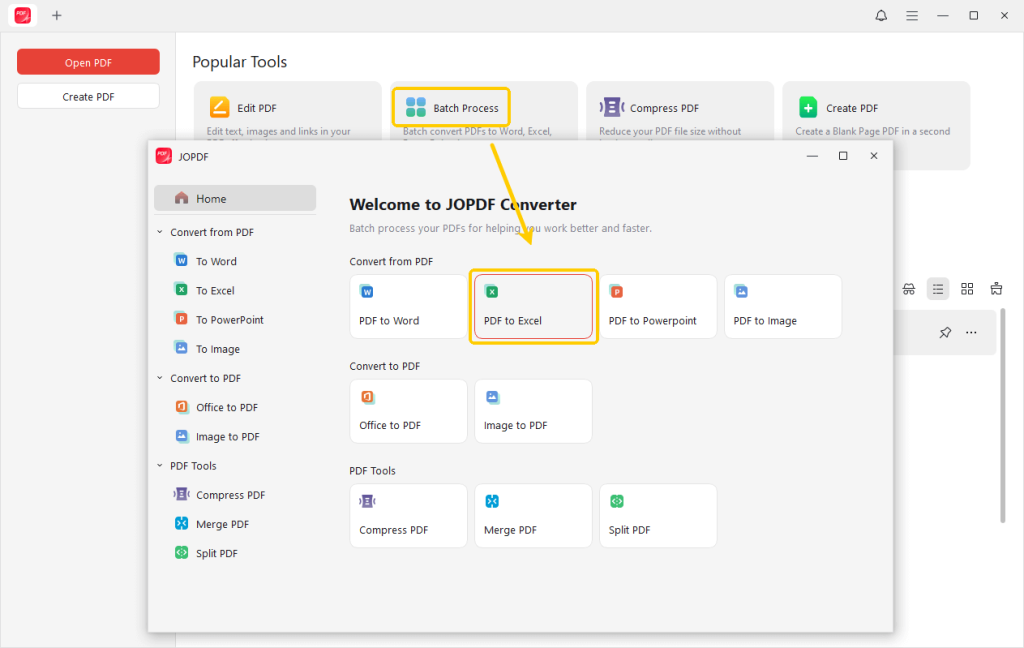
- Launch JOPDF. From the home page, select the Batch Process button.
- Then select PDF to Excel to open the converter.
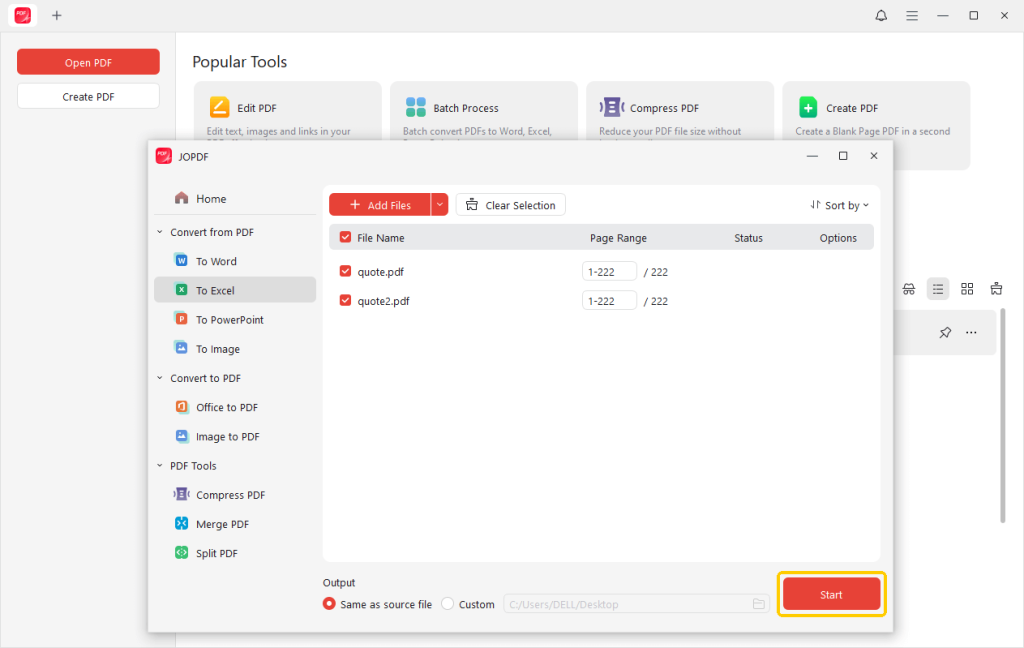
- Import all the PDF documents you want to convert.
- Choose a destination folder for your new file and click Start.
- Once the conversion is complete, the software will generate an .xlsx file. Open it in Microsoft Excel to verify that your columns are aligned correctly.
In addition to PDF conversion, JOPDF can also help you edit, annotate, merge, split, compress, and protect PDFs. All for free! If you often need to handle PDF files, then JOPDF will be a very helpful tool for you! TRY IT NOW.
Free Download JOPDF on Windows
Method 2. How to Export PDF to Excel in Adobe Acrobat
Adobe created the PDF format, so it is no surprise that Adobe Acrobat Pro DC offers one of the most powerful conversion engines available. It is particularly good at handling scanned documents via its built-in OCR. However, this feature is only available in the paid “Pro” or “Standard” versions, not the free Acrobat Reader.
If you only need to convert PDFs occasionally, paying for this service would definitely not be a good deal. You can take a look at the free JOPDF mentioned above. Anyway, if you are interested, you can take a look at how to use Adobe to convert.
- Launch Adobe Acrobat on your computer. Then, open the document.
- In the right-hand tools pane, click on Export PDF.
- Select Spreadsheet as your export format. Then, select the Microsoft Excel Workbook” option.
Tip
If needed, click the small “Gear” icon next to the selection. Here, you can choose whether to create a single continuous worksheet or have Acrobat create a separate Excel tab for each page of the PDF. You can also adjust how it handles numeric data.
- When OK, click the blue Export button.
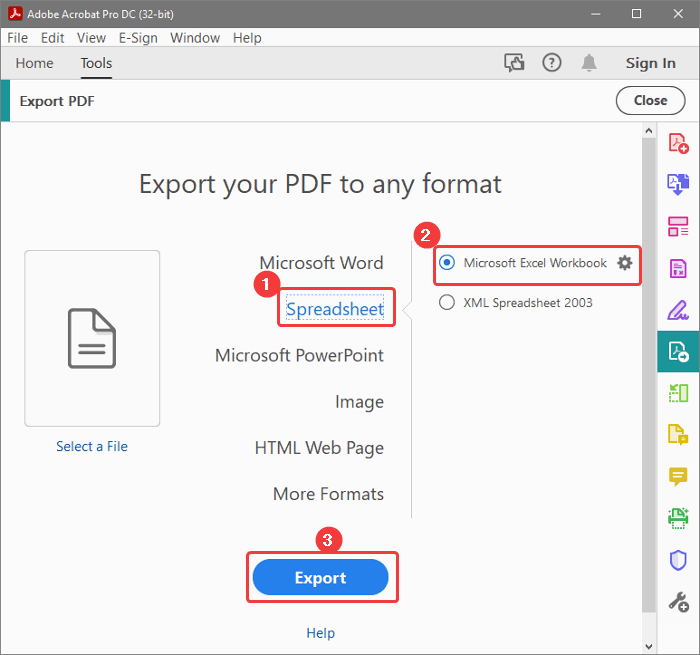
- Name your file and select a desired location. In this way, Adobe will automatically launch Excel and display your converted data.
Method 3. How to Convert PDF to Excel Using Microsoft Excel
In fact, Microsoft Excel has a powerful feature called “Get Data” (or Power Query), which lets you extract data from a PDF without any extra software. However, this feature is available in Microsoft 365 Excel, Excel 2021, and newer versions.
Check to learn how to export data from PDF to Excel:
- Launch Microsoft Excel and open a blank workbook.
- Click the Data tab on the top ribbon.
- On the far left, click Get Data > From File > From PDF.
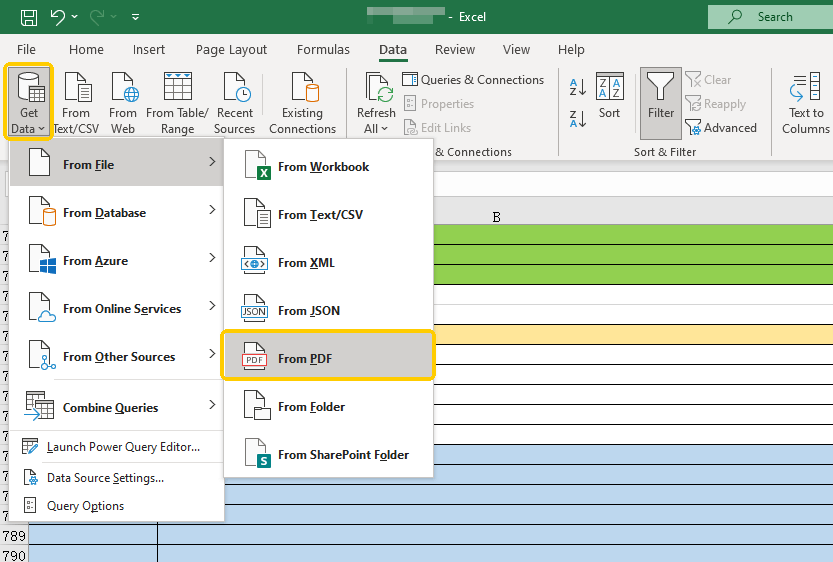
- Next, browse your computer and import the PDF document.
- The “Navigator” window will pop up. Excel will analyze the PDF and list every “Table” and “Page” it finds. Click through the list on the left to preview the data.
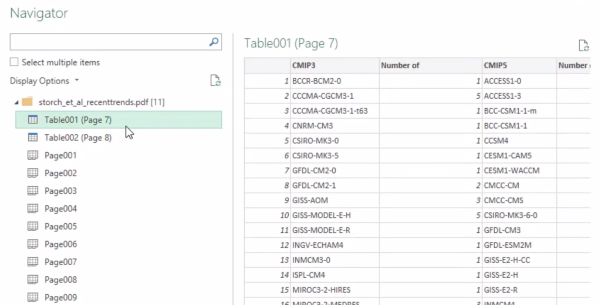
- Once you find the correct table, click the Load button. Excel will pull the data directly into your spreadsheet, usually with headers and formatting already applied.
Method 4. How to Convert PDF to Excel Online
Don’t want or can’t install the software? Then, using an online converter is the quickest solution. Tools like iLovePDF, Smallpdf, or Adobe’s online tools can all meet the need for quickly completing one-time tasks.Check to learn the details.
- Open your web browser and search for a reliable converter, like iLovePDF (https://www.ilovepdf.com/pdf_to_excel).
- Follow the prompts to upload your PDF.
- Adjust the settings and click Convert to Excel.
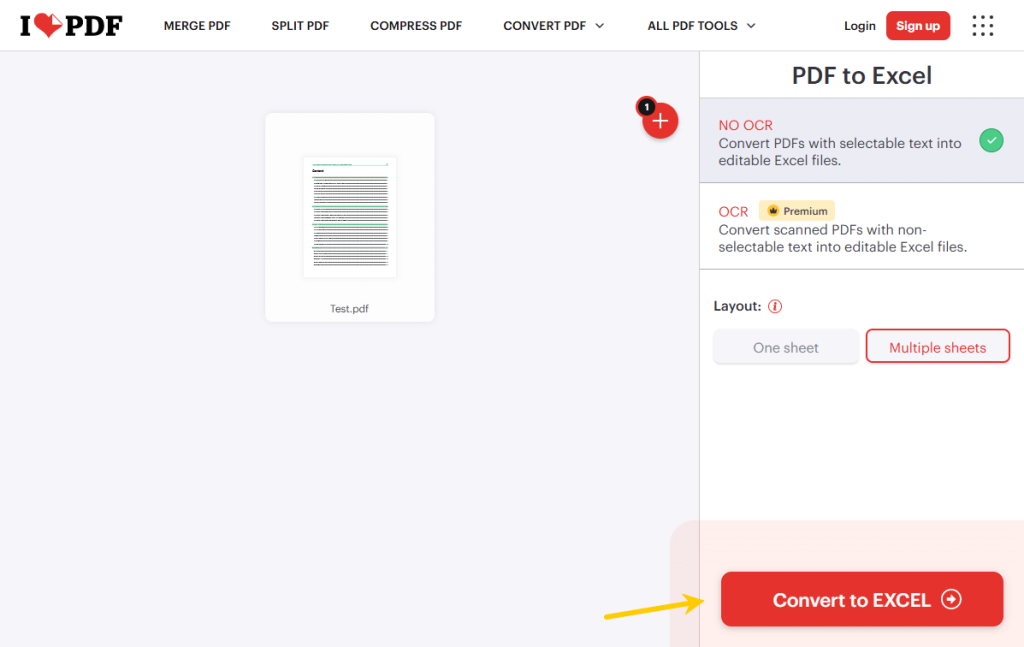
- Wait for the server to process the file, then download the resulting Excel sheet to your device.
Tips
You are uploading your file to a remote server. It’s best not to use this method for documents containing sensitive personal information, bank account numbers, or confidential business data. For those files, use offline methods like JOPDF or Excel’s “Get Data.”
Comparison Table: Which Method Should You Choose?
Not sure which method is best for you? Then you can take a look at this comparison table.
| JOPDF | Adobe Acrobat | Microsoft Excel | Online Tools | |
| Cost | Free | Paid ($15-$25/mo) | Paid (Office 365) | Free / Freemium |
| Privacy | High (Offline) | High (Offline) | High (Offline) | Low (Cloud-based) |
| Accuracy | High | Very High | Medium | High |
| Best For | Daily use, privacy | Scanned docs, pros | Data analysts | One-time tasks |
Verdict:
- For a free, secure, and permanent desktop solution, JOPDF is the top recommendation.
Free Download JOPDF on Windows
- If you already pay for the Adobe ecosystem, Acrobat Pro is convenient.
- If you are comfortable with data tools and have Office 365, learning Excel’s “Get Data” feature is a powerful skill.
- If you only want to convert this time and the document doesn’t contain any sensitive information, then an online tool is a quick method.
Conclusion
That’s all about how to convert PDF to Excel. As long as the right tools are chosen, the conversion will become very simple.
If you prefer a free, professional, secure, and easy-to-use product, just download JOPDF. It ensures your financial records and data tables are converted accurately without ever leaving the safety of your own computer!
FAQs
Table of Contents

Your Best Free PDF Expert in PDF editing, compressing, converting, annotating, protect, organizing, and more.
Free DownloadWindows · macOS

Queena
Editor
“As a staff editor for JOPDF, Queena excels at guiding users to the optimal tools and solutions. When she's not analyzing the latest PDF solutions, she enjoys spending her free time playing with her four cats.”
![7 Best PDF Converters in 2026 [Pros, Cons, and More]](https://b.jopdf.com/wp-content/uploads/2026/02/best-pdf-converter.png)
![[2026] 4 Ways to Combine PNG to PDF on Windows, Mac, and Online](https://b.jopdf.com/wp-content/uploads/2026/02/combine-png-to-pdf.png)