Introduction
While Adobe is widely used, its complicated features and expensive subscription often make it difficult for beginners and casual users. This guide will walk you through three free approaches for how to convert PDF to Excel without Adobe across multiple platforms and devices.
1. The Best Free Way to Convert PDF to Excel: JOPDF
JOPDF is a straightforward, lightweight desktop solution that makes managing and organizing documents efficient and simple. It is one of the most reliable and free ways to convert PDF to Excel quickly, keeping tables, formatting, and data accurate.
Using JOPDF, users can seamlessly transform PDFs into Excel files without losing key information, making it great for invoices, reports, and data analysis. It allows users to save time by handling multiple files at once with its fast batch conversion feature.
Besides Excel, JOPDF enables seamless PDF conversion to formats like Word, PowerPoint, and images. Additionally, it can create high-quality PDFs from images, Word, and other formats.
⭐ Main Advantages of using JOPDF
- Free, simple to use, and works without needing an internet connection.
- Handles confidential financial data securely without compromising user privacy.
- Offers powerful batch conversion capabilities at no cost.
- Works seamlessly on Windows, Mac, and Linux computers.
- Comes with no watermarks, no ads, and requires no signups.
Find out how to convert PDF to Excel without Adobe but with JOPDF for free, quickly, and in a few clicks.
Step 1. Download JOPDF to your computer. Once installed and launched, select the Batch Process button under Popular Tools on the main interface (homepage). Then, select PDF to Excel to open the converter.
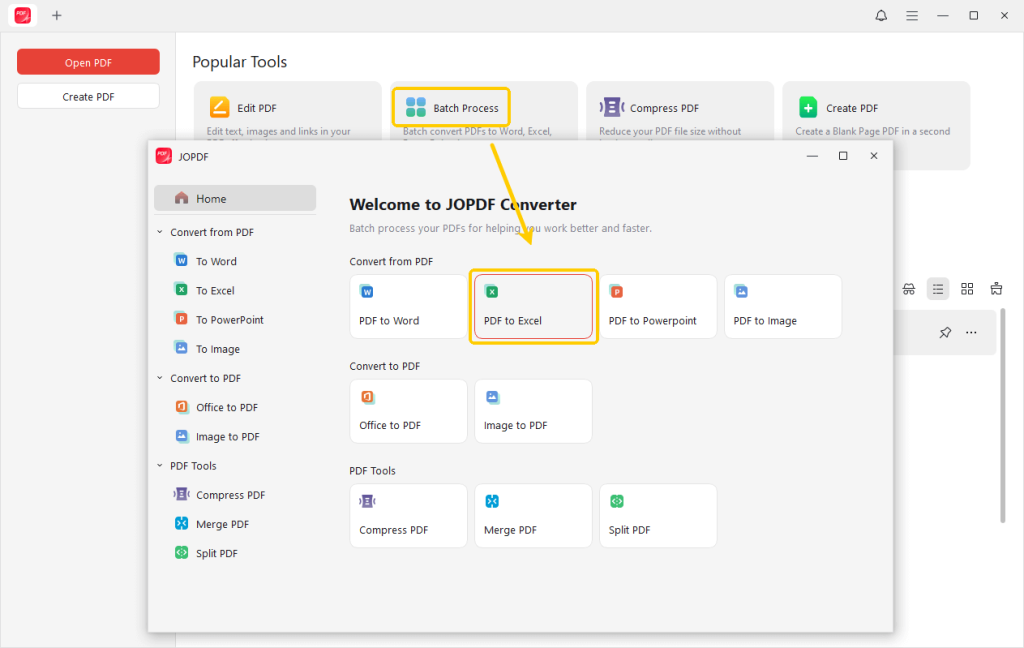
Alternatively, you can open a PDF file with JOPDF. Then go to the Convert tab at the top and select the PDF to Excel conversion tool to use.
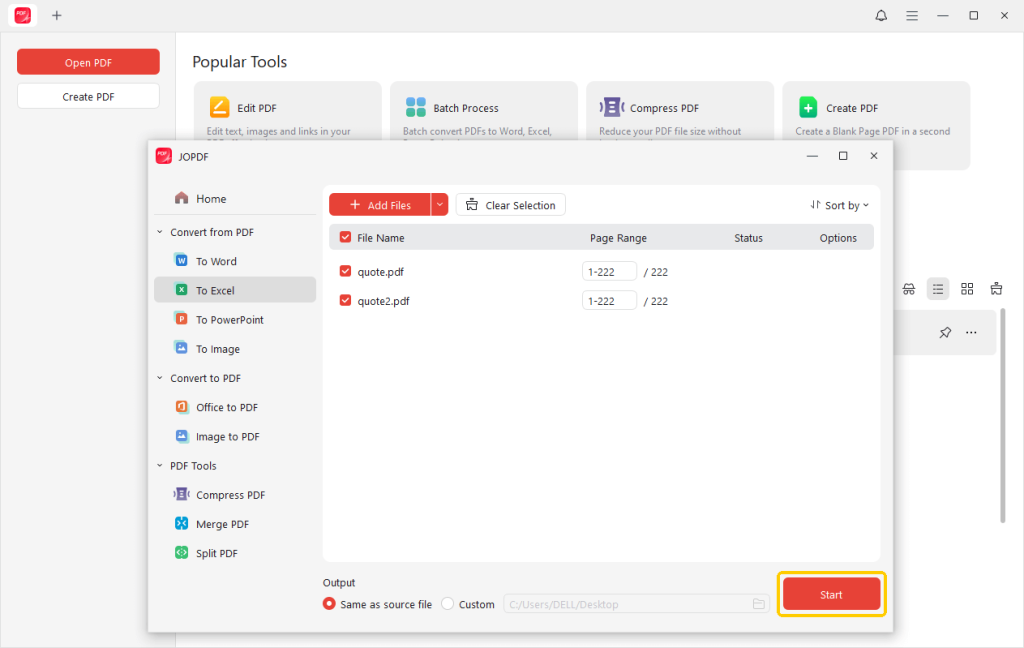
Step 2. Tap the Add Files button to open PDFs. Or simply drag and drop them into the converter window to convert all the PDF files you need to Excel.
Step 3. Select a destination folder for your new file (where you want to save the converted Excel files).
Step 4. Once all settings are done, hit the Start button to begin the conversion. Within moments, your PDF document will be converted to Excel format, and you’ll get an .xlsx file.
Open it in Microsoft Excel to verify that your columns are aligned correctly.
Besides conversion, JOPDF offers a wide range of other functions, including merging, splitting, compressing, and more—all completely free. Give it a try today by downloading it, and simplify all your PDF tasks effortlessly.
2. Convert PDF to Excel via the Get Data Feature
Importing data from a PDF into Excel using the built-in Power Query (Get & Transform Data) feature allows users to bring tables and structured information directly into spreadsheets.
This method preserves tables and numeric data, ensuring precision and making it ideal for reports, invoices, and datasets that require careful analysis.
Check out the steps to convert PDF to Excel without Adobe using the Get Data feature in Microsoft Excel in a few clicks.
Step 1. Begin with a new or existing Excel workbook where you want the imported data to appear.
Click the Data tab on the Excel ribbon. Then, find the Get & Transform Data group. Choose Get Data, pick From File, and click From PDF.
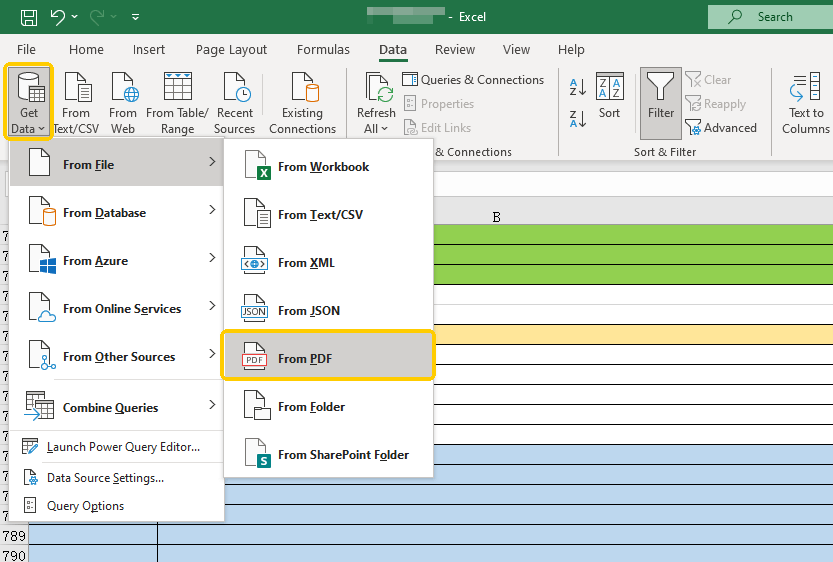
Step 2. Browse to your PDF file and click Import. The Navigator window in Power Query appears, presenting detected tables and pages from the PDF.
Check Select multiple items if you need more than one. And preview the data by clicking on the items.
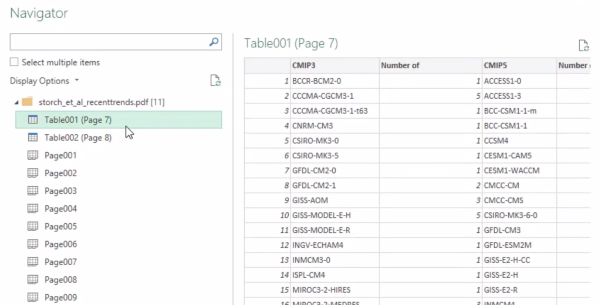
Step 3. Hit Load to transfer the selected data straight into Excel as a table. Next, click Transform Data to open the Power Query Editor for cleaning, like removing columns, filtering rows, or changing data types before loading.
Step 4. After using Power Query, hit Close & Load (or Close & Load To…) to place the data into your Excel sheet as a table.
3. Use an Online PDF to Excel Converter
Several online tools make it easy to convert PDF to Excel without installing software. For instance, Smallpdf provides quick, precise conversions that maintain tables, formatting, and numeric data.
With easy drag-and-drop interfaces, online converters simplify the process, making PDF to Excel conversion quick and hassle-free.
Learn the simple way to convert PDF to Excel without Adobe online using Smallpdf quickly in a few clicks.
Step 1. Access Smallpdf on your web browser. In the top menu bar, under Tools, select PDF to Excel from the Convert from PDF menu.
Step 2. Click Choose Files and add the PDF file(s) you wish to convert to Excel.
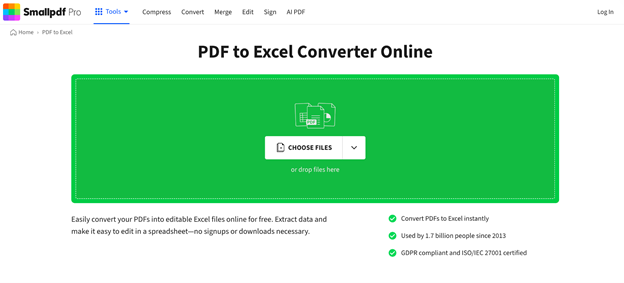
Step 3. As soon as your PDF file is uploaded, Smallpdf will automatically detect tables and convert them to an .xlsx file.
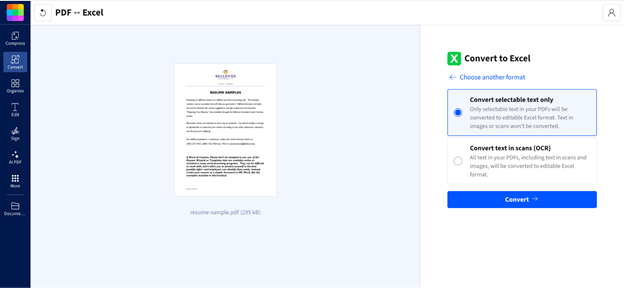
Tips
For scanned PDFs, you might need to turn on the OCR (Optical Character Recognition) feature (a Pro feature) for editable text.
Step 4. Once finished, click the Download button to save the new Excel file to your local storage.
Final Wrap Up
Learning how to convert PDF to Excel without Adobe is now simple and free. Whether you choose the free and reliable JOPDF, Excel’s built-in Get Data (Power Query), or online tools like Smallpdf, you can quickly extract and edit tables while preserving formatting.
These methods save time, avoid costly subscriptions, and make PDF to Excel conversion accessible to everyone. However, if you care about quality, JOPDF is the best to go! It can also help you edit the document before conversion.
FAQs
Table of Contents

Your Best Free PDF Expert in PDF editing, compressing, converting, annotating, protect, organizing, and more.
Free DownloadWindows · macOS · Linux

Queena
Editor
“As a staff editor for JOPDF, Queena excels at guiding users to the optimal tools and solutions. When she's not analyzing the latest PDF solutions, she enjoys spending her free time playing with her four cats.”