Introduction :
Adding a logo to your PDF is one of the simplest yet most effective ways to personalize or brand your documents. Whether you’re preparing a business proposal, an invoice, or a presentation, your company logo helps create a professional image and ensure brand consistency. However, unlike Word documents, PDFs are not designed for easy editing. How do you insert logo into PDF effectively? In the comprehensive JOPDF post, I will show you how to insert a logo into a PDF using several different tools.
How to Insert Logo into PDF for Free with JOPDF
Logos serve as a visual representation of your brand identity. Adding logos to your PDF file can help you enhance your brand recognition or protect your intellectual property. How can you insert a logo into a PDF for completely free if you don’t have enough budget to afford an expensive subscription plan? Undoubtedly, JOPDF is the best choice! It is a completely free PDF editor available on both Windows and Mac. There are no ads, bundles, or registration requirements.
JOPDF lets everyone, even first-time users, easily insert logos or images into a PDF. With its intuitive user interface, you can master how to use it without requiring a steep learn curve. More importantly, JOPDF provides a set of features to edit images. It enables you to transparentize, flip, rotate, crop, resize, and make other edits to images. Please follow to check the exact steps to insert a logo into a PDF for free using JOPDF.
Step 1. Click the button below to download and install JOPDF on your computer. Once installed successfully, launch it to get to its main interface.
Step 2. Then, click the Edit PDF option or the Open PDF button to import your PDF document.
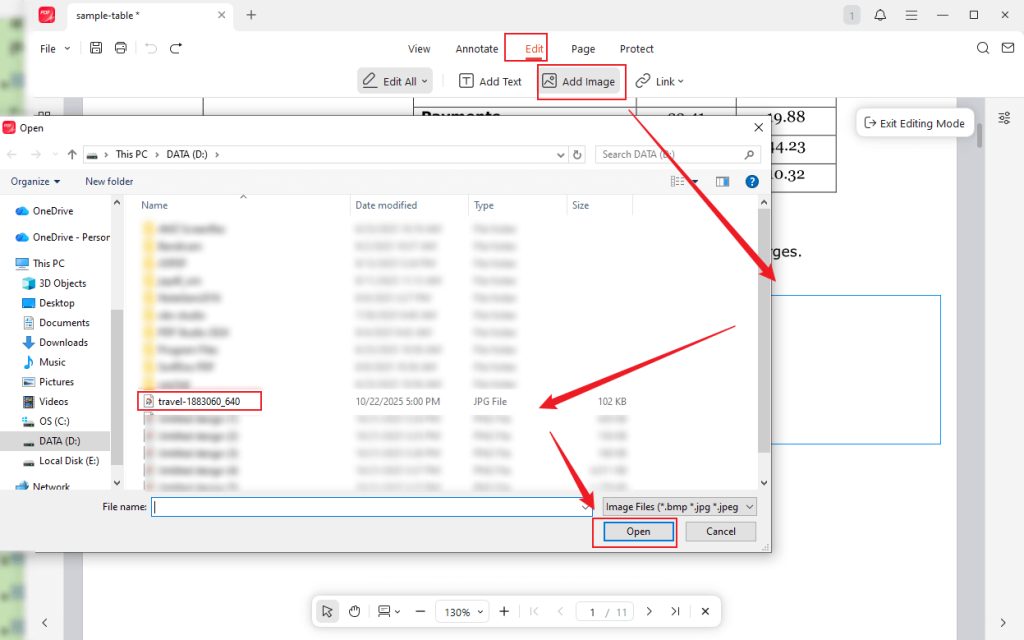
Step 3. Under the Edit tab, click the Add Image option. Click and drag the cursor to choose the area where you intend to add a logo. Select your logo and click Open.
Step 4. Then, the logo is inserted into the PDF. You can change the logo position by directly dragging and dropping. Also, click and drag the double-sided arrow to adjust the size of the logo. On the right side of the logo, you can choose the tool to edit the logo.
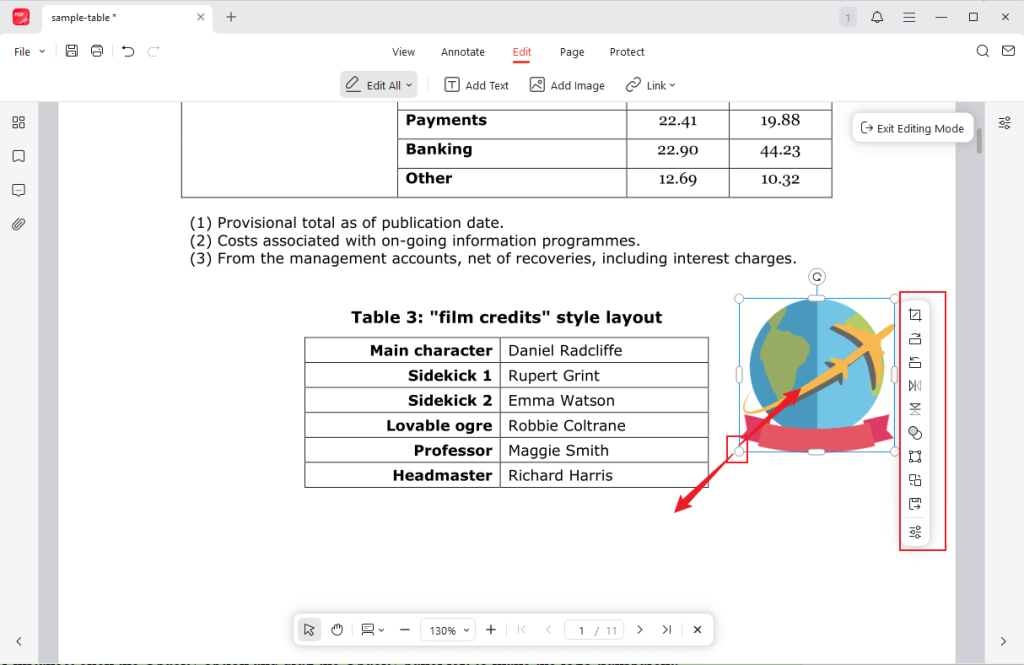
For instance, click the Opacity option and drag the Opacity slider left to make the logo transparent.
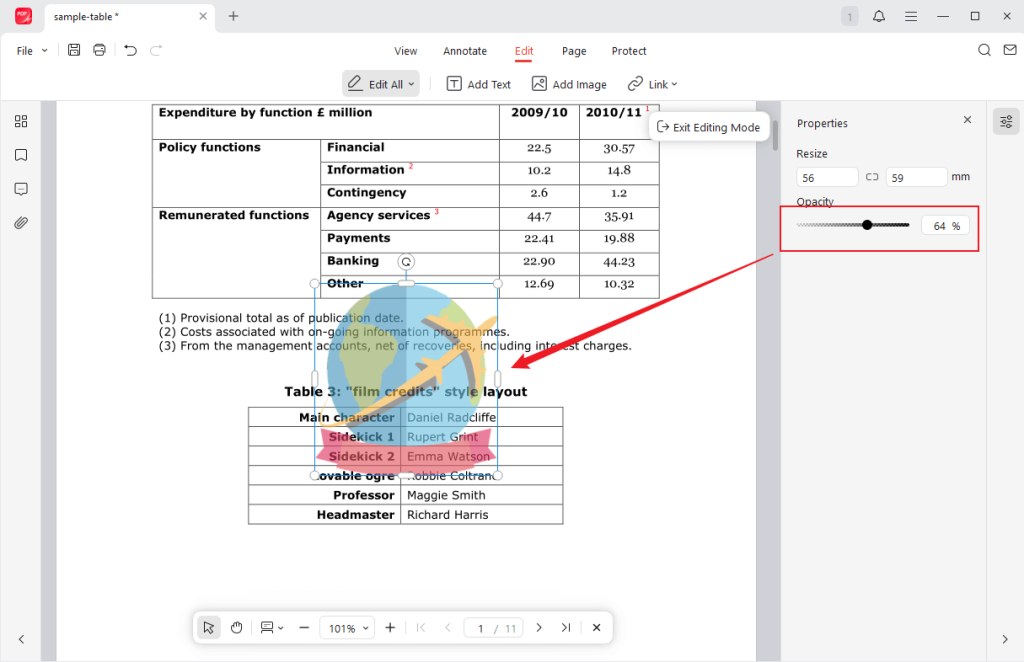
Step 5. Finally, click the Save icon to save the PDF file with a logo.
How to Add Logo to PDF Using Microsoft Word
In addition to handling Word files, Microsoft Word has evolved to have the capacity for handling PDFs since version 2013. It allows you to open, edit, and save PDFs directly. When you open a PDF in Microsoft Word, it converts the PDF into an editable format, which makes it ideal for quick modifications without needing dedicated PDF software. If you want to know how to add a logo to a PDF in Microsoft Word, follow the detailed steps below.
Step 1. Run your Microsoft Word, click the Open option, locate the folder that saves the target PDF file, and click the Open button to import it. Then, a notice window will appear to show you that Microsoft will convert the PDF into an editable Word file. Click OK.
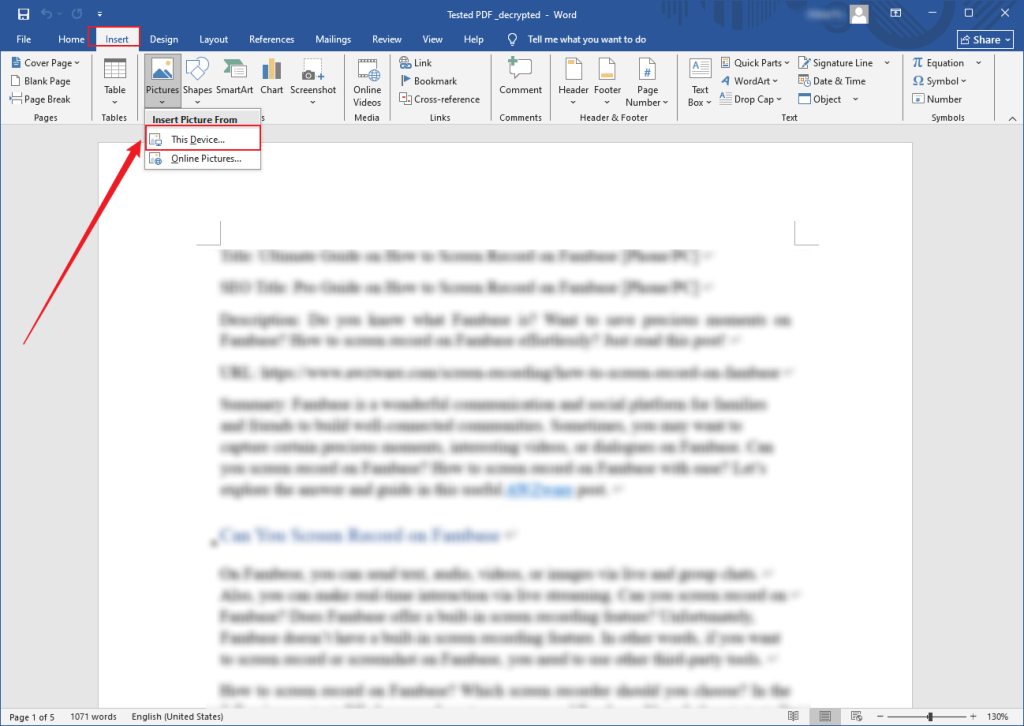
Step 2. Switch from the Home tab to the Insert tab. Next, expand the Pictures list and select the This Device option to upload your logo image.
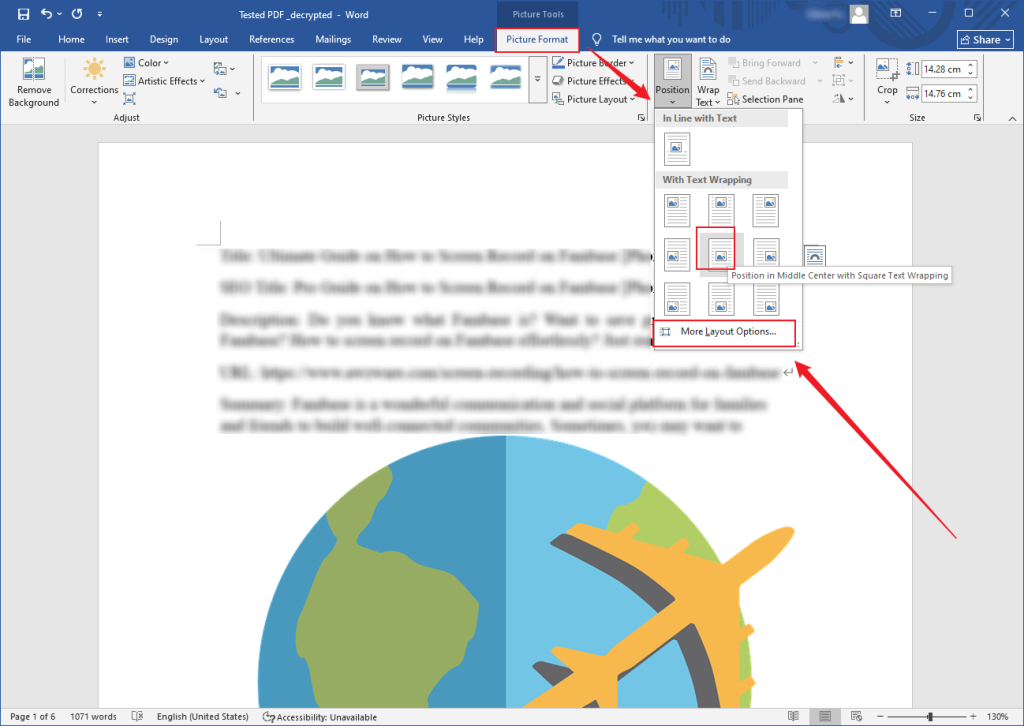
Step 3. Under the Picture Format tab, open the Position list, choose the logo image position first, and then click More Layout Options.
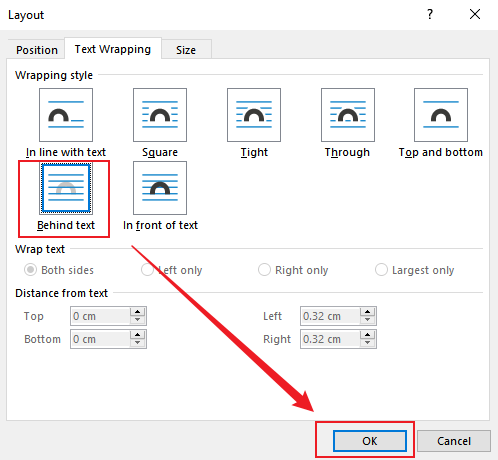
Step 4. Go to the Text Wrapping subtab and select the Behind text option. The Behind text option will place the logo image below the text so that the image will not cover the text.
In addition, you can adjust the size and orientation of the logo image.
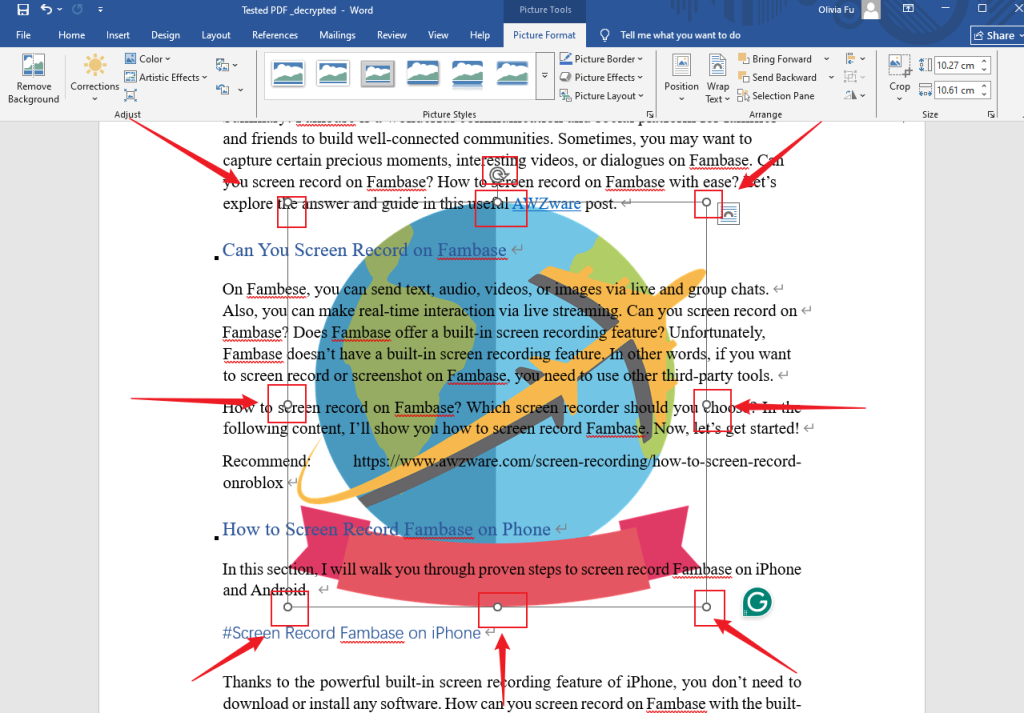
Step 5. Finally, click the File tab, select the Save As option, choose a folder to save the file, select PDF as the output format, and click Save.
How to Insert Logo into PDF Using Mac Preview
Preview is working as a built-in program for macOS. More than a viewer, Preview is a versatile and free tool for handling PDFs with a wide range of editing, annotation, and management capacities. How can you insert logos or add images into a PDF in Preview?
Unlike JOPDF, Preview doesn’t offer a one-click Add Image option for PDFs. To add images, you can use the simple copy-paste workaround. Here, let’s see how to insert a logo image into a PDF in Preview.
Step 1. Open your PDF in Preview by right-clicking on the PDF and selecting the Open With Preview option.
Step 2. Next, open the logo image in another Preview window. If the logo has a background and you want to remove it, select the Instant Alpha option from the Tools list. Then, click the background color and adjust the tolerance slider to erase it.
Step 3. Now, press Command + C or select the Copy option from the Edit tab to copy the logo image.
Step 4. Switch to the PDF window in Preview, go to the target PDF page, and press Command + V to paste the copied logo image. Next, you can adjust the position, size, and color of the logo image.
Step 5. Once finished adding the logo, go to File to select the Save option to export this PDF file with a logo.
If you need to transparentize the logo images, consider JOPDF!
How to Insert Logo into PDF Online with Smallpdf
If you don’t have Microsoft Word and don’t like Preview, you can also try online tools. They require no downloads or installations, and all operations happen in the cloud, which makes them good choices for saving storage space. When selecting online tools, security is the first and most important factor you need to consider. Among various online PDF editors, I strongly recommend Smallpdf.
Serving as an online PDF editor, Smallpdf enables you to insert images into PDFs, crop, annotate, or watermark PDFs, or make other edits. How do you insert a logo into a PDF with Smallpdf? Below are the exact steps for your reference.
Step 1. Visit the PDF Editor website of Smallpdf (https://smallpdf.com/edit-pdf) in your browser.
Step 2. Hit the CHOOSE FILES button to upload your PDF file.
Step 3. Go to the PDF page where you want to add a logo and click the image icon from the top toolbar. Select the target logo and click OK. Then click to add the logo to the PDF.
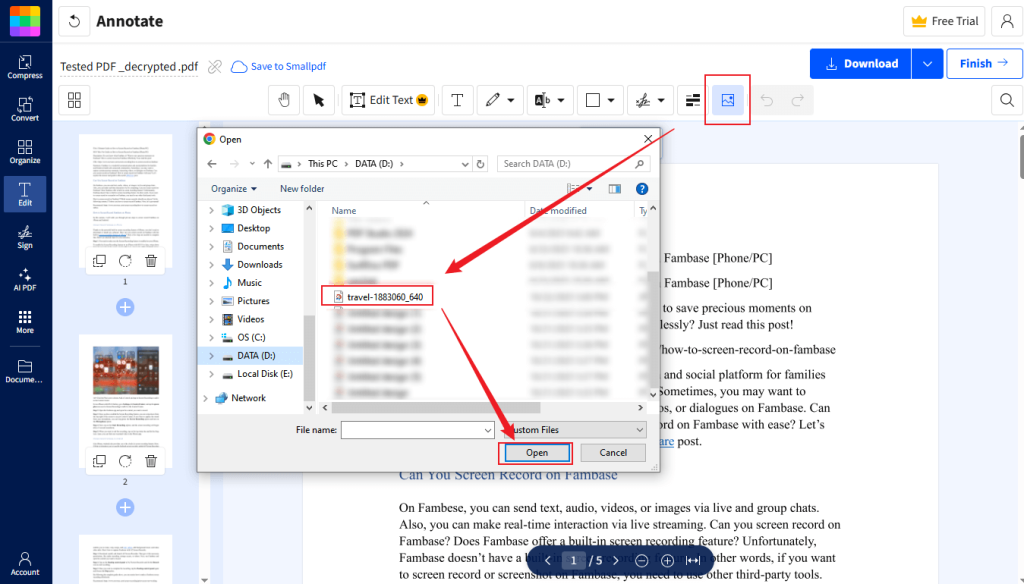
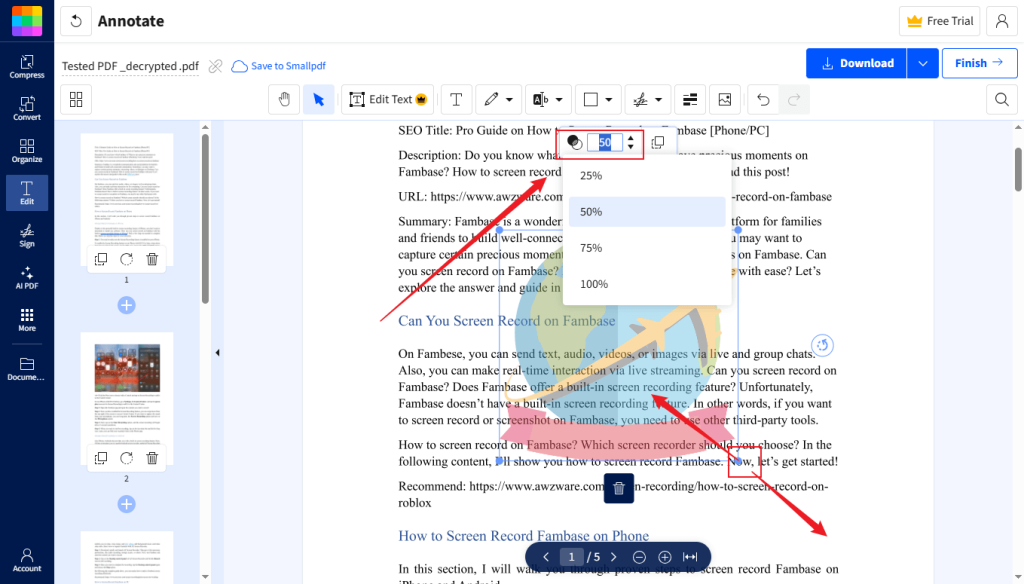
Step 4. Click and drag the corners of the logo to adjust its size. Also, you can adjust the position of the logo by directly dragging. Meanwhile, open the Opacity option to customize the opacity of this logo.
Step 5. At last, click the upper-right Download button.
Useful Tips to Insert a Logo into PDF
It is not difficult to insert a logo into a PDF if you use a reliable PDF editor. To make your PDFs with a logo look professional, here are some tricks or tips for your reference.
- Use a transparent PNG logo image
- Avoid stretching the logo
- Don’t make the logo overpower the text
- Place the logo consistently
- Match the logo’s style to the PDF document
Wrapping Up
It is a good idea to add a logo to your PDF to make the file look professional, trustworthy, and consistent with your brand identity. How can you insert logo into PDF? In the above content, I have introduced various ways to add logos to PDFs. You can use JOPDF on Windows and Mac for free PDF editing. Or use Microsoft Word, Preview, or online Smallpdf to add logos. Now, it’s your time to have a try. Hopefully, this post will be helpful to you.
FAQs
Step 1. Launch JOPDF and click Open PDF to import your PDF.
Step 2. Click the Edit tab, click the Add Image option to upload your image.
Step 3. Use its features to edit the added image.
Step 4. Finally, save the changes.
1. The PDF is designed as read-only.
2. The PDF is protected by permission passwords.
3. The copied image may not be in a format that PDFs can accept.
Table of Contents

Your Best Free PDF Expert in PDF editing, compressing, converting, annotating, protect, organizing, and more.
Free DownloadWindows · macOS

Olivia
“Olivia is an editor at JOPDF, where she writes practical guides and insightful articles on managing PDFs—covering topics like editing, annotating, converting, and organizing files efficiently. Passionate about clear communication and digital productivity, Olivia enjoys spending her free time cooking, watching movies, and hiking to unwind and find inspiration for her writing.”