Introduction :
Sometimes you need to strikethrough text in a PDF to indicate deletions, corrections, or outdated information without completely removing it. However, PDF documents are not as easily editable as Word documents. How do you strikethrough text in PDFs? Don’t worry! You’re in the right place. In this guide post from JOPDF, I will show you how to strikethrough in PDF using different effective methods.
Beyond a feature to cross out words, the strikethrough feature is one of the valuable annotation tools. It enables you to strike out incorrect or redundant text and suggest revisions or mark clauses or sentences that are outdated or need revision without deleting them. Meanwhile, it is a useful feature for collaborative work.
The strikethrough makes it easy to highlight content that should be removed or replaced in shared PDFs. All in all, the strikethrough tool is helpful for maintaining clarity during document revisions and ensuring all collaborators see the same visual cues. Now, let’s delve into this wonderful guidepost!
Best Free Way to Strikethrough in PDF Using JOPDF
If you usually need to handle PDF files in your daily work or study, a free and reliable PDF editor should be your perfect choice. JOPDF is a robust and feature-rich PDF editor for both Windows and Mac, which enables you to view, annotate, edit, organize, and protect PDFs effectively.
As a PDF annotator, JOPDF allows you to strikethrough, underline, or squiggly text in PDFs, as well as highlight PDFs, add stamps/shapes/attachments/sticky notes, or draw on PDFs. In short, it is a good way to strikethrough in PDFs using JOPDF. Now, let’s learn the exact steps to add strikethrough lines in a PDF with JOPDF.
Step 1. Click the button below to download and install this free PDF annotator, then launch it without the need for registration.
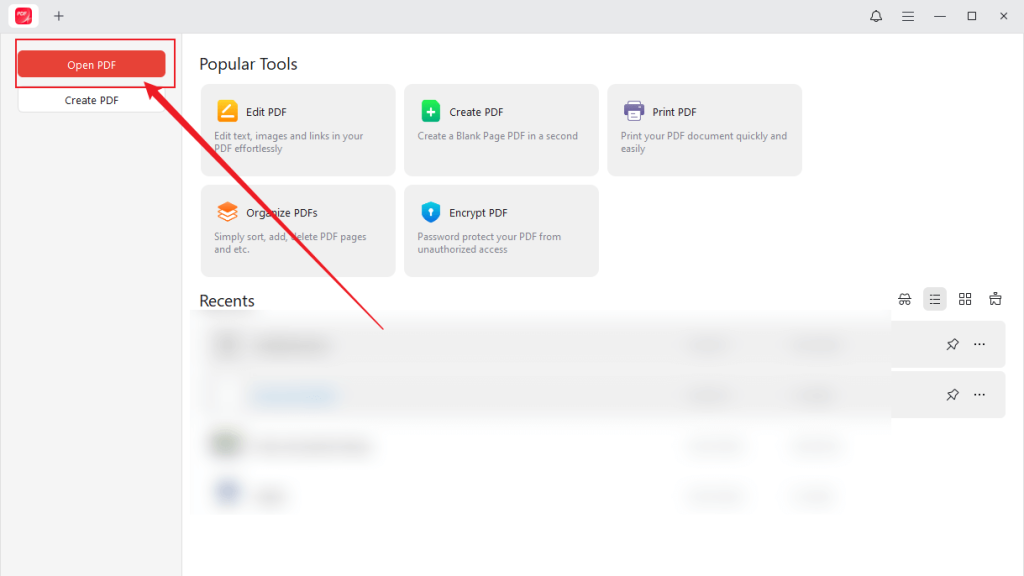
Step 2. Click the red Open PDF button to upload the PDF you need to add strikethrough lines to. And then go to the Annotate tab.
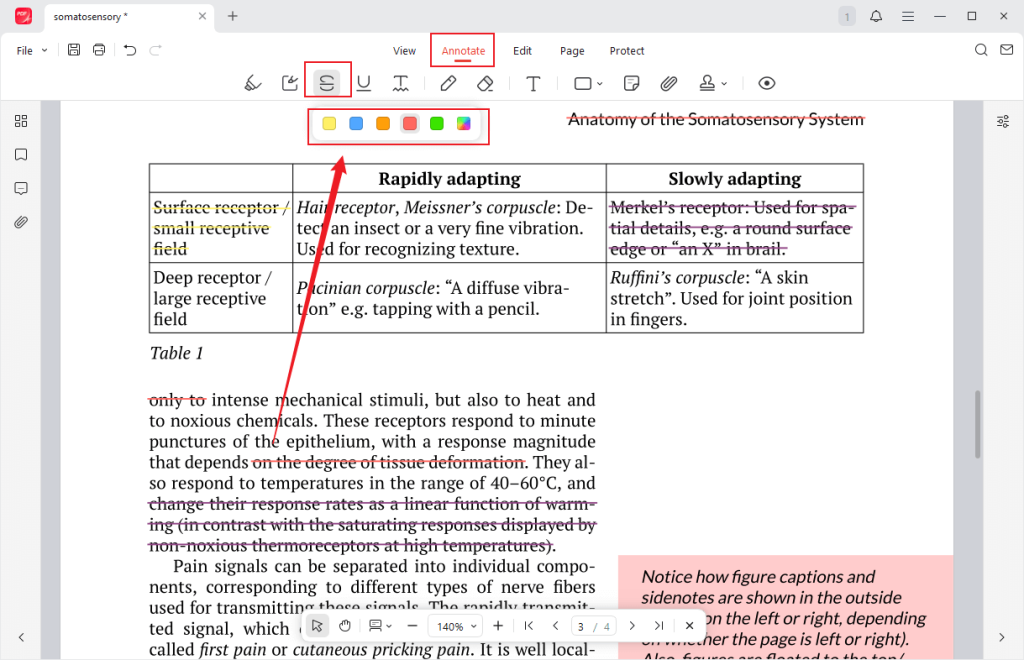
Step 3. Under the Annotate tab, click the third Strikethrough icon and select the line color you prefer. Next, left-click your mouse to choose the text you want to strike through. Then, you can find that the text is struck through.
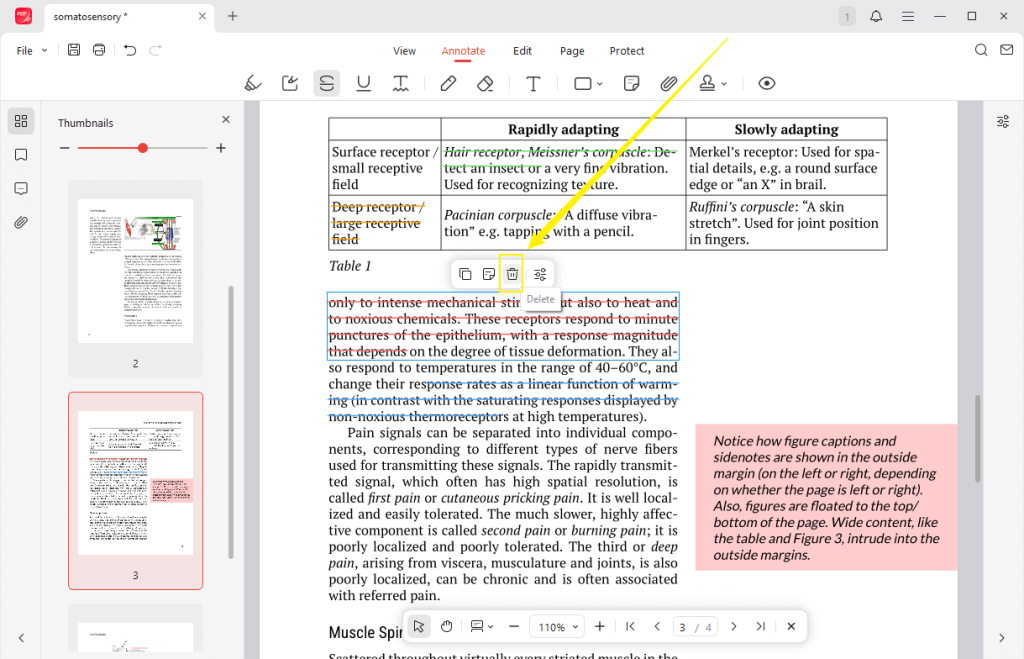
How to remove strikethrough in PDF? click on the strikethrough and click the delete icon. Meanwhile, you can change the line color.
Step 4. Optionally, you can click the fourth Underline icon or the fifth Squiggly icon to add underlines or squiggly lines. Meanwhile, you can use other annotation features to add annotations.
Step 5. Once finished, don’t forget to click the Save icon in the upper-left corner to save the PDF.
How to Strikethrough Text in PDF with Adobe Acrobat Reader
Most of you must know Adobe Acrobat since it is the leader among thousands of PDF editors. Its free version, Adobe Acrobat Reader, enables you to view and strike through PDFs. If you don’t need other advanced features, such as converting, signing, or protecting PDFs, Adobe Acrobat Reader can meet your needs. Below is the guide on how to strikethrough in a PDF using Adobe Acrobat Reader.
Step 1. Visit the official website of Adobe Acrobat Reader to download it. Then install it on your PC.
Step 2. Locate your PDF file, right-click it, move to Open With, and select the Adobe Acrobat Reader option.
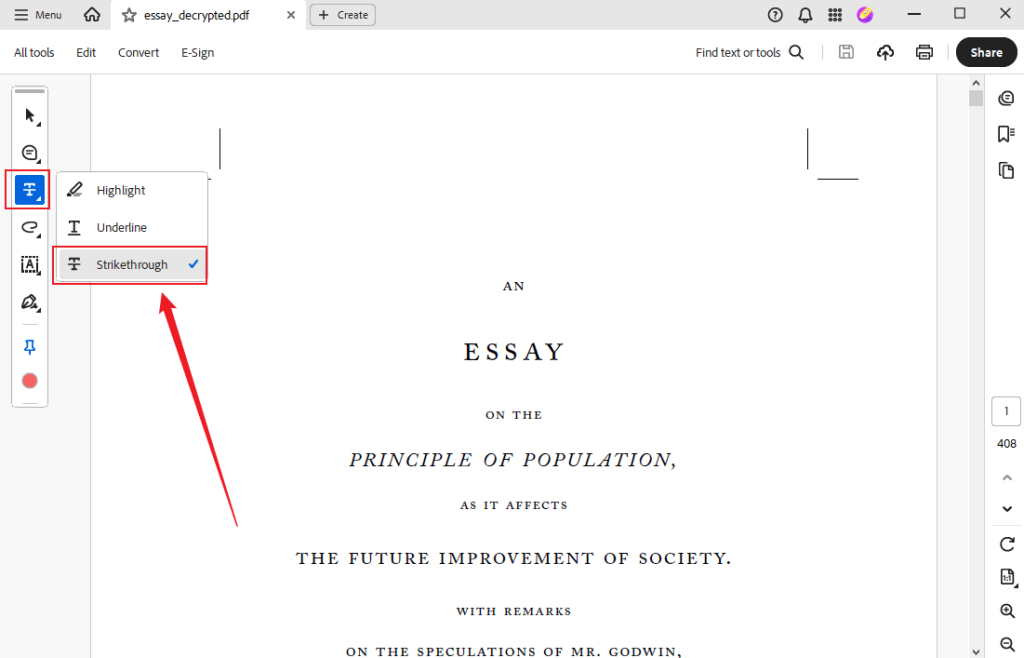
Step 3. Click the third Pen icon on the left toolbar and select the Strikethrough option.
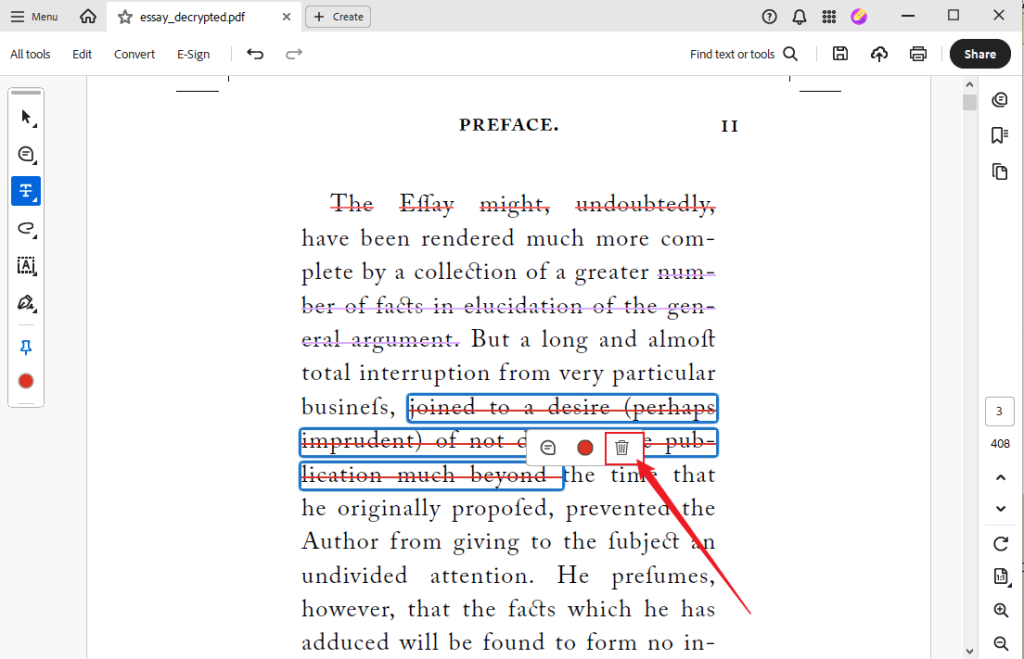
Step 4. Next, use the mouse cursor to select the text you want to add a strikethrough line to. To remove the strikethrough, click it, then click the delete icon.
Step 5. Finally, save the PDF file with strikethrough lines.
How to Strikethrough in PDF on Mac via Preview
For Mac users who don’t want to download and install software to handle PDFs, Preview should be your first choice, as it’s built into macOS. Working as a free and built-in program for Mac, Preview has features to view, edit, and print PDFs and images. You can refer to the tutorial below to strikethrough text in a PDF with Preview on Mac.
Step 1. Double-click the target PDF file to open it in Preview if you have set Preview as the default PDF viewer.
Step 2. Then, click the Markup tool (a pencil icon) in the top toolbar.
Step 3. Next, select the Text Selection tool and choose the target text. Then, the text style pop-up will appear. You need to click the Strikethrough icon.
How to Strikethrough PDF Online with Smallpdf
In addition to using the desktop software, online PDF tools can also give you a hand. When selecting online tools, we should prioritize security above all else. This is because online tools often carry the risk of leaking personal information. Among various online PDF annotators, I strongly recommend Smallpdf. It allows you to easily add strikethrough text in PDF files, just as effortlessly as editing a Word document in Microsoft Word.
Additionally, Smallpdf provides you with other annotation features. Here, check the steps below to strikethrough in a PDF with Smallpdf online.
Step 1. Open your browser and visit the official website of Smallpdf. Open the Tools list and select the PDF Annotator option.
Step 2. Click the CHOOSE FILES button to upload your PDF file from the local device. Alternatively, you can upload files from cloud services.
Step 3. Use the cursor to select the text you want to strike through. Then the text style panel will appear on top of the selected text. Click the Strikethrough option.
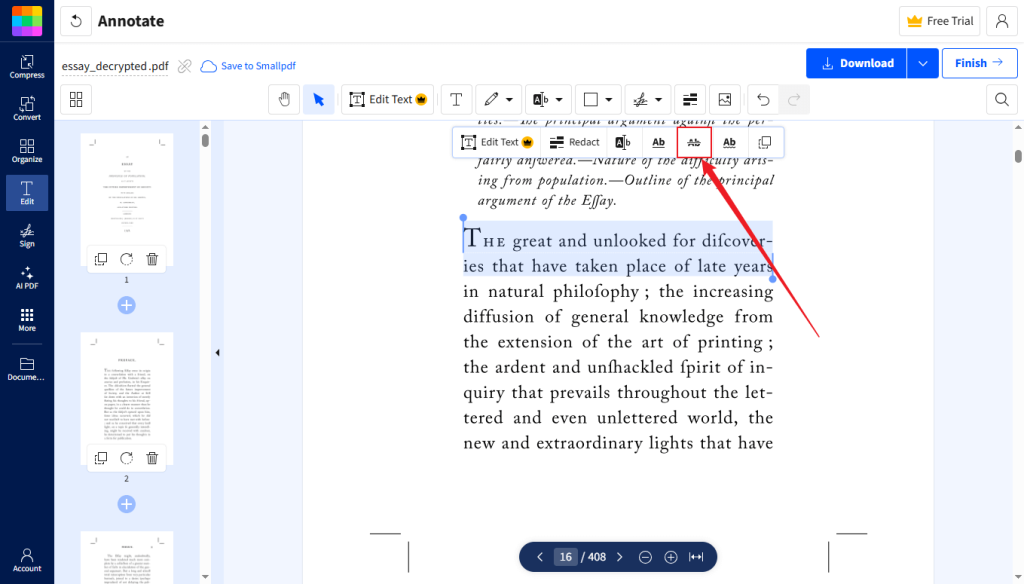
Alternatively, click the icon next to the Shape icon and select the Strikethrough option. Then go to strike through the target text.
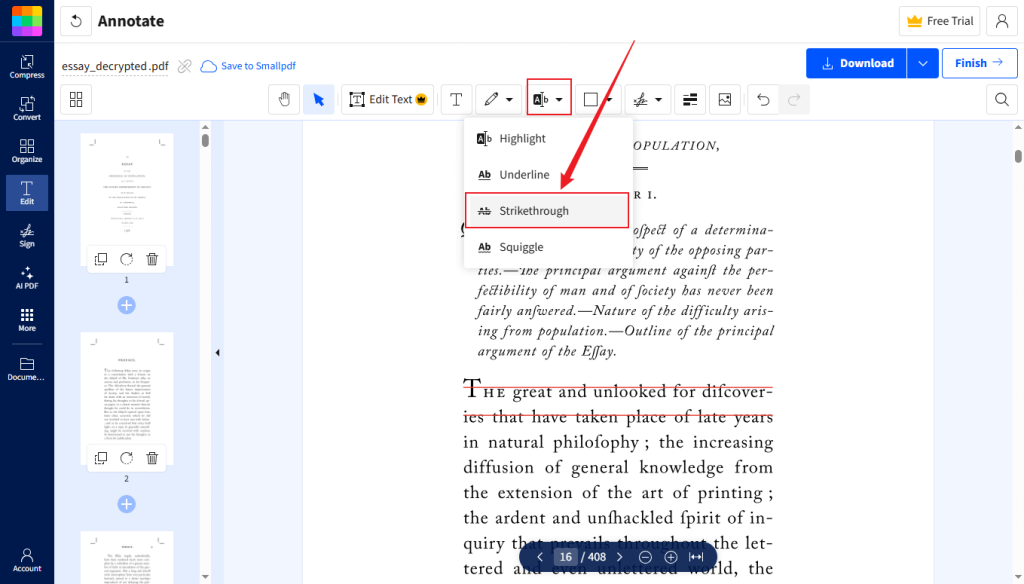
Step 4. Once done, click the Download button in the top right corner.
How to Strikethrough in PDF on Mobile with SwifDoo PDF
Want to edit and strikethrough PDFs on mobile devices? If so, never miss SwifDoo PDF, which is available on both Android and iOS. It is a versatile PDF tool that combines the functionalities of reading, annotating, converting, organizing, protecting, and printing PDFs. It is quite effective to strikethrough PDFs with SwifDoo PDF. Please refer to the steps below to strikethrough a PDF with SwifDoo PDF on your mobile phone.
Step 1. Go to the App Store or the Google Play Store to download and install SwifDoo PDF. Then launch it and use its 7-day free trial.
Step 2. Tap the plus icon to import your PDF document and hit the Annotate icon to open the annotation toolbar.
Step 3. Then, find the Text Markup option and hit the Strikethrough icon. Next, choose the text you want to cross out. At last, tap the Save icon to save the annotated PDF file.
To Sum Up
It is an essential skill to strikethrough text in PDFs for editors, students, and professionals alike. Among them, I prefer JOPDF to edit and strikethrough PDFs since it is completely free and doesn’t require registration. Also, if you are a fan of Adobe Acrobat, consider using Adobe Acrobat Reader to cross out text in PDFs. For Mac users, Preview can be your choice if you don’t want to download any software. In addition, you can use online tools, such as Smallpdf. Whether you are an Android or iOS user, SwifDoo PDF can meet your needs. Now, it’s your time to have a try!
FAQs
Step 1. Import your PDF file and go to the Annotate tab.
Step 2. Click the Strikethrough option and use the cursor to cross out the target text.
Step 3. Furthermore, you can click on the crossed-out text to change the line color or delete the line.
Table of Contents

Your Best Free PDF Expert in PDF editing, compressing, converting, annotating, protect, organizing, and more.
Free DownloadWindows · macOS

Olivia
“Olivia is an editor at JOPDF, where she writes practical guides and insightful articles on managing PDFs—covering topics like editing, annotating, converting, and organizing files efficiently. Passionate about clear communication and digital productivity, Olivia enjoys spending her free time cooking, watching movies, and hiking to unwind and find inspiration for her writing.”