Introduction
While highlighting PDF helps mark important content, excessive emphasis can make documents appear cluttered. This guide will show you how to remove highlight in PDF to maintain the clarity, accuracy, and professionalism of your PDF files.
1. How to Remove Highlight in PDF with JOPDF [Free]
JOPDF is a powerful PDF highlighter and editor compatible with both Windows and macOS. It offers a wide range of features to help users handle PDF documents. With JOPDF, you can not only unhighlight text in PDF but also undo highlighting effects on images or any areas.
Despite its rich functionality, JOPDF is extremely easy to use with no learning curve. Within its clean interface, you can effortlessly locate the tools you need. Best of all, it’s completely free! Now, click the download button to get JOPDF and follow us to unhighlight PDFs.
How to remove highlight in PDF using JOPDF:
1. Launch JOPDF. Click Open PDF to select the PDF document.
2. Find and click the highlight you want to remove. Click the Delete button.

Tip
To easily locate all highlights, please click the Annotations tab on the left side. You can click to delete the highlight immediately or click to find the highlight and delete it from the page.

3. Finally, click the Save button.
💎 Best For: JOPDF is ideal for users who want to delete highlights quickly and also require a comprehensive and free PDF editor.
Pros
- Free
- User-friendly interface
- Easily locate highlighted text
- A wide range of PDF editing tools
Cons
- Lacks advanced features
2. How to Remove Highlight in PDF via Adobe Acrobat
Adobe Acrobat is a reliable choice to unhighlight PDFs. It is a leading PDF editor known for its powerful features. Although many features require upgrading to the Pro version to use, fortunately, the free Adobe Reader can help us remove highlights and other annotations.
Check to learn how to unhighlight in PDF with Adobe Acrobat:
1. Install Adobe Acrobat Reader and open it.
2. Click the Menu tab, click Open to add the document.
3. Go to the highlight you want to remove. Select the highlight and click the Delete button.
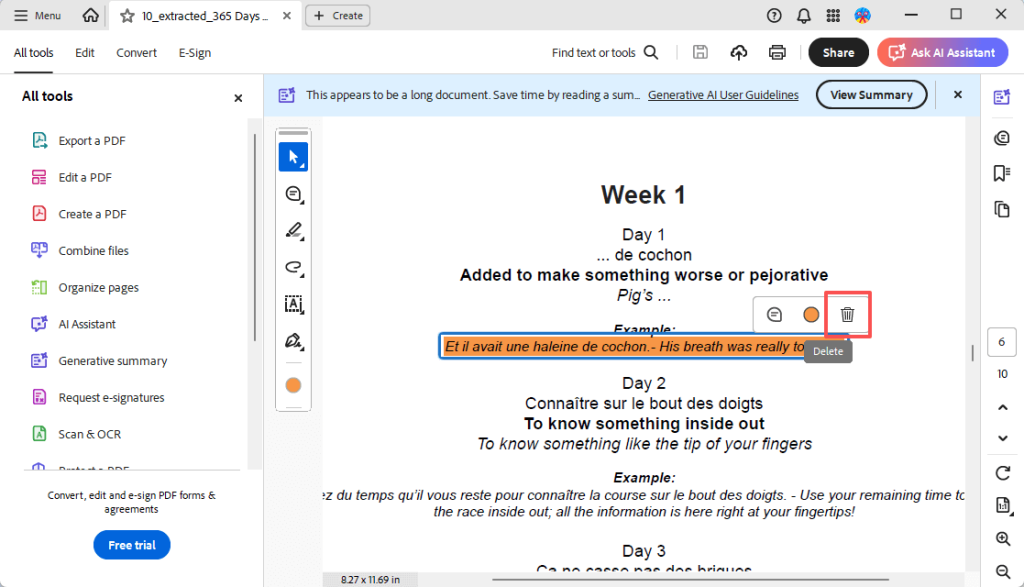
4. Find and remove all highlights in the PDF.
5. When OK, click the Save button.
💎 Best For: Adobe Acrobat is ideal for professionals and organizations that require advanced PDF editing and annotation capabilities.
Pros
- A trusted PDF software
- Comprehensive PDF editing features
- Supports various annotation and markup tools
Cons
- Requires a subscription for advanced features
3. How to Remove Highlight from PDF in Mac Preview
Preview is a built-in app that allows users to view and edit PDF files on Mac computers. It provides basic annotation tools, including highlighting and note-taking capabilities. With Preview, you can even remove all highlights in a PDF.
Here is how to unhighlight in PDF on Mac with Preview:
1. Double-click the PDF document to open it in Preview.
2. Press Command + I to open the “Inspector.”
3. Click on the “Annotations” tab (pen icon).
4. Select the highlighted text you wish to remove.
Tip
If you want to remove all highlights in PDF, please hold down the Command key and click on each highlight entry in the list.
5. Click the delete button or press the “Delete” key.
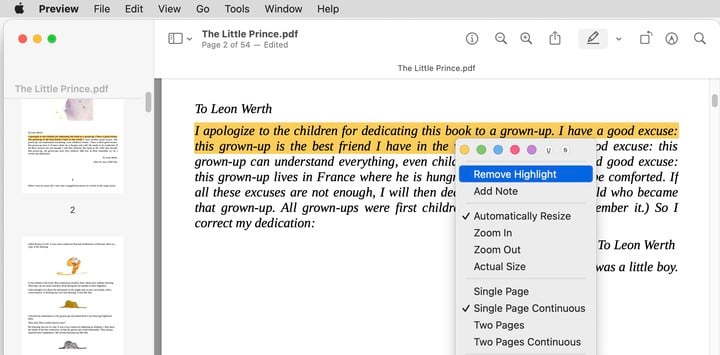
6. Save the PDF to keep the changes.
💎 Best For: Preview is a suitable choice for Mac users who want a basic PDF annotation tool without needing to install third-party software.
Pros
- Pre-installed app
- Lightweight and fast
Cons
- Only for macOS
- Limited advanced editing features.
4. How to Remove Highlight from PDF Online
Another way to remove highlights from a PDF is to use an online PDF tool, such as Sejda, Smallpdf, or pdfFiller. They provide various tools for editing, converting, and annotating PDFs, offering both free and paid versions with different feature sets.
However, online tools are not suitable for all PDFs. The free version usually has limitations on file size. Additionally, be aware that uploading PDF files to the internet involves risks.
Learn how to delete highlight in PDF online:
1. Open your browser and visit a tool like Sejda.
2. Upload your PDF file.
3. Select the Highlight option.
4. Click Remove annotation to confirm.

5. Finally, click Download to save the document.
💎 Best For: An online tool is a quick way to go if you want to remove highlights from a small PDF without sensitive information.
Pros
- User-friendly interface
- No installation required
- Supports batch processing
Cons
- Requires an internet connection
- The free version has file size and usage limitations
Troubleshoot: Why Can’t I Remove Highlights in PDF?
You try to select and delete the highlights. However, it does not work. Why can’t I unhighlight text in PDF? The main reasons are as follows.
🔶 Reason 1. Highlights are flattened or embedded
If the highlight is merged with the page as part of a scanned or flattened PDF, it is no longer an editable annotation. So, you can’t delete it as an independent object.
How to remove highlights from a scanned or flattened PDF?
- An OCR tool can help you make a scanned or image-based PDF editable.
- If the PDF is created from another format, like a Word document, you can re-edit the source document and re-export it.
- For a scanned PDF, try to scan a clean copy.
🔶 Reason 2. The PDF has editing permissions
Due to password protection or editing restrictions, you are not allowed to make any changes, including removing highlights. You will be unable to remove highlightes unless you obtain the permissions.
How remove highlight from a secured PDF?
Ask the owner for the password and unlock the restriction. In JOPDF, navigate to ‘Protect‘ and select ‘Decrypt‘ to remove password from PDF.

Conclusion
That’s all about how to remove highlight in PDF. All of these tools can help you accomplish your task. You can weigh the features of them to determine which one best meets your needs.
Of course, if you prefer a professional yet easy-to-use tool, JOPDF is undoubtedly a reliable choice. It also comes with numerous other features to help you effortlessly handle PDF files. Try it now!
FAQs
Table of Contents

Your Best Free PDF Expert in PDF editing, compressing, converting, annotating, protect, organizing, and more.
Free DownloadWindows · macOS

Queena
Editor
“As a staff editor for JOPDF, Queena excels at guiding users to the optimal tools and solutions. When she's not analyzing the latest PDF solutions, she enjoys spending her free time playing with her four cats.”