Summary :
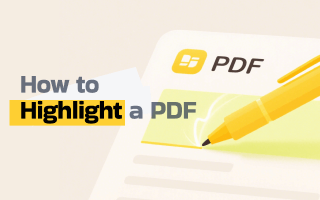
Highlighting allows us to focus on key content while filtering out unnecessary information. Today, let’s explore how to highlight a PDF for free. You will learn how to highlight text, images, or any area in a PDF. These methods are compatible with both Windows and macOS systems.
🟡 Quick Start
If you are looking for a quick and easy way to highlight in a PDF, a professional and free PDF highlighter, such as JOPDF, is a great choice.
All you have to do is select the Highlight tool, choose the desired color, and highlight the content as needed. Click the button below to get started!
1. How to Highlight a PDF with JOPDF [Easy & Quick]
JOPDF is a professional and lightweight PDF highlighter and editor that works on Windows and macOS. It offers a variety of powerful annotation tools, including highlighting, underlining, pencil, graphics, notes, stamp addition, and more.
As for highlighting, JOPDF not only helps you highlight text in PDF, but also allows you to highlight any area. You can use the “Area Highlight” to highlight images or a scanned PDF. In addition, for protected PDF files, JOPDF can help remove the password from PDF and then highlight as needed.
In short, JOPDF can help you highlight PDF documents in any situation. It is powerful, easy to use, and free of charge. Try it now!
Here is how to highlight in PDF with JOPDF:
1.Launch JOPDF. Click Open PDF to select the PDF document. Or, you can drag the document into the window.
2. Click the Annotate button at the top. Select Highlight or Area Highlight. Select a color you like.
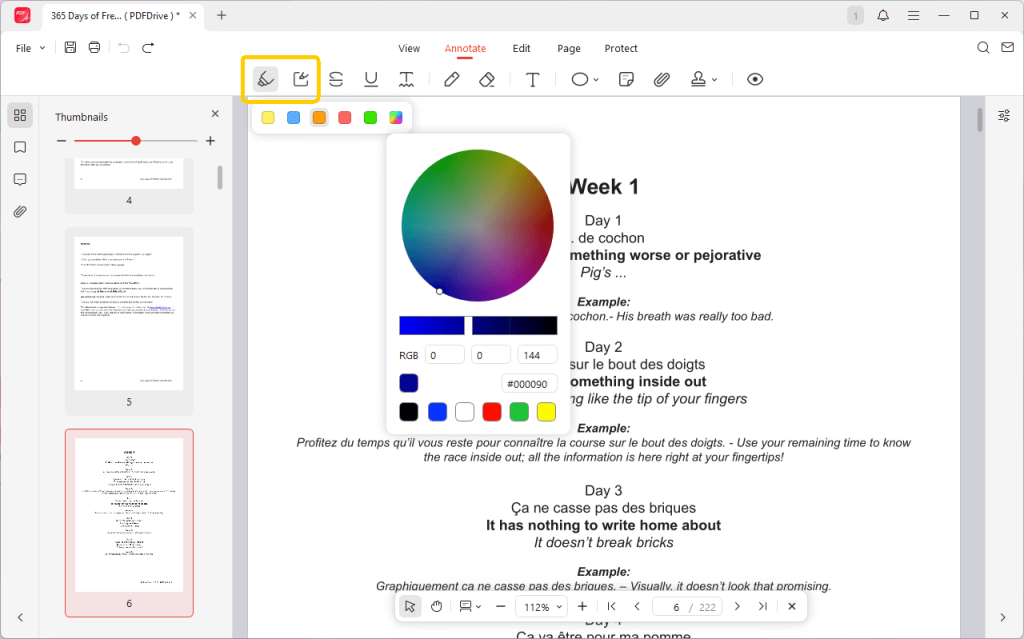
3. Now, you can move the cursor to highlight text, images, or any area.
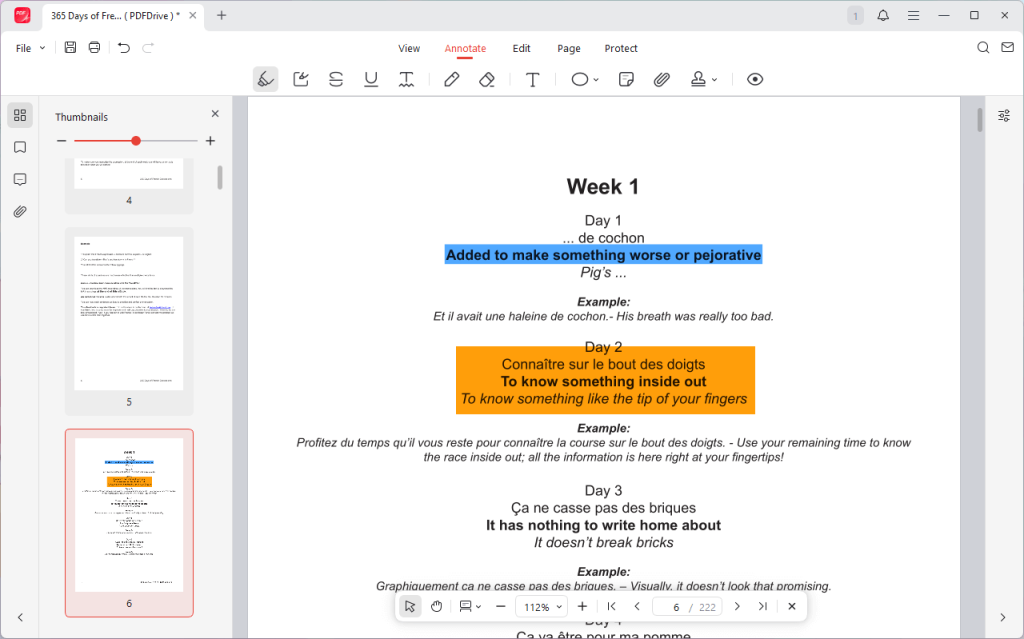
5. When OK, click the Save button to save the changes.
⭐ Best For: JOPDF is best for professionals or students who want advanced and customizable highlighting tools.
Pros
- Highlight text/area in PDF
- Custom colors
- Various annotation tools
- Supports scanned PDFs
Cons
- Requires installation.
2. How to Highlight a PDF in Adobe Reader
Adobe Acrobat is the industry-standard software for creating and working with PDFs. Its free version, Adobe Acrobat Reader, offers basic highlighting features. Its professional version adds more advanced customization features and annotation tools.
Anyhow, the free Adobe Acrobat Reader is sufficient for simple text highlighting. For advanced features, consider JOPDF.
Check to learn how to highlight on a PDF using Adobe Reader:
1. Open the PDF documenr.
2. Click the Highlight selected text option and select Highlight.

3. Then, select a color and adjust the color and opacity.
4. Highlight the text and click the Save button.

⭐ Best For: Adobe Acrobat Reader is a good choice for basic highlighting. The Pro version is ideal for professionals who require precise customization and control.
Pros
- Industry-standard solution
- Can change opacity
Cons
- Limited color options
- Pro version requires a subscription
3. How to Highlight a PDF on Mac Preview
As a Mac user, Preview is a great option for highlighting a PDF for free. You don’t need to download any additional tools, as the app is already built into the system.
Preview offers annotation features, including highlighting, underlining, strikethrough, and drawing on PDF. You can easily highlight text in a PDF and change the color. However, there are only five default colors to choose from.
See how to highlight PDF in Preview:
1. Double-click the PDF document to open it in Preview.
2. Click the Highlight button from the toolbar.
3. To change the color, please click the down arrow next to the Highlight button.
4. Select and highlight the text as needed.
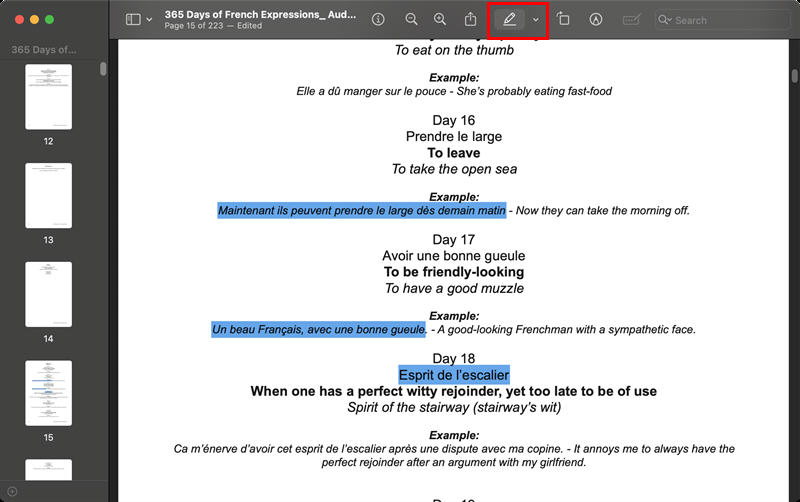
5. Finally, click File and click Save.
⭐ Best For: Preview is ideal for Mac users who want basic highlighting and simple annotations without requiring additional software.
Pros
- Built-in app, no install
- Intuitive for macOS users
Cons
- Basic features only
- Limited color selection
4. How to Highlight a PDF in Chrome/Firefox/Edge
Another way to highlight a PDF document for free is to use a browser, such as Google Chrome. Firefox and Edge.
These browsers not only have built-in PDF readers but also offer basic tools to help you annotate PDFs. Drag and drop your PDF file into your browser to start annotating. It’s quick and easy.
Steps to highlight a PDF in Chrome:
1. Open Google Chrome and drag the document into it.
2. Click the Draw tool at the top.
3. Select Highlighter. Then, change the size and color.
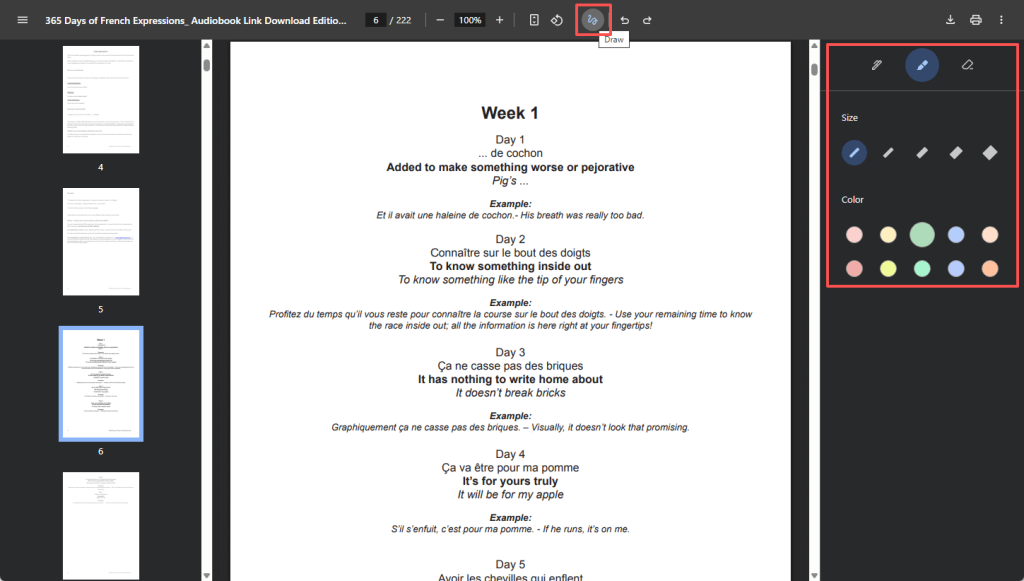
4. Highlight text or areas, then save or print with changes.
Note: Google Chrome cannot help you draw a straight line, but Firefox and Edge can.
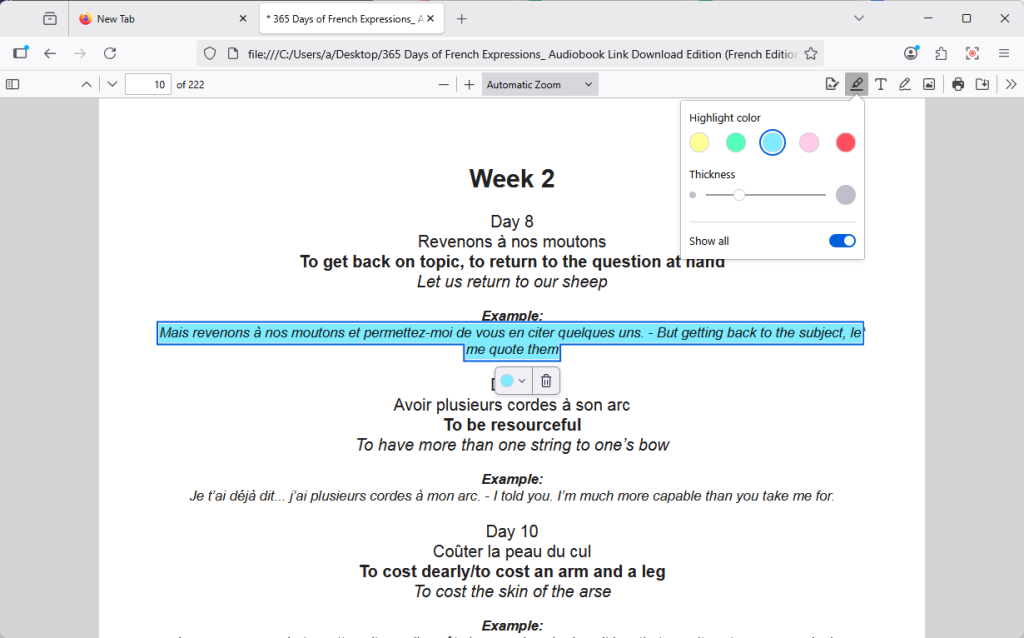
⭐ Best For: A browser like Chrome is a good option for a one-time task. It allows users to get started quickly and meets basic highlighting needs.
Pros
- Fast
- Easy to use
- No install
Cons
- Limited tools
- Chrome does not support straight highlighting
Conclusion
That’s all about how to highlight a PDF for free. Highlighting PDF files allows us to focus on key points and improve our understanding. Additionally, it can help strengthen memory and make it easier to recall key content.
Please choose the tool that best suits your needs. If you ask which one is the best, it would definitely be JOPDF, which offers powerful annotation tools and is free of charge. Try it now!
FAQs
Table of Contents

Your Best Free PDF Expert in PDF editing, compressing, converting, annotating, protect, organizing, and more.
Free DownloadWindows · macOS

Queena
Editor
“As a staff editor for JOPDF, Queena excels at guiding users to the optimal tools and solutions. When she's not analyzing the latest PDF solutions, she enjoys spending her free time playing with her four cats.”