Introduction
Learning how to circle something in PDF allows you to emphasize important text or images, making reviews and collaborations smoother. Discover 5 free techniques to streamline your PDF tasks immediately.
1. How to Circle Something in PDF with JOPDF
JOPDF is a versatile PDF tool that makes it simple to circle text in PDF and emphasize key information. Its powerful annotation features let you either draw freehand circles or add predefined shapes.
Designed as an all-rounder, it allows you to edit a PDF for free, efficiently, and effortlessly. Users can customize shapes, adjust colors and thickness, and add notes, making annotations more precise. The advanced editor lets you effortlessly change text, images, and overall layout.
Find out how to circle something in PDF on Mac or Windows with the help of JOPDF.
Step 1. Download JOPDF on your Windows or Mac computer. Set up and launch the program.
Step 2. Click Open PDF and select the PDF you wish to add the circle in.
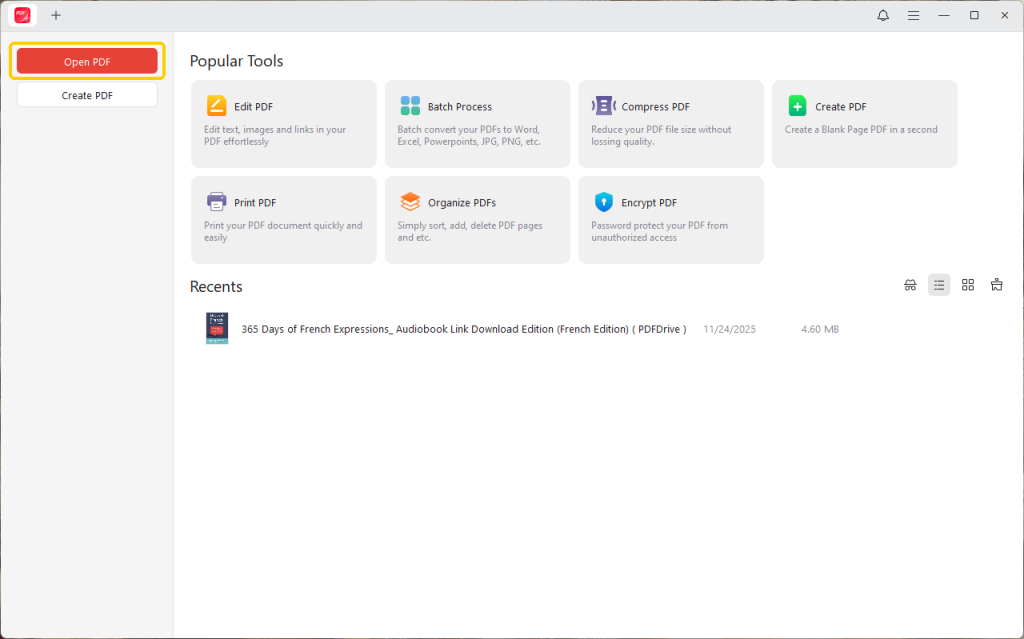
Step 3. Once your document has been uploaded to the workspace, tap the Annotate tab.
Step 4. In the toolbar, tap the Shapes dropdown menu. Then select the Oval tool to outline anything in your PDF. Adjust the circle’s color, opacity, and thickness.
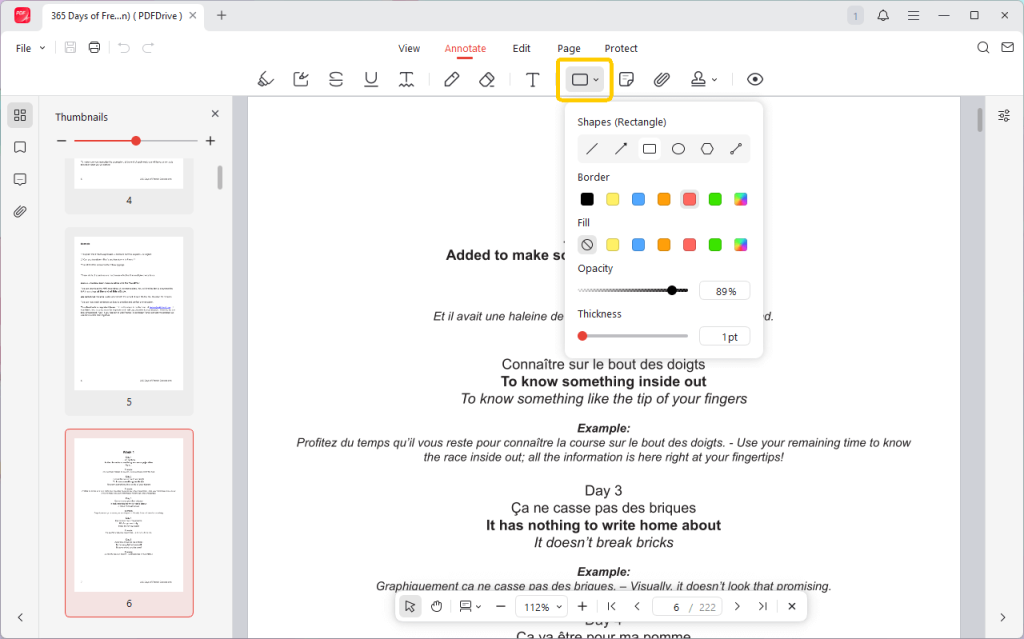
Step 5. Next, click and drag on your document to draw the shape. Once finished, click the Save icon to save your annotated PDF.
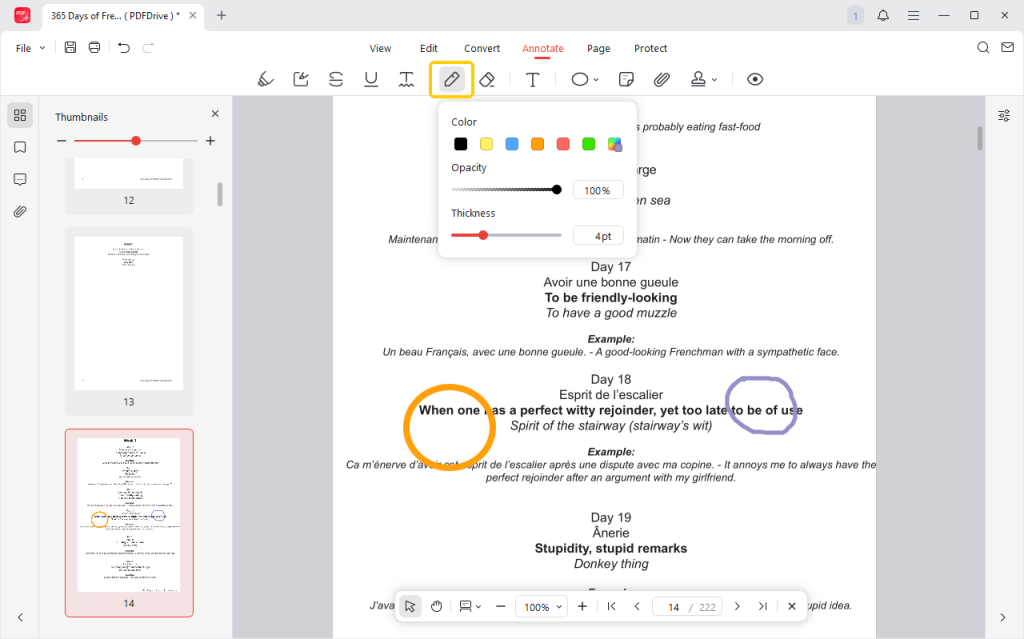
If you wonder about how to draw circle in PDF, JOPDF has the perfect solution. You can manually draw a circle in JOPDF. Click the Annotate tab, then select the Pencil icon (sixth one).
Then draw on any place of the PDF page you wish. You can change the pencil’s color, line thickness, and opacity by hovering over the Pencil icon. Try it yourself!
2. Circle Something in PDF with Adobe
AdobeAcrobat offers advanced tools that let you highlight PDFs and clearly mark essential information. Users can circle text or images using drawing tools or shape tools, making documents easier to read and organize.
Its reliable features ensure professional-quality edits and annotations for both personal and collaborative use.
Learn how to draw circle in PDF using Adobe Acrobat.
Step 1. Download and launch Adobe Acrobat on your computer. Select the See All Tools option, then click Edit a PDF.
Import your PDF file from the device folder to initiate the process.
Step 2. Click the Draw Freehand icon and tap the Circle shape to add a circle to the PDF.
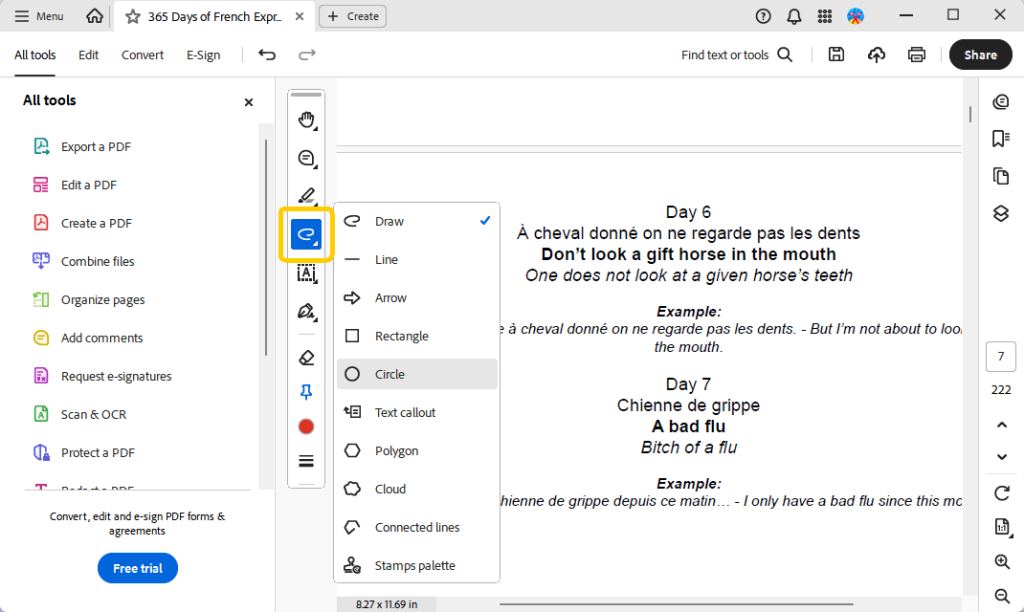
Step 3. Hover your cursor to the place you want to insert a circle in the PDF.
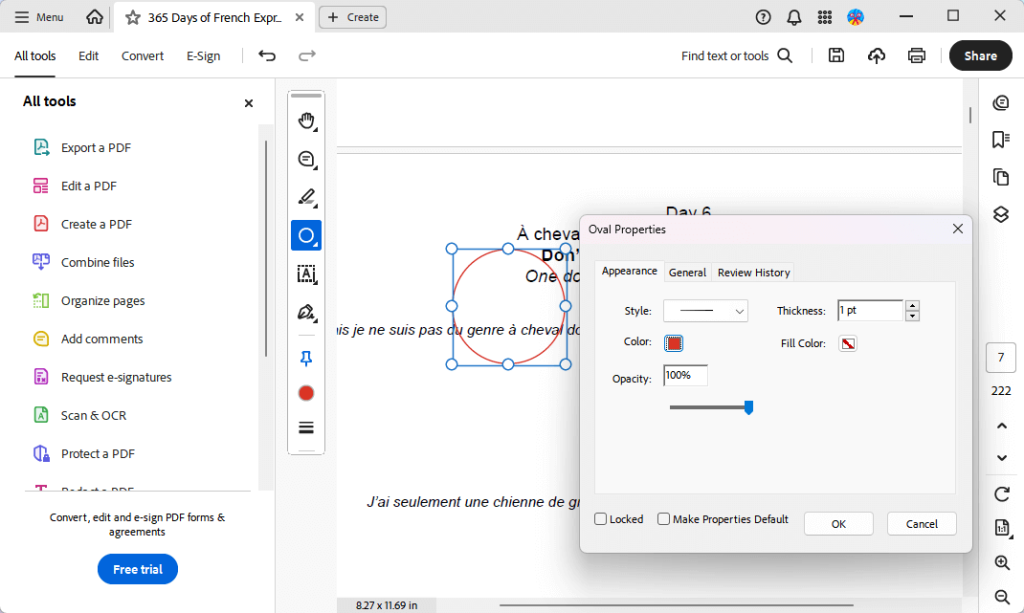
Step 4. Select the Color icon and modify the properties of the added circle. Here, you can adjust the opacity and style of your circle.
3. Add Circle in PDF on Mac Using Preview
As a Mac PDF editor, Preview makes it easy to annotate PDFs by adding circles to emphasize text or graphics.
Although perfect for marking up PDFs, it cannot alter text that’s already there. For full editing capabilities, including circling and modifying content, tools like JOPDF are a better choice.
Follow this quick guide to how to circle something in PDF on Mac using the Preview application.
Step 1. On a Mac, just right-click the PDF you want to open and add circles. Then select Open With and click Preview.
Step 2. Once your PDF opens with Preview, tap the Show Markup Toolbar button. It is resembled to a pencil inside a box.
Step 3. You’ll find the toolbar has a shape icon. Click the option and pick Circle from the menu.
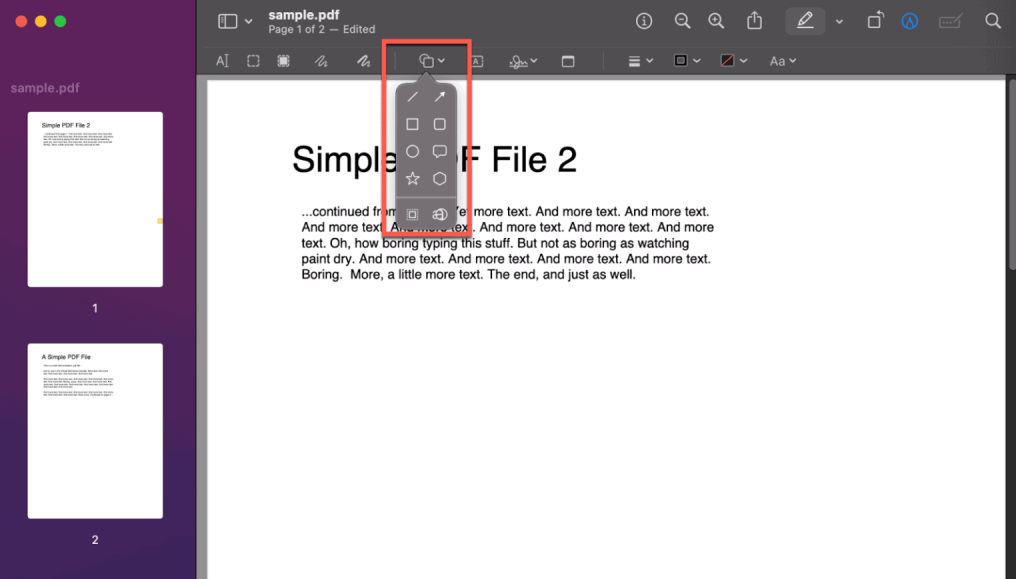
Step 4. Draw a circle by clicking and dragging to mark or highlight content in your PDF page. You have the option to change the circle’s size, color, and border thickness.
Step 5. Once the circle is added to the appropriate region, click File. And select Save to save your annotated PDF.
4. Draw Circle in PDF by Microsoft Edge
Microsoft Edge provides simple yet effective annotation tools that let you draw circles and highlight essential sections in PDFs.
Its built-in features make reviewing and highlighting documents quick and convenient. This gives users an easy way to emphasize key points without additional software or complex configurations.
Learn how to circle text in PDF through Microsoft Edge.
Step 1. Right-click the PDF and choose Microsoft Edge from the options to open it.
Step 2. Navigate to the Draw icon in the toolbar. And choose the color and line thickness.
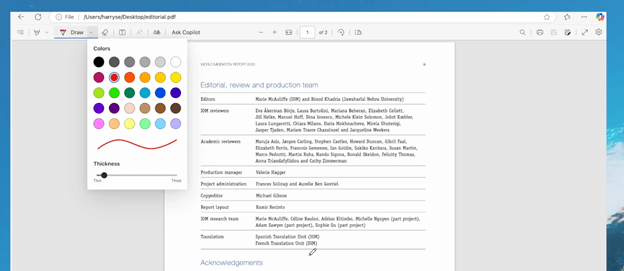
Step 3. Use your mouse to outline the area in your PDF with a circle.
Step 4. After completing your edits, select the Print icon to save the PDF. Enter a name for the file in the pop-up window and choose its save location.
5. Use an Online Tool to Draw Circle in PDF
Several web-based tools let you draw on a PDF and emphasize important text or images. These tools offer a convenient way to edit PDFs without installing software.
With its user-friendly design and strong annotation features, Smallpdf makes it easy to highlight and draw attention to important information.
Check out how to circle in PDF using Smallpdf.
Step 1. Launch Smallpdf in your web browser. Scroll down and select the Edit PDF tool. Tap Choose Files on the platform to import a PDF file from your computer or cloud storage.
Step 2. After your PDF is uploaded, select Circle from the Shape dropdown menu.
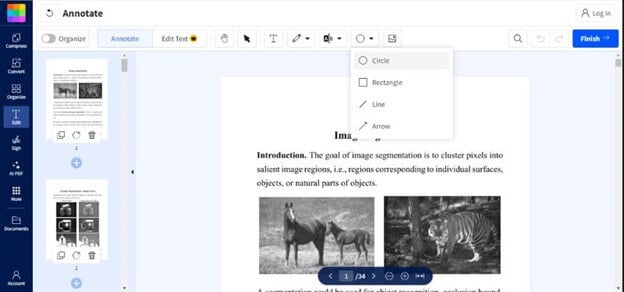
Step 3. Use your cursor to draw over the PDF section you wish to emphasize, resizing and moving as needed.
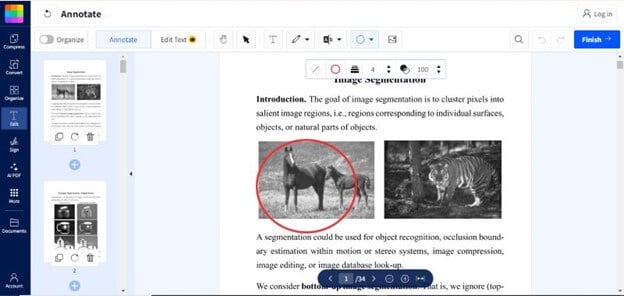
Change the circle’s border thickness and color as required.
Step 4. After completing your changes, tap Download to save the PDF.
The Bottom Line
Effective document management often requires emphasizing key information. Knowing how to circle something in PDF helps you draw attention to critical text or images.
Free solutions such as JOPDF, Preview, or browser-based editors make annotation simple, streamline document review, and make PDFs more organized. These methods enhance readability, facilitate collaboration, and save time, making PDF editing accessible and efficient for everyone!
FAQs
Table of Contents

Your Best Free PDF Expert in PDF editing, compressing, converting, annotating, protect, organizing, and more.
Free DownloadWindows · macOS · Linux

Queena
Editor
“As a staff editor for JOPDF, Queena excels at guiding users to the optimal tools and solutions. When she's not analyzing the latest PDF solutions, she enjoys spending her free time playing with her four cats.”