Introduction
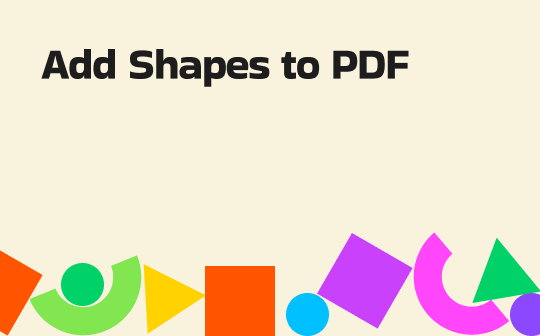
Knowing how to add shapes to PDF is essential for highlighting key sections, circling important data, or pointing out changes with arrows. This guide shows you 4 simple methods for adding rectangles, ovals, and other shapes on your Windows or Mac computer.
Way 1. Add Shapes to PDF with JOPDF (Win & Mac)
JOPDF is a 100% free, full-featured PDF editor for both Windows and Mac, a powerful Adobe alternative. It offers more than 10 tools to easily annotate a PDF, including the ability to add shapes.
With JOPDF, you can add a rectangle, oval, polygon, connection line, arrow, and draw on a PDF. It lets you adjust the color (border and fill), opacity, and thickness to meet different needs. In short, it’s an excellent choice if you need advanced control.
Download JOPDF and follow the steps below to add shapes!
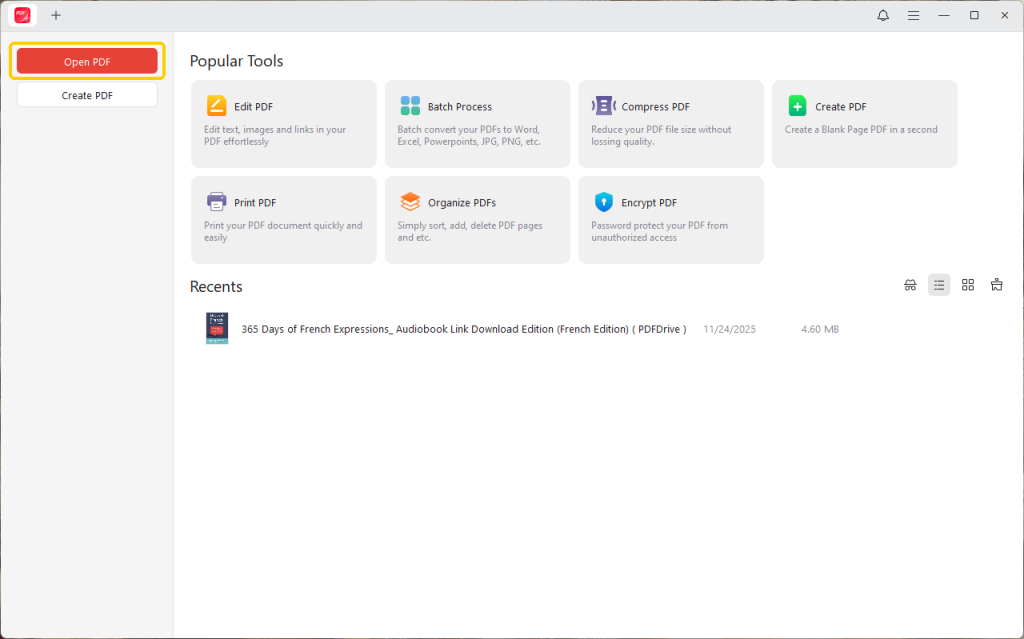
- Launch JOPDF and click Open PDF to select the PDF you want to edit.
- Once your document is open, click the Annotate tab.
- In the toolbar, click the Shapes icon, then select “Rectangle,” “Oval,” “Arrow,” or “Line.”
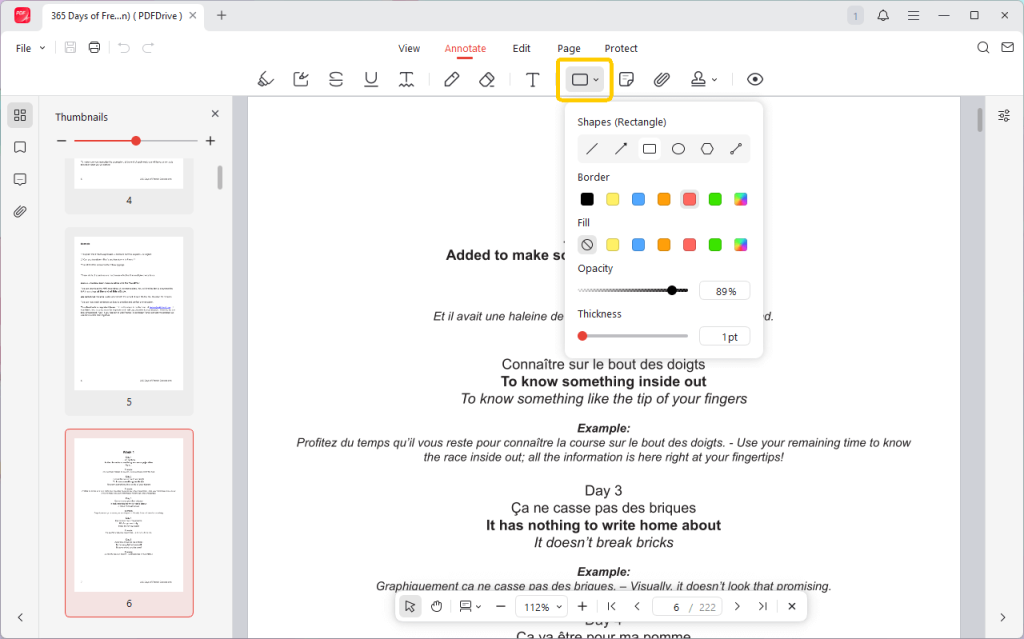
- Next, adjust the color, opacity, and thickness.
- Click and drag on your document to draw the shape.
- When finished, just click the “Save” icon.
🔶 Notes:
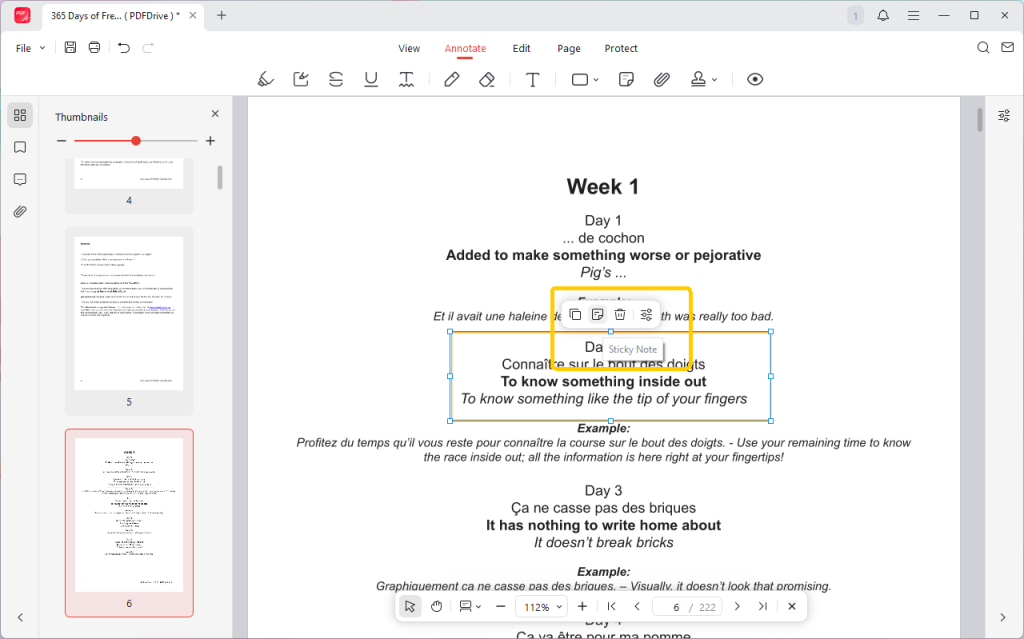
- After the addition is complete, you can click the shape to make adjustments. It allows you to add sticky notes for additional explanations. If needed, you can also adjust the color and other things.
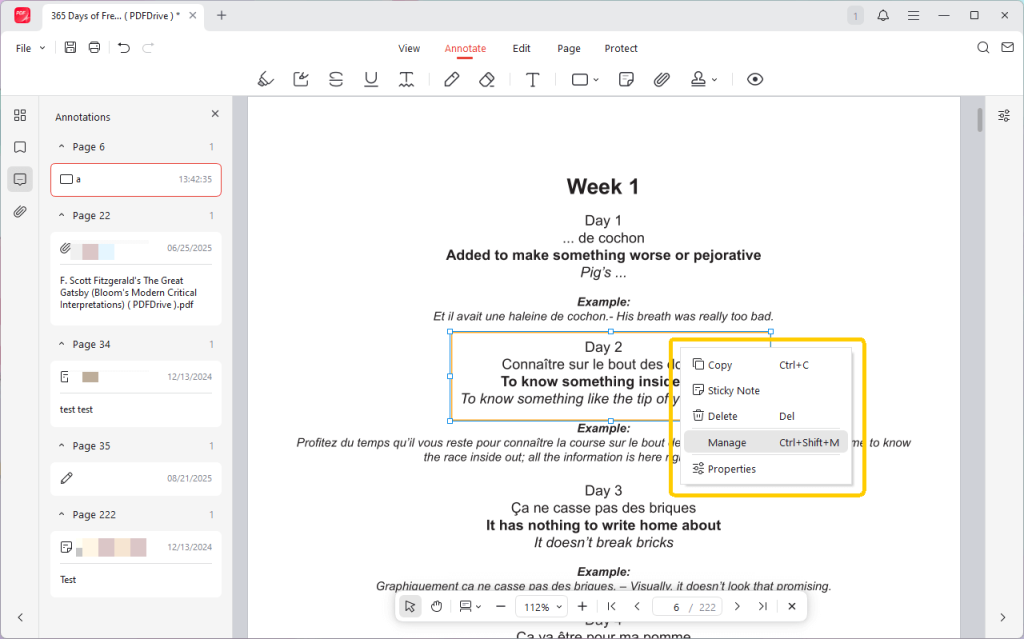
- Click Manage, and you can see all the shapes and other annotations you have made.
As you can see, JOPDF lets you easily add shapes. More than that, it can also help you highlight text, add notes, edit and add text, manage pages, and add password protection. All for free! Why not give it a try!
⭐ Best for: Users on Windows or Mac who want a powerful, full-featured desktop editor with no cost, subscriptions, or feature limitations.
2. Add Shapes in Adobe Acrobat Reader
Adobe Acrobat is the most common PDF tool in the world. Luckily, the free Adobe Reader has a powerful set of annotation tools. You can easily draw an arrow, a rectangle, a circle, and more on a PDF document.
However, if you also want to add text to PDF and make other edits, you need to upgrade to the Pro version.
See how to add shapes to PDF with Adobe Reader:
- Open your PDF document in Adobe Acrobat Reader.
- Click the Draw freehand icon and select a shape you want to add(e.g., “Oval“).
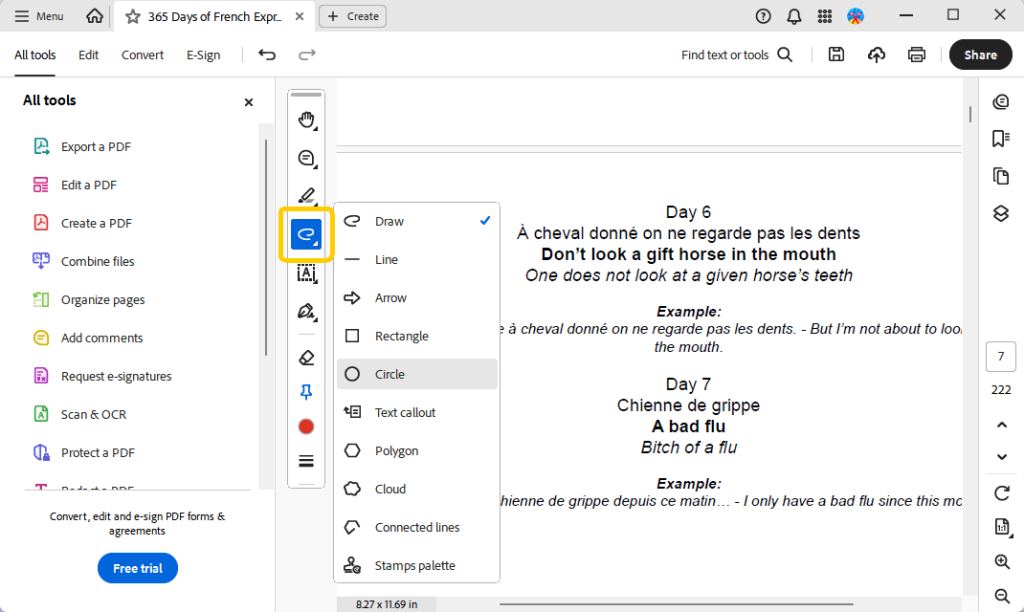
- Your cursor will become a crosshair. Then, drag on the PDF to draw your oval.
- To change the shape’s appearance, right-click on the shape you just drew and select “Properties.”
- A “Properties” dialog box will open. Here you can change the color, fill color, thickness, and style.
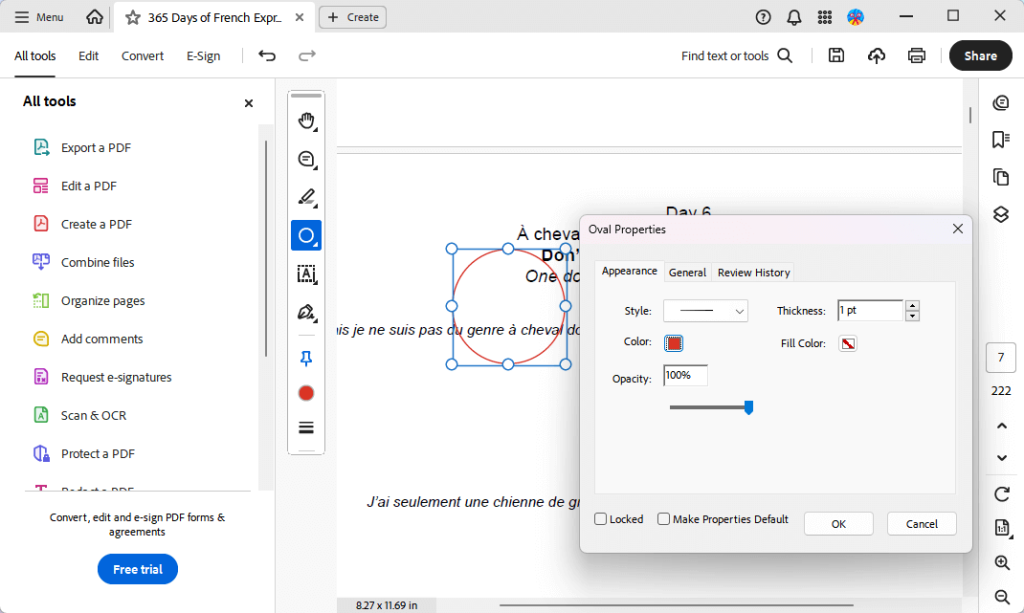
- Close the “Properties” box and go to File > Save to save your PDF with the new shape.
⭐ Best for: Office, academic, and home users who already have Adobe Reader installed and need to make professional annotations without installing new software.
3. Add Shapes on Mac with Preview App
If you are a Mac user, you already have one of the best free PDF editors. The Preview app is much more than just an image and PDF viewer; it’s a powerful tool for PDF annotation.
With Preview, you cannot only add shapes but also highlight a PDF, add annotations, and more.
Check to learn how to add shapes in PDF with Preview:
- Double-click your PDF file to open it. On a Mac, it will open in Preview by default.
- At the top of the window, click the “Show Markup Toolbar” icon.
- Then, click the “Shapes” icon and select an option: Rectangle, Oval, Arrow, Line, Polygon, Speech Bubble, and more.
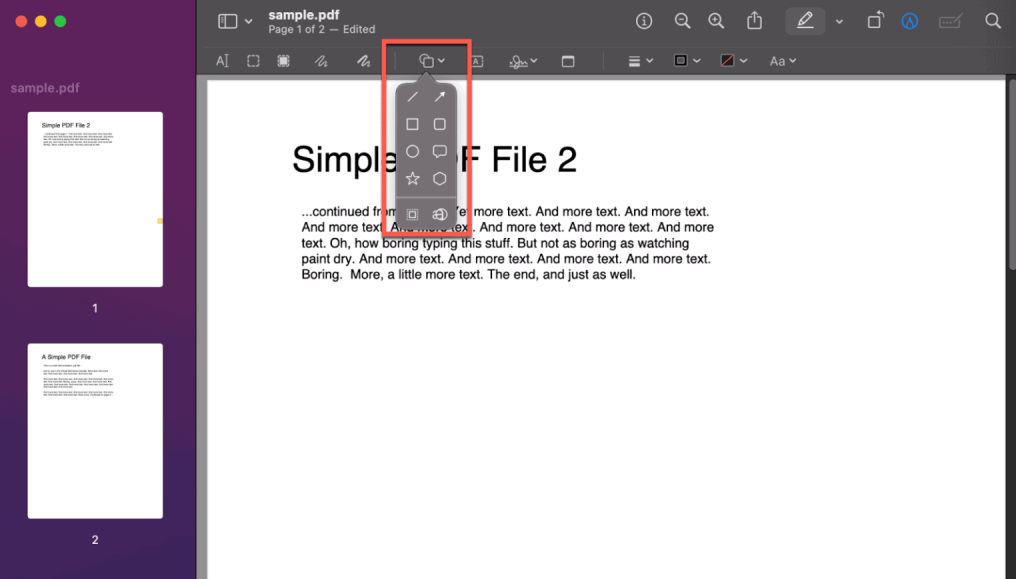
- Click and drag it to the correct position. Use the blue handles to resize and reshape it.
- If needed, you can change the color and shape style.
- Finally, go to File > Save to finalize the changes.
⭐ Best for: All Mac users. This is the fastest, easiest, and most seamlessly integrated method available on macOS.
4. Add Shapes to PDF Online
Use a Chromebook, a public computer at a library, or a work computer where you can’t install software?
Under these circumstances, a free online editor is the way to go. You can upload and edit the document in a browser. However, please be cautious about uploading highly sensitive or confidential documents.
Here is how to add shapes in PDF online:
- Open your web browser and search for a “free online PDF editor,” and select a reputable one, such as Smallpdf, Sejda, and Canva.
- Follow the prompts to upload the document.
- Find and click the Shapes button. Click the button and select the shape you want to add.
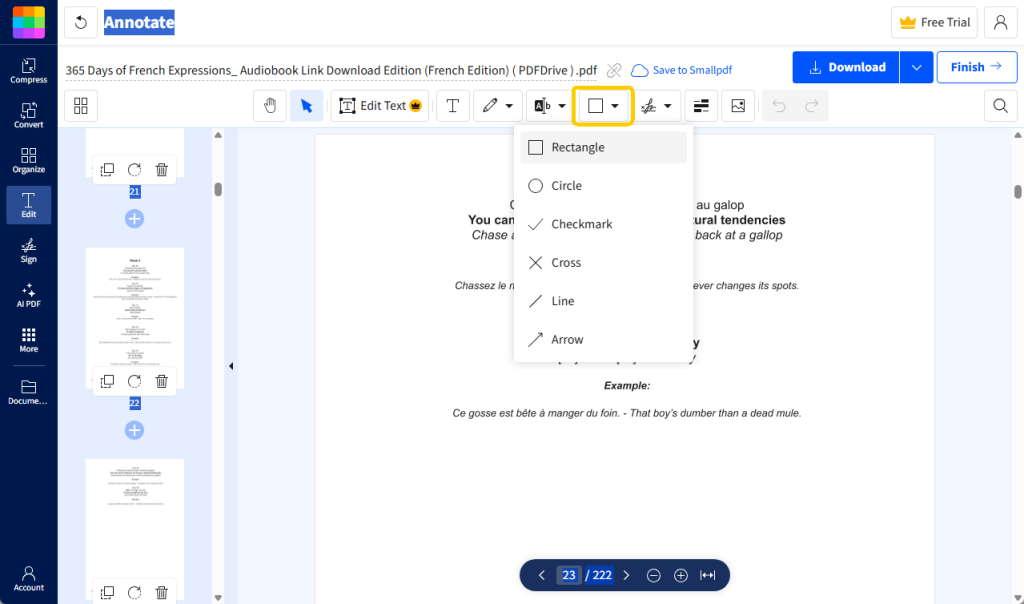
- Click and drag on your document to draw the shape.
- Then, change border color, fill color, and line thickness.
⭐ Best for: Users on restricted computers, or anyone needing to make a quick, one-time edit without installing any software.
Conclusion
That’s all about how to add shapes to PDF for free. Whether you use a full-featured free desktop tool like JOPDF or Adobe Reader, the built-in Preview app on your Mac, or a convenient online editor, you can easily annotate, highlight, and collaborate on your documents.
However, if you also want other annotation and editing tools, JOPDF is the best choice. This tool offers a comprehensive suite of PDF utilities and is completely free!
FAQs
Table of Contents

Your Best Free PDF Expert in PDF editing, compressing, converting, annotating, protect, organizing, and more.
Try It FreeWindows · macOS

Queena
Editor
“As a staff editor for JOPDF, Queena excels at guiding users to the optimal tools and solutions. When she's not analyzing the latest PDF solutions, she enjoys spending her free time playing with her four cats.”