Introduction
This guide will show you how to add attachment to PDF. You will know how to get the job done using a powerful free desktop tool, the industry-standard Adobe Acrobat Pro, and a flexible online tool for when you’re on the go.
You’ve just finished a 10-page report, but the raw data is in an Excel spreadsheet. You have a design portfolio in PDF, but you want to include your full Word-based resume. How do you send all these files as one single package?
The solution is to insert an attachment to the PDF. It lets you embed a Word document, an image, or even another PDF in your PDF. The reader can then open your one PDF and access all the supplementary files.
Many tools can assist you. You can explore all of them and choose the one that suits you best. Of course, if you want a professional, free tool, JOPDF is the best choice.
What’s the Difference? Attachment vs. Hyperlink
Generally speaking, there are two methods for adding attachments to a PDF. Let us explore these further.
🔸 Add an Attachment
This is the standard method for adding attachments. You can directly embed complete files in their original formats (such as .xlsx, .docx, .mp4, etc.). Readers can access the attachment content by clicking the paperclip icon.
🔸 Adding a Hyperlink
This feature allows you to create a link to an attachment in PDF, stored online or locally. This method keeps the PDF file size compact, making it an excellent solution when attachments are too large.
Method 1: How to Add Attachment to PDF for Free with JOPDF
For many years, adding attachments was considered a “pro” feature. However, some powerful and free PDF editors like JOPDF now include this capability.
JOPDF is a free, fast, and lightweight desktop application. It’s an excellent choice if you’re handling sensitive documents and don’t want to upload them to a web server.
Check to learn how to attach a file to a PDF document using JOPDF. It provides two easy methods.
Directly Attach File to PDF
- Download JOPDF. Install and launch the software.
- Open the PDF you want to add an attachment to.
- At the top, click on the Annotate tab and select the Attachment option.
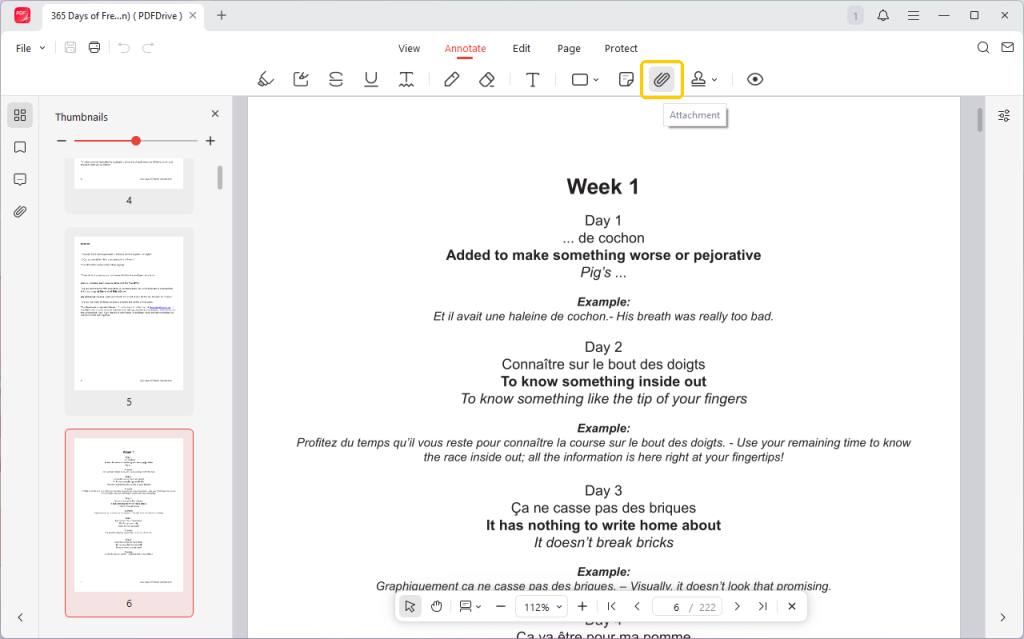
- Then, click anywhere on the PDF page where you want the attachment icon to appear.
- A file browser window will pop up, and then you can select the document.
- If needed, you can select the icon to leave a sticky note.
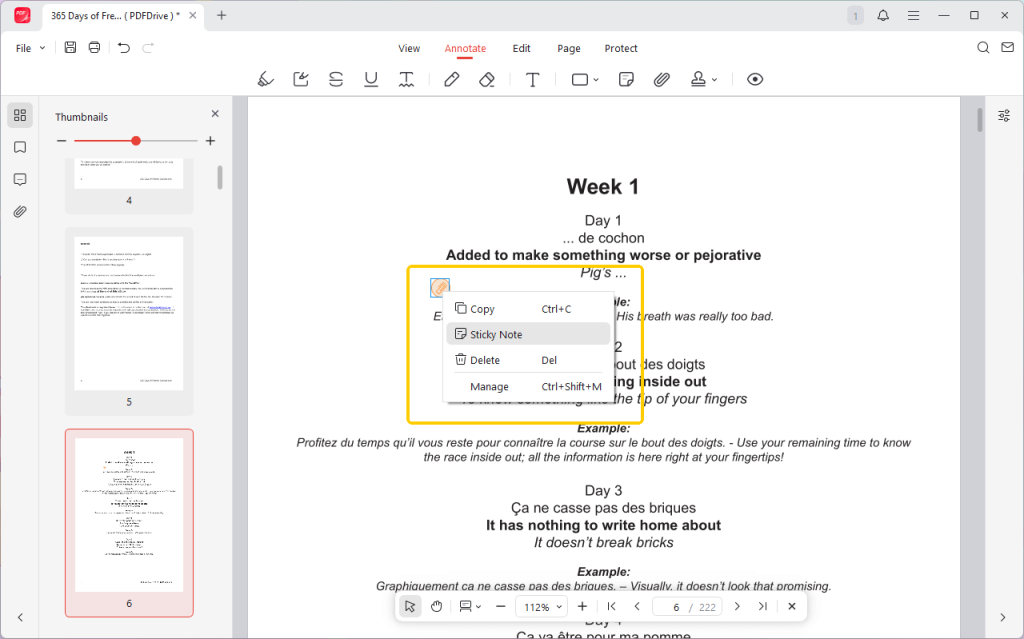
- Finally, go to File > Save or Save As to save changes or create a new copy of your PDF.
Link to Attachment in PDF
- Download, install, and launch JOPDF.
- Open the PDF document and go to Edit.
- Click the Link button and select the Add Link option.
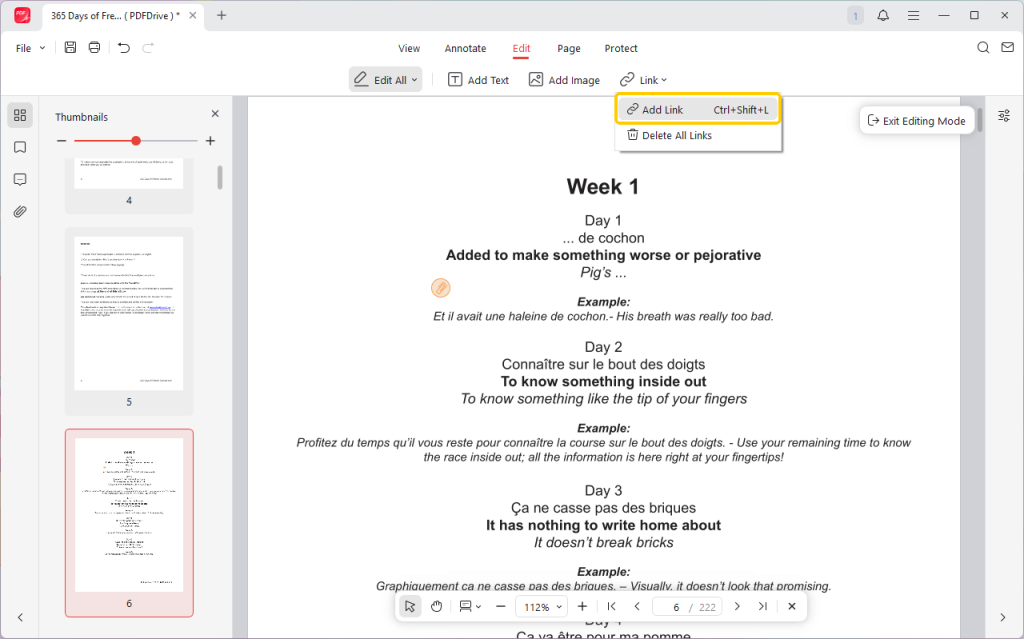
- Drag to select an area to place the link. Then, adjust the settings as needed.
- You can change the border, style, and color to make a special appearance.
- Select Open a Web Page if you want to link to an online file. Select Open a File for a local document.
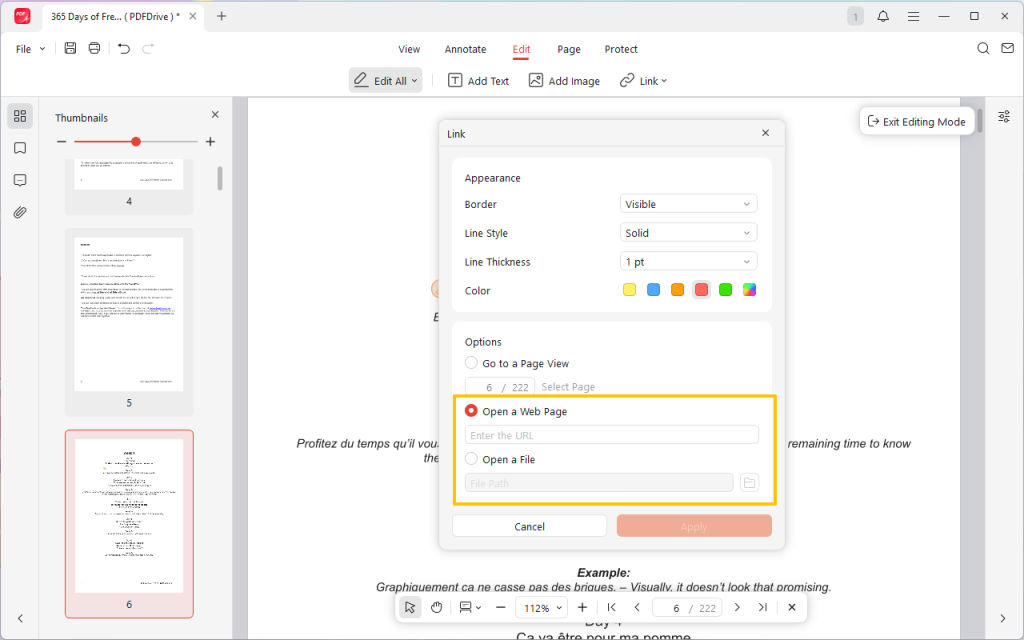
- Click Apply and save the changes.
As you can see, with JOPDF, you can attach a file to a PDF in a few clicks. As a feature-rich tool, it can also help you annotate a PDF, edit or add text, add and delete pages, and password-protect it. Explore more now!
⭐ Best for:
- Students, freelancers, or anyone needing a 100% free, offline tool for quick edits.
- Users who value privacy and don’t want to upload their files to a web server.
Method 2: How to Add Attachment to PDF with Adobe Acrobat Pro
Adobe Acrobat is the industry-standard PDF editor. Although the free reader lets you highlight a PDF, many other features, such as adding attachments, are chargeable.
In other words, you must have a paid Adobe Acrobat Pro subscription to use these features. However, there are Acrobat alternatives, such as JOPDF.
Check to learn how to attach file to PDF using Adobe:
- Open the PDF in Adobe Acrobat.
- Click the Add a comment tool and choose Attach file.
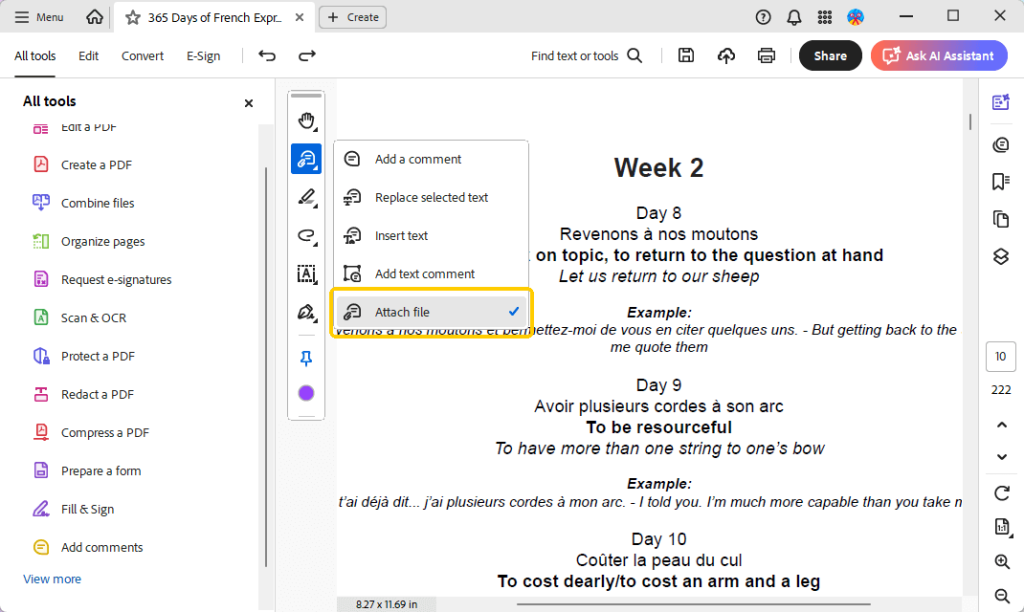
- Click on the page to place the attachment paperclip icon.
- Browse your computer and select the document.
- If needed, adjust the icon and color.
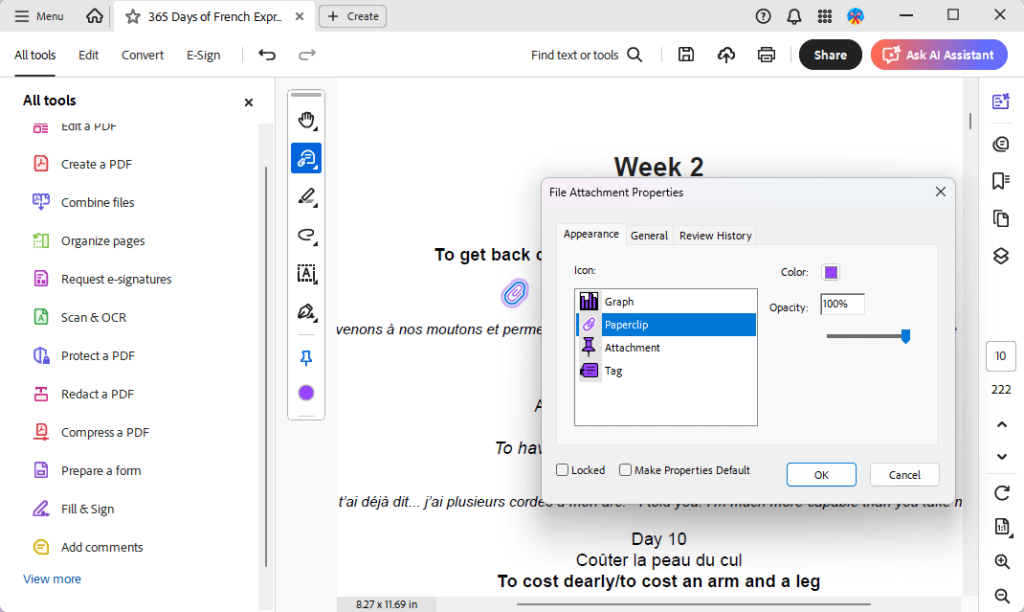
- Save the changes. Or, go to Menu > Save as to create a new copy.
⭐ Best for:
- Corporate, legal, and academic professionals who need maximum control.
- Users who need to add descriptions to their attachments or want to place visible on-page icons.
Method 3: How to Add Attachment to PDF Online
If you’re on a public computer and can’t install software, an online tool like pdfFiller is a fast and flexible solution.
pdfFiller is a cloud-based PDF editor you access from your web browser. However, most online tools can only help you create a link to an attachment in PDF.
Steps to attach file to PDF online:
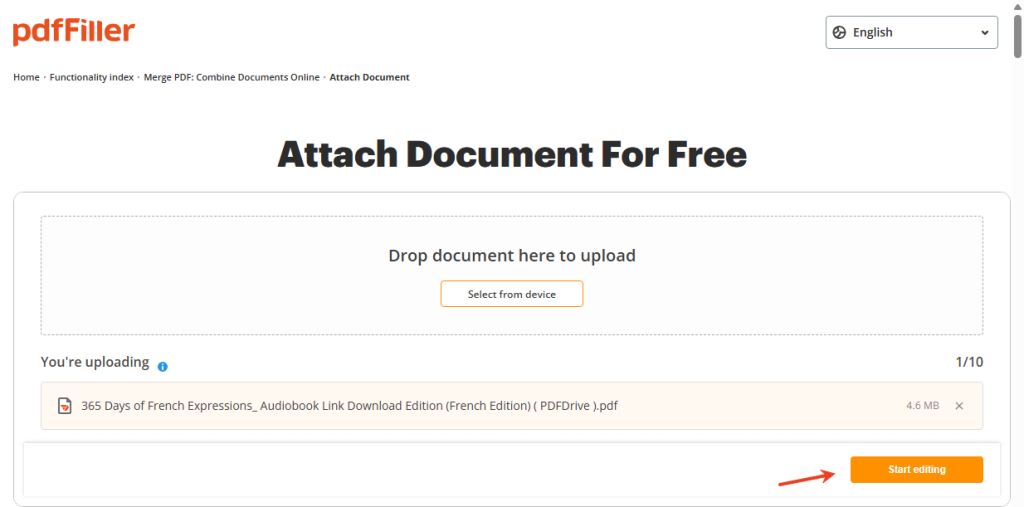
- Open a browser and visit pdfFiller (https://attach-document.pdffiller.com/).
- Upload the PDF document and click Start editing.
- Select the text you want to link to document. Or, you can type something else, such as “Click here to view supplementary data.”
- Go to Edit and find the Hyperlink tool.

- Paste the URL of the Google Drive or Dropbox. Click Save to confirm.

- Click Done to exit the editor. Then, download your modified PDF.
⭐ Best for:
- Quick edits when you are not on your own computer.
- Users on a Chromebook, tablet, or other device where software can’t be installed.
- Attaching very large files (like videos or high-res portfolios) via hyperlinks to keep the PDF file size small.
Conclusion
That’s all about how to add attachment to PDF. Choosing the right method depends on your budget, your software, and your privacy needs.
Of course, if you want a professional and free way to edit PDFs, JOPDF is the best option. It helps you add local or online documents without any difficulty. More than that, it offers many other tools to help you edit the PDF on Windows and Mac!
FAQs
Table of Contents

Your Best Free PDF Expert in PDF editing, compressing, converting, annotating, protect, organizing, and more.
Free DownloadWindows · macOS · Linux

Queena
Editor
“As a staff editor for JOPDF, Queena excels at guiding users to the optimal tools and solutions. When she's not analyzing the latest PDF solutions, she enjoys spending her free time playing with her four cats.”