![How to Add Comments to a PDF in 4 Free Ways [With Pro Tips]](https://b.jopdf.com/wp-content/uploads/2025/12/add-comments-to-pdf.png)
Summary :
Whether you’re a student, teacher, or business person, you may regularly work with PDFs. Then, you need to comment on a PDF document to provide feedback or review. To comment is to add text, a sticky note, or visual content on top of the file. You’ll know how frustrating it can be without the right tools. But if you read this post, you will suddenly realize how easy it is. Discover how to add comments to a PDF using the 4 best free and powerful ways.
You can also find more PDF comment-related tips and issue solutions on this page. Let the guide clarify and streamline your workflow.
Way 1: Add Comments to a PDF with JOPDF
JOPDF is a new PDF software recently launched for Windows and Mac. It is a completely free PDF annotator and editor that lets you add comments to a PDF. It allows you to comment in the form of a text box, a sticky note, or another kind of annotation or markup. The PDF comment tool also allows you to:
- Write on your PDF to add text comments.
- Draw on a PDF to create a diagram or chart comment.
- Best PDF highlighter to highlight text and area.
- Strikethrough, underline, and squiggly text.
- Add attachments, such as audio or video comments.
- Add stamps.
- Add image comments.
- Add links.
Look at how to add comments to a PDF for free in three simple steps.
Step 1: Install the JOPDF for Windows or Mac application, and open it.
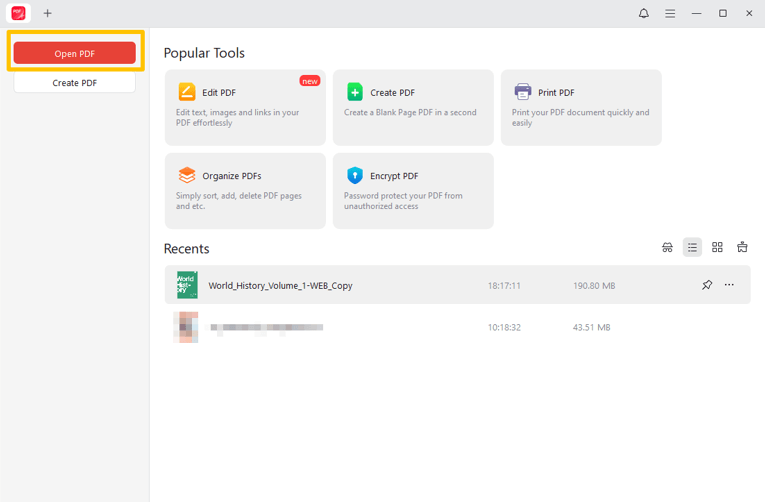
Step 2: Click Open PDF in the interface to open the PDF you want to add comments to.
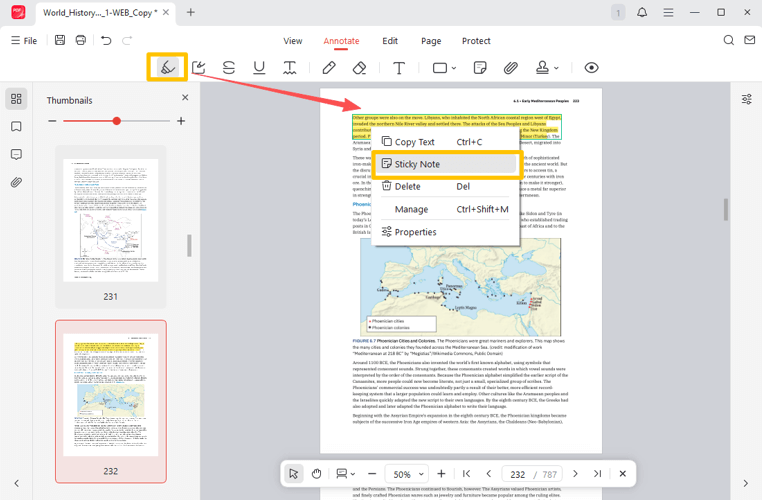
Step 3: Click Annotate > Sticky Note, and click your target position to add a comment box.
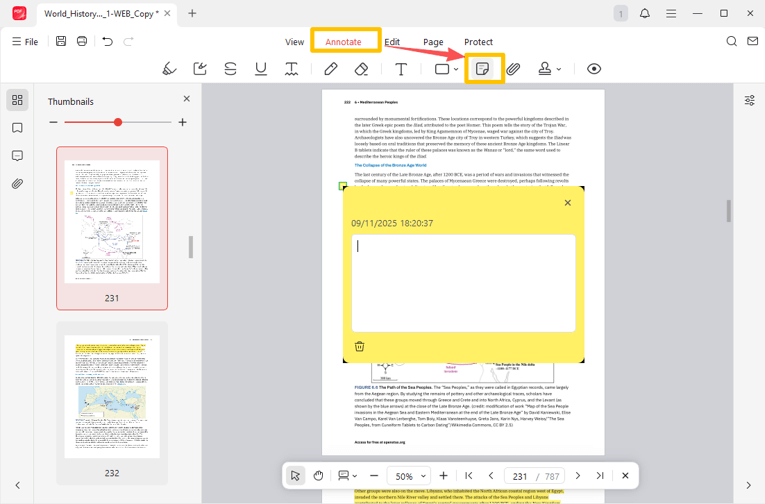
Step 4: Type your comment and click outside the pop-up box to close it.
You can also add comments in a PDF on highlighted text, line drawing, or other annotations.
- Click the Annotate menu > Highlight to highlight specific text;
- Right-click the text to select Sticky Note.
- Add a comment on the PDF by typing your message in the box.
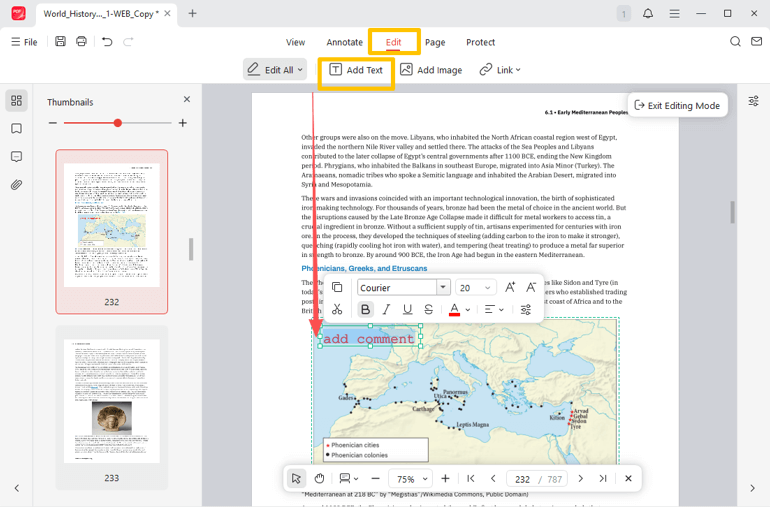
Alternatively, go to the Edit menu to select Add Text, click on the PDF to add text boxes, and then add comments to the PDF by entering text.
Way 2: How to Add Comments in a PDF with Adobe Reader
Adobe Acrobat Reader DC lets you leave comments on a PDF without the pro version. The software also lets you view, print, sign, and type on a PDF for free. The PDF comment features include a complete set of tools for adding notes, text boxes, highlights, drawings, and more. You can manage and edit the comment properties from a side panel.
Explore how to add comments to a PDF document in Adobe Reader.
Step 1: Import the PDF in which you wish to add comments with the Adobe Reader software.
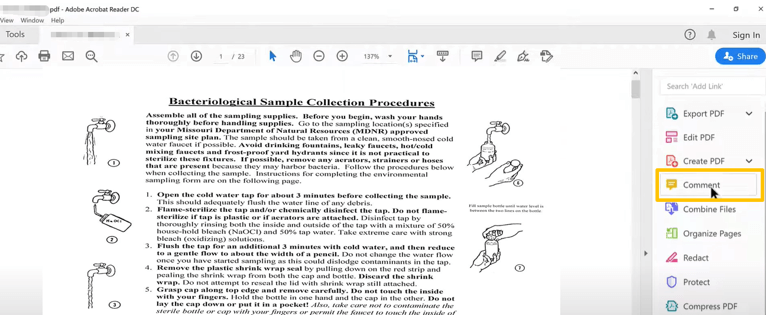
Step 2: Expand the tools pane on the side and choose the Comment tool.
Step 3: Click the Add sticky note option, then tap somewhere in the PDF to place the note.
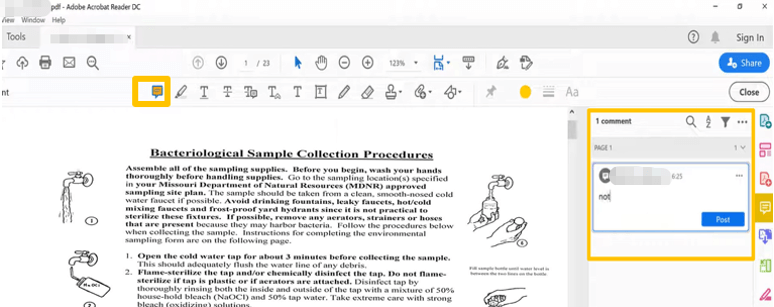
Step 4: Type text in the comment box to add a comment to the PDF, and click “Post” to save it.
Step 5: Choose the highlighting, underlining, or another option to annotate the PDF. Once you’ve annotated, you can add comments to the PDF annotations in the side box that appears with Adobe Reader.
Way 3: How to Add Comments on a PDF in Preview
A lucky thing for Mac users is that you can add comments to a PDF without third-party programs. The default image and PDF viewer on macOS, Preview, caters to your daily PDF commenting needs. It can add highlights, rectangles, ovals, pop-up notes, and other comment types. It also helps extract and add pages to a PDF.
Find out how to highlight and add comments in a PDF file on a Mac using the Preview application.
Step 1: Right-click or control-click the PDF and select Open with > Preview to open your file.
Step 2: Click the drop-down arrow beside the Highlights and Notes icon and select a color.
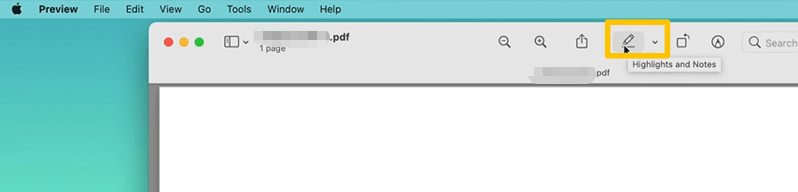
Step 3: Drag over text to highlight it, and right-click on the highlighted text to choose Add Note.
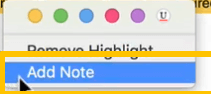
Step 4: Now, you can comment the PDF in the pop-up yellow box, and click outside it when finished.
Step 5: Click the Show Markup Toolbar icon to display all the comment and annotation tools.
Step 6: Choose one tool to add text, shape, line, or other comments, and save the changes.
Way 4: How to Add a Comment in a PDF in Microsoft Edge
Users can add comments to a PDF file in Microsoft Edge. Another free and simple way saves you the trouble of subscriptions, software downloads, or registrations. Thanks to improvements in the browser’s built-in features, you can now highlight, draw freehand, type text, and add a pop note. You can use the tools more stably than before.
Find out how to add comments in a PDF document in Microsoft Edge.
Step 1: Launch the Edge browser, and drag and drop your PDF file onto the tab bar.
Step 2: Once the PDF opens, locate and select the text you want to comment on.
Step 3: Choose the Add comment option in the context menu.
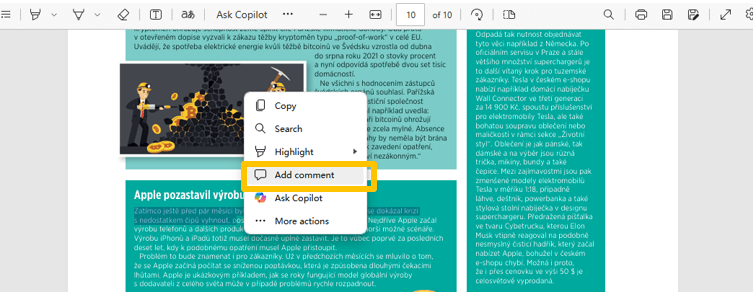
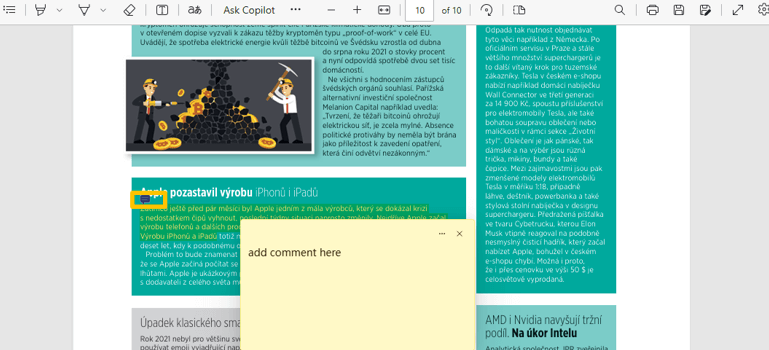
Step 4: Type text in the yellow window to add PDF comments and click the checkmark to save them.
Step 5: You can click the small icon that appears above the text to check the added comments later.
Pro Tips for Adding Comments to a PDF
The above tutorials introduce the newest and least effortful software tools and ways to add a comment in a PDF. Also, browse several key tips listed below to make your comments more effective.
Intuitive and precise: make your comments plain to understand and concise. Ensure no ambiguity, speed up the document review process. Guarantee your spelling is correct, and grammar is good for reading.
Technical advice: when you add comments on a PDF document on Windows or Mac, write your professional opinions and suggestions on specific info. Do necessary research to make your comments helpful, proven, and implementable.
Try using conspicuous markings: use obvious colors to make text or other content in a PDF stand out so the receiver can quickly see them. The beautiful marks make it easier for readers to read the comments.
Back up every version: Before and after you insert comments in a PDF document, remember to save both versions. Also, keep the versions that are edited by others. So that you can compare and recall something.
Why Can’t I Add Comments to a PDF?
The likely reason why you can’t add comments in a PDF is that it is secured. To solve that and edit a locked PDF, open your PDF in JOPDF, click “Protect” > “Decrypt”, and follow the on-screen prompts to remove the password from the PDF. Then, go to “Annotate” and choose a comment tool to add comments to a secured PDF file.
If you can’t select or highlight text, your PDF might be a scan. You can use the “Area Highlight” tool to select and highlight any text region.
What’s the Way to Make Comments on a PDF Collaboratively?
You may wonder the best way to add comments to a PDF so that several people can work on it at the same time. There are three best methods for collaborative commenting.
- Get a Google Drive subscription, then upload and share your PDF with others in your organization. This way, colleagues can comment the PDF file in real-time simultaneously, and the owner can see the comments instantly.
- In Acrobat, click the “Share With Others” or “Send for Review” feature, provide email addresses of the people who need to do the comment work, allow the permissions, and share the PDF with them. Each recipient can view the PDF and add comments to it. You can receive real-time comment notifications.
- Convert the PDF to a Word doc, and use Microsoft Word’s comment feature to make the file accessible to anyone on your company’s server.
Conclusion
You’d like a handy tool for yourself or others to add comments or correct errors conveniently. This article is compiled with up-to-date software and solutions. Give them a try, especially JOPDF, the entirely free PDF application!
FAQs
Table of Contents

Your Best Free PDF Expert in PDF editing, compressing, converting, annotating, protect, organizing, and more.
Free DownloadWindows · macOS · Linux

Selena
Staff Editor
“Selena is a staff editor working for JOPDF, passionate and committed to providing how-to and round-up articles. Over 8 years of specialized skills and experience in PDF solutions, hoping to help users ease their lives and solve whatever they encounter. "Work smarter, not just harder!"”